How to Make Your Android Camera Quality Better
Learn practical steps to improve photo quality on Android phones, including lighting, lens care, exposure, white balance, stabilization, RAW capture, and smart app choices.


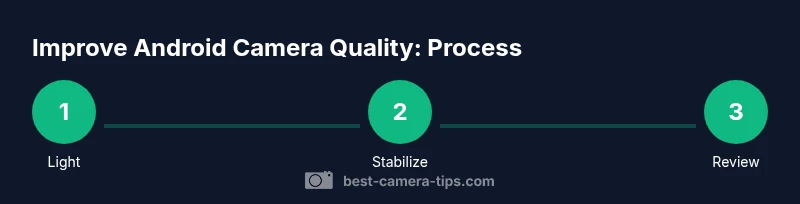
To boost Android camera quality, start with simple steps: maximize lighting, clean the lens, and stabilize shots. Update your camera app or OS, explore RAW capture if available, and use manual controls or a third-party camera app when possible. Fine‑tune exposure, white balance, and focus, then compare results before and after. The Best Camera Tips team recommends testing across scenes for best results.
Lighting and Environment: The Foundation of Great Photos
Great photos start with good light. On Android devices, lighting quality often determines sharpness and color fidelity more than hardware alone. Seek natural light when possible, position the subject to face the light source, and avoid strong backlighting that washes out details. If you must shoot indoors, use a bright, diffuse light and avoid mixed color temperatures. Quick tests show that consistent lighting reduces grain and misfocus, making post-processing easier. According to Best Camera Tips Team, investing in controlled lighting is one of the most cost-effective upgrades for beginners and advanced users alike. Small adjustments, such as angling a lamp or opening curtains, can dramatically improve contrast, color accuracy, and overall image depth.
Lens Care and Hardware Readiness
A clean lens is the most misunderstood yet essential element of image quality. Fingerprints, dust, and smudges create hazy images and reduce sharpness, especially on midrange sensors. Before you shoot, wipe the lens with a lint-free microfiber cloth in a gentle circular motion. Inspect the camera housing for scratches; if present, your results may never reach the clearest possible look until the lens is repaired or replaced. Stabilization helps too: use a tripod, a stable surface, or a phone mount to minimize hand shake. If you see focus hunting or blur when your subject is stationary, check the optical stabilizer setting and consider enabling a lower compression or higher bit-rate video mode if you shoot video. Best Camera Tips Team notes that hardware cleanliness consistently yields measurable gains in perceived clarity.
Software Settings: Pushing Your Phone's Camera to the Next Level
Software can unlock significant improvements without hardware changes. Start by setting the highest native resolution your device and app support, and enable any form of RAW capture if available; RAW preserves more information for editing and can dramatically improve dynamic range in post-production. Turn off aggressive beauty filters that soften detail, and prefer scene modes or manual controls that allow precise exposure and white balance adjustments. If your stock camera app lacks controls, consider a third-party app that exposes RAW, manual focus, and shutter speed. Remember to capture multiple frames at different exposures to choose the best. Best Camera Tips Team emphasizes that disciplined post-processing with RAW files is often the real differentiator in challenging lighting.
Manual Controls and Third-Party Apps for Precision
Manual or Pro modes give you direct control over ISO, shutter speed, white balance, and focus. Start with a low ISO to reduce noise in bright conditions, then increase only as needed in low light. Use moderate shutter speeds to avoid motion blur, balancing with tripod usage. If your device lacks built-in pro controls, a reputable camera app with RAW support can fill the gap. Learn how to lock exposure, adjust focus distance, and use exposure bracketing to capture high dynamic range scenes. Practice makes perfect—test quick sequences and keep the best shot. Best Camera Tips Team suggests documenting the settings that work best for different scenes to reuse later.
Scenario-Based Tips for Different Scenes
Portraits, landscapes, macro, and night shots each reward slightly different settings. For portraits, a warmer white balance and gentle lighting yield flattering skin tones; for landscapes, use the highest depth of field supported and consider longer exposure if the scene requires it. In low light, stabilize the camera, enable HDR if supported, and shoot in RAW if possible. Avoid digital zoom since it degrades detail; instead move closer or crop later. Always shoot in bursts to capture a moment with the right expression or movement, then pick the best frame.
What Limits Your Android Camera and When to Accept It
Many Android devices share a common constraint: small sensors coupled with compact lenses. Even with the best software, there are scenes where hardware limits prevent crisp detail or color accuracy. In those cases, the smartest move is to optimize the environment and capture technique rather than pushing the hardware beyond what it can do. Use stabilization, compensate with light, and accept that some scenes will look better with post-processing than with straight out-of-camera JPEGs. The Best Camera Tips Team notes that managing expectations and learning which scenes you can improve most is essential for steady progress.
Quick Start Checklist: Before You Shoot and After
Before shooting, inspect the lens for fingerprints, clean with microfiber, ensure the camera app is set to the highest resolution, enable stabilization, and look for a favorable light source. If possible, enable RAW capture and manual controls. After shooting, compare shots side-by-side, note which exposure and white balance settings produced the best result, and save a 'reference' profile for future sessions. This rapid loop builds a personal reference library that accelerates improvement over time.
Tools & Materials
- Android smartphone with up-to-date OS(Ensure the device supports the latest camera features your app uses)
- Lint-free microfiber cloth(For lens cleaning without scratches)
- Microphone stand or tripod(Stabilization helps in low light or long exposures)
- Bright, diffuse lighting (natural or lamps)(Improves image quality without raising ISO)
- Optional: a third-party camera app with RAW support(Gives more manual controls and RAW capture)
Steps
Estimated time: 30-60 minutes
- 1
Evaluate environment and device capabilities
Identify your lighting quality, camera app version, and whether RAW or manual controls are available. This helps tailor your approach for the session.
Tip: Note the scene type (indoor, outdoor, low light) to guide settings. - 2
Clean the lens and tidy the shooting area
Wipe the lens gently with a microfiber cloth in circular motions. Remove smudges from the shooting area and clear nearby reflections that may cause glare.
Tip: A clean lens yields immediate improvements in clarity. - 3
Set maximum resolution and consider RAW
In your camera app, select the highest native resolution. If RAW is supported, enable it for maximum post-processing flexibility.
Tip: RAW files require editing; ensure you have storage for larger files. - 4
Enable manual controls where possible
Switch to Pro/Manual mode if available. Adjust ISO, shutter speed, and white balance to suit lighting and scene color.
Tip: Avoid high ISO in bright light to reduce noise. - 5
Stabilize the shot
Use a tripod or stable surface; avoid hand-held shots at long exposures. Use a timer or remote shutter to further minimize shake.
Tip: Even a slight shake softens fine details. - 6
Optimize lighting and composition
Position light sources to illuminate the subject evenly and apply composition rules (rule of thirds) for balance.
Tip: Prefer soft, diffused light over direct harsh light. - 7
Review, compare, and refine
Compare bracketed shots or attempts, note the best exposure and white balance, and reuse the settings in future sessions.
Tip: Create a quick log of effective settings per scene.
Common Questions
Can I improve camera quality without buying new hardware?
Yes. Most improvements come from lighting, stabilization, and smart camera settings. Software changes and post-processing can yield noticeable gains on many devices.
Yes. You can improve quality with lighting, stabilization, and smart camera settings—often more than with hardware alone.
Should I shoot in RAW on Android?
If your device supports RAW, shooting in this format preserves more image data for post-processing and dynamic range adjustments. It's especially helpful in challenging lighting.
If RAW is available, use it for more editing flexibility, especially in tricky lighting.
Is it better to use the stock camera app or a third-party app?
It depends. The stock app is optimized for your device, but third-party apps can offer advanced controls and RAW support. Try both to see which delivers the best results for your scenes.
Try both stock and third-party apps to see which gives you better control and results.
Why are photos blurry in low light?
Low light often forces higher ISO or longer shutter speeds, both of which can blur or introduce noise. Stabilize, increase light, or shoot with RAW to recover details in post.
In dim light, slow shutter speeds cause blur, so stabilize and boost lighting when possible.
What role does lens cleaning play in image quality?
A clean lens reduces haziness and improves sharpness. Regular cleaning is one of the easiest and most effective upgrades you can apply.
Cleaning the lens is a quick, powerful way to sharpen images.
Do AI enhancements replace good shooting technique?
AI processing can help, but it cannot fix fundamental issues like bad light or motion blur. Good technique and proper exposure are still essential.
AI helps, but solid lighting and technique are still essential.
Watch Video
The Essentials
- Prioritize lighting before hardware changes
- Use RAW capture where available for post-processing flexibility
- Stabilize every shot to reduce blur
- Experiment with manual controls and compare results
- Document settings that work across scenes