How to Camera Access: A Practical Guide for Authorized Users
Learn how to access your cameras securely and legally with step-by-step setup, permissions, and troubleshooting tips. This guide from Best Camera Tips covers home security and photography setups for authorized users.


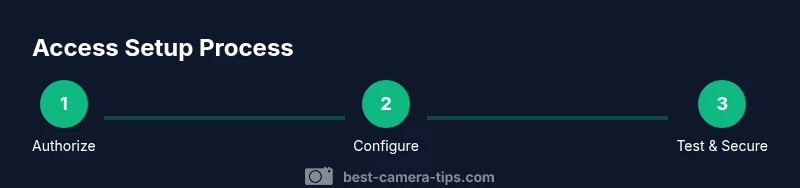
Access to cameras should be authorized and secure. This guide shows how to choose safe access methods (local, VPN, or encrypted cloud), verify permissions, and configure authentication to protect privacy. Follow the steps to ensure legal, reliable access and ongoing security.
Why authorized camera access matters
Authorized access to camera feeds is essential for safety, privacy, and legal compliance. According to Best Camera Tips, secure access starts with verified authorization and clearly defined user roles. Best Camera Tips analysis shows that breaches and misuse often stem from weak credentials, misconfigured permissions, or outdated firmware. By establishing a trusted access framework, you reduce risk, protect witnesses, and safeguard your own data. This section explains why you must limit access to authorized users and how to document approvals for audits, lawsuits, or insurance claims. You will learn about different access modes and how to choose the right approach for your setup.
Understanding camera access: types and scope
Camera access can take several forms: local access on the same network, remote access via a VPN or secure cloud service, and direct internet exposure (which is discouraged without encryption). IP cameras, webcams, and CCTV recorders each have different interfaces (web UI, mobile apps, RTSP streams). Understanding these types helps you plan controls, authentication requirements, and monitoring. For home setups, local access often suffices; for remote monitoring, VPN-based access and encrypted cloud solutions are preferred to minimize exposure.
Planning your access setup
Before you touch devices, you should define who can access cameras, from where, and under what conditions. Create role-based accounts, enable MFA where possible, and document the permissions assigned to each user. Map your network topology, including routers, switches, and any NAT devices, so you can design secure paths for access. This preparation reduces misconfigurations and speeds up onboarding new team members or family members who need access.
Setting up local access on desktop and mobile
To access cameras locally, connect your computer or phone to the same network as the camera system. Open the camera's web interface or the official app, then log in using a unique, strong password. Change default admin accounts and disable unused services. Enable two-factor authentication if supported. Keep firmware up to date to close known vulnerabilities. This approach minimizes exposure while keeping latency low for real-time viewing.
Accessing IP cameras over the internet securely
Remote access over the internet increases flexibility but also risk. Prefer VPN-based connections rather than exposing RTSP or HTTP ports. If you must use remote access via the cloud, ensure encryption (TLS) is enabled and that you use strong, unique credentials. For dynamic IPs, consider a dynamic DNS service and keep a current contact method for password resets. Regularly review device logs for unusual login attempts.
Using mobile apps for secure camera access
Mobile apps offer convenient access across devices. Ensure the app requires a strong password and MFA, and bind devices to the account so unauthorized phones cannot pull feeds without approval. Enable push notifications for unusual events and restrict local network access to trusted networks. Periodically refresh credentials and revoke access for old devices.
Troubleshooting common access issues
If you cannot access feeds, verify your authorization, review user permissions, and confirm network status. Check firewall rules, VPN tunnels, and port-blocking settings. Ensure clock synchronization across devices; time drift can invalidate token-based sessions. Consult the camera's logs for failed login attempts or blocked IPs and correct misconfigurations accordingly.
Privacy, safety, and legal considerations
Always respect privacy laws and consent when accessing cameras in shared spaces. Only access feeds you are authorized to monitor, and avoid recording without notice where required by law. Use a clearly documented access policy, and inform others who may be affected by monitoring. This protects you from civil or criminal liability and supports responsible security practices.
Maintenance, backups, and audits
Schedule regular firmware updates, password rotations, and access reviews. Keep manuals and diagrams current so new users understand how to access feeds safely. Periodically audit user accounts, remove unused ones, and test failover and backup procedures. This discipline minimizes downtime and privacy risks while keeping your system resilient.
Tools & Materials
- Authorized login credentials(Unique to each user with MFA enabled where possible)
- Smartphone or computer(Device used for accessing feeds)
- Camera firmware/app(Ensure latest version installed)
- VPN service (recommended)(Optional but highly recommended for remote access)
- Reliable network (WPA3 Wi‑Fi)(Secure home network)
- Documentation of setup(Manuals, diagrams, credentials policy)
Steps
Estimated time: 2 hours
- 1
Verify authorization and inventory credentials
Confirm you have explicit permission to access the camera feeds. Gather all required usernames, passwords, and device IDs. Note any shared accounts and ensure you know the security policies in place.
Tip: Document approvals in a secure, auditable location. - 2
Choose the access method and scope
Decide whether you will access locally, through a VPN, or via a cloud-based service. Define which cameras each user can view and whether they can adjust settings.
Tip: A VPN provides a strong balance of security and accessibility. - 3
Create or update user accounts and permissions
Create individual accounts or bind devices to existing accounts. Assign role-based permissions and enable MFA. Disable shared or default admin accounts where possible.
Tip: Avoid shared credentials to improve traceability. - 4
Configure the cameras for remote access
Enable remote access in the camera UI if needed, update firmware, and set a strong admin password. Restrict protocol availability to secure options like HTTPS or TLS-enabled RTSP.
Tip: Turn off unused services to minimize attack surface. - 5
Set up secure connections
If using VPN, ensure it is configured properly and tested. If using cloud, verify end-to-end encryption. Use TLS for web interfaces and disable HTTP.
Tip: Test the connection from a trusted device before sharing access. - 6
Test access from trusted devices
Log in from a desktop and a mobile device. Check video quality, latency, and reliability. Confirm you can navigate menus without exposing credentials.
Tip: Keep a log of test results for future audits. - 7
Review alerts and adjust permissions
Turn on relevant alerts and ensure only necessary users receive them. Review who has access and remove anyone who no longer needs feed access.
Tip: Rotate credentials after changes. - 8
Document settings and share access securely
Create a written access policy and store it securely. Share access details only through secure channels and with explicit consent.
Tip: Use encrypted notes or a password manager with restricted sharing. - 9
Plan for maintenance and firmware updates
Schedule regular firmware updates and credential reviews. Prepare a rollback plan in case an update causes issues.
Tip: Test updates in a controlled environment if possible. - 10
Establish backups and recovery
Back up configuration profiles and access policies. Ensure you can recover credentials and reset devices if needed.
Tip: Keep recovery information in a separate secure location.
Common Questions
Do I need to be on the same network to access the cameras?
Not always. Local access is immediate on the same network, but remote access can be achieved securely via VPN or cloud services. Always ensure you have explicit authorization before attempting remote access.
You can access feeds remotely if you have authorization and use a secure connection like VPN; local access works on the same network.
Is port forwarding safe for camera access?
Port forwarding can expose devices to the Internet. It is safer to use VPN or encrypted cloud solutions rather than exposing RTSP/HTTP ports publicly.
Port forwarding can be risky; use VPN instead for remote access.
How do I enable HTTPS on the camera web interface?
Enable TLS/HTTPS in the camera settings if supported. Disable HTTP and use strong, unique credentials for admin access.
Enable HTTPS in settings and use strong passwords.
Can I access cameras without a cloud service?
Yes. Many cameras provide local or VPN-based access without cloud services. Cloud options offer convenience but add a privacy consideration.
Yes, you can access locally or via VPN without cloud.
How do I revoke access when a person leaves?
Remove the user from the account, revoke device bindings, and rotate credentials. Confirm that all devices associated with the user are updated.
Remove their access and rotate credentials to stay secure.
Watch Video
The Essentials
- Verify ownership and obtain authorization before accessing feeds.
- Prefer VPN or encrypted connections over direct port exposure.
- Rotate passwords, enable MFA, and keep firmware updated.
- Limit access with role-based permissions and audit trails.
- Document changes and test recovery procedures regularly.