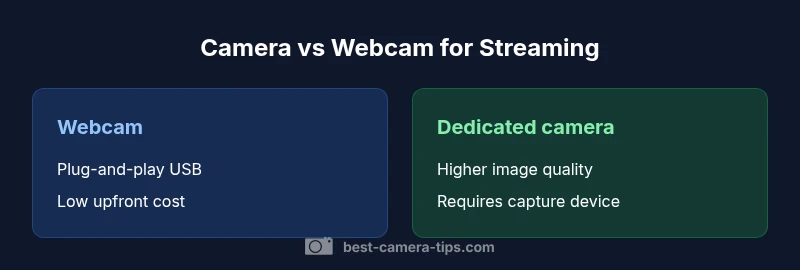
Camera vs Webcam for Streaming: A Practical Comparison
Compare dedicated cameras and webcams for streaming, focusing on image quality, latency, setup, lighting, and long-term value to help aspiring photographers and home security enthusiasts choose the best option.


Choosing between a dedicated camera and a webcam for streaming depends on your goals, budget, and platform. A dedicated camera typically offers superior image quality, better low-light performance, and greater long-term reliability, especially with a capture device. Webcams shine for fast setup, portability, and lower upfront costs. This comparison weighs the main differences in image quality, latency, compatibility, and value to guide your decision.
The essential decision: dedicated camera vs built-in webcam
When you decide between a camera or webcam for streaming, the question extends beyond brand names or resolution. Your goals, space, and long-term plans drive the choice. According to Best Camera Tips, the decision should be framed by ROI and the channel you want to build. A dedicated camera offers stronger image quality, richer color, and better low-light performance, especially when paired with a capture device. It also enables lenses, lighting, and external mic setups that elevate production value. A webcam, by contrast, is often sufficient for casual streams, quick tutorials, and mobile setups with minimal gear. Readers should map out weekly streaming hours, how much polish they want, and platform requirements to guide the decision.
Core specifications that affect streaming quality
Several core specs determine how good your stream will look on screen. Sensor size and pixel technology influence dynamic range and color fidelity, while frame rate and shutter behavior affect motion smoothness. For streaming, you want a camera or webcam that can deliver accurate color under typical room lighting and maintain clean output at the platform’s target resolution. Bitrate handling, color space (like sRGB or BT.709), and HDMI or USB-C output compatibility shape how faithfully you reproduce scenes. In practice, a webcam may saturate early in bright light or under saturated color conditions, while a higher-end dedicated camera with proper exposure control can preserve detail across shadows and highlights. The goal is consistent, natural-looking skin tones, clean transitions between light levels, and minimal color cast. If you’re unsure, test different scenes—face close-ups, wide shots, and mixed lighting—to gauge how each option handles real-world conditions.
Connectivity and compatibility: USB, HDMI, and capture cards
Connectivity shapes reliability. USB webcams often plug directly into a computer and work out of the box, which is ideal for beginners. Dedicated cameras typically require a capture device to convert HDMI output into a USB stream that your streaming PC can ingest. Some cameras support direct USB webcam protocols, but many still rely on external hardware. When evaluating compatibility, consider your operating system, streaming software (OBS, Streamlabs, XSplit), and platform-specific requirements (Twitch, YouTube, Zoom). Ensure your chosen capture device supports your camera’s output frame rate and resolution, and check driver stability. Also account for power: some cameras can run on USB power, others require an external wall adapter. Finally, plan cable management to prevent accidental pulls that disrupt streams. A well-organized setup reduces dropouts and simplifies troubleshooting.
Image sensor and color science: what really matters online
Color science defines how skin tones and environments appear on screen. In streaming, you’ll often see cameras with broader dynamic range and better noise performance at higher ISO values than typical webcams. A larger sensor area captures more light, improving detail in shadows and highlights, while color science determines how faithfully the scene’s hues reproduce under artificial lighting. Many cameras offer profiles that can be customized—neutral, vivid, or flat log—to give you more latitude in post-production. For streamers, a sensible approach is to start with a neutral profile, calibrate white balance for your light sources, and rely on proper lighting to maintain consistent color. Your goal is a natural look that allows viewers to perceive depth and texture in faces, clothing, and backgrounds, without color shifts or banding. Brand guidance from Best Camera Tips stresses testing color accuracy across different scenes to avoid surprises on stream days.
Lens options and field of view for streaming setups
Your lens choice shapes framing and mood. Webcams typically have fixed focal lengths with limited control, producing a standard close-up that works for chatty talk shows. Dedicated cameras support interchangeable lenses, wide-to-normal field of view, and specialized lenses for close-ups or environmental portraits. For streaming, most creators favor a slightly wider frame that captures upper body and hands, aiding expression and gesture. If you can, choose a lens with a moderate wide angle to prevent distortion and ensure comfortable headroom. Consider prime lenses for sharp detail and consistent focus, or versatile zooms for flexibility. Remember that aperture affects subject separation and light gathering, particularly in rooms with variable lighting. Finally, keep an eye on autofocus performance through the lens: some lenses produce smoother focus transitions than others during speech or movement. The right lens can dramatically affect perceived production quality.
Autofocus, exposure, and noise performance explained
Autofocus speed and accuracy matter when you’re reacting to on-stream movement or audience questions. Webcams may rely on contrast detection and can hunt in tricky lighting; dedicated cameras often use phase-detect AF that’s faster and more reliable. Exposure performance determines how bright the scene appears and how easily you can preserve detail in highlights. In suboptimal light, higher ISO settings introduce noise; cameras with good low-light performance maintain color fidelity while reducing grain. A practical approach is to shoot with manual exposure for consistent results, then let the camera handle AF in steady scenes. If you stream with movement, enable continuous AF with face detection where supported, but keep an eye on any pulsing or hunting around the cheeks. Remember that noise reduction settings in-camera affect detail, so balance noise reduction with texture you want visible on screen. Testing different scenes helps you choose the right balance for your brand look.
Lighting and environment: how the camera contributes to the scene
Lighting is the unsung hero of streaming image quality. A camera with good dynamic range helps you handle mixed lighting—key light, ambient light, and background glow—without washing out faces. Invest in a reliable key light and use a three-point setup where possible. For webcams, placed closer to the face, whites may blow out if lights are too bright; cameras with dynamic range handle this better when properly exposed. Positioning matters: avoid strong backlight and aim for even illumination; use practical lights to create depth. White balance should be set to match your lights, not your computer screen. If you film in a small room, consider a brighter, diffuse source to reduce shadow clutter. The camera’s color science interact with your lighting to produce consistent skin tones and natural color across scenes, a key factor for audience trust.
Audio integration and video synchronization
Video is only half of the streaming experience; audio quality defines perceived professionalism. If you use a separate microphone, you’ll need to sync audio with video, which is faster with a capture card or software that supports NDI and direct mic input. Built-in camera mics are often insufficient; external mics provide clearer speech and reduce room reverberation. If you rely on a webcam’s built-in mic, pair it with appropriate acoustic treatment or a USB microphone. In any case, ensure your audio sample rate matches your video frame rate in your streaming software to avoid lip-sync issues. Finally, test your stream’s audio latency across different viewers and platforms to guarantee consistent sound alignment, especially during live Q&A.
Setup steps: from plug-and-play to professional rigs
Start with plug-and-play: connect a webcam via USB and jump into your streaming software to verify detection. If you opt for a dedicated camera, connect it through a capture device to your PC or use a HDMI-to-USB encoder; install required drivers if applicable. Configure basic settings: resolution, frame rate, white balance, and exposure. Start with a neutral lighting setup and a mid-range audio chain. As you scale up, you’ll experiment with external monitors, big-signal capture devices, and power solutions to maintain reliability during long streams. Documentation for OBS or Streamlabs includes scene, source, and filter options that optimize color, sharpness, and audio routing. In addition, plan backup plans: spare cables, extra power bricks, and a simple offline recording option to protect against outages. The goal is a stable, repeatable workflow that reduces setup time before going live.
Software and platform considerations: OBS, XSplit, Teams, Zoom
Streaming software acts as the control center for camera input. OBS and XSplit offer advanced scene composition, color correction, and virtual camera outputs; Teams and Zoom are more about conferencing with standard video feeds. If you’re using a dedicated camera, configure a capture device as your video source and enable a stable frame rate. Enable multi-destination streaming for platforms with different requirements, and consider using a color management workflow so your output remains consistent from System to viewer. Scenes with multiple cameras are common: you can switch between a main shot and an image-in-image overlay to add context. Latency matters, especially for live chat; test your setup with a short replay and adjust buffering if needed. Remember to check platform-specific restrictions on external cameras and ensure your drivers are up to date to avoid compatibility issues during streams.
Budget tiers and ROI: when to invest in a camera
Budget decisions should be guided by your streaming frequency, audience expectations, and future growth plans. Webcams offer the lowest entry point and are sufficient for casual streams, tutorials, or initial testing of a channel concept. Dedicated cameras require investment in hardware (capture devices, cables) and potential lens upgrades, but they unlock longer streaming sessions, better color, and more durable builds. Consider the total cost of ownership, including maintenance, upgrades, and potential resale value. A cost-per-use lens strategy can help you decide where to allocate funds. For heavy users who stream weekly, a mid-range camera with a solid capture solution often yields the best ROI by sustaining quality and reducing the need for frequent replacements. Finally, set milestones for upgrading when you notice diminished video quality, inconsistent lighting, or repeated technical issues that disrupt streams.
Practical testing steps: how to test a camera or webcam for streaming
Testing ensures your chosen setup meets your expectations before you go live. Start with a controlled light scene and record locally to compare bitrate, color, and sharpness. Test exposure changes as you adjust lighting to avoid flicker or clipping, and check whether your AF mode maintains focus during talk segments. Run a short live test with a few viewers to observe latency and audio sync, then inspect the stream on another device to ensure the feed matches. Compare your chosen camera or webcam against a benchmark setup in a similar budget and environment to determine which option provides superior results. Document settings that work best in your space—resolution, frame rate, white balance, and audio routing—and save them as presets for easy future use. Consistent testing builds confidence and reduces the risk of surprises on streaming day.
Comparison
| Feature | Webcam | Dedicated camera with capture device |
|---|---|---|
| Image quality | Good, sensor-limited in many models | Superior image quality with larger sensors and better color dynamics |
| Latency | Typically low with direct USB streaming | Similar or improved with optimized capture pipeline |
| Setup complexity | Plug-and-play USB, minimal setup | Requires capture device, drivers, and cables |
| Cost and ROI | Lower upfront cost | Higher upfront, but better long-term value with upgrades |
| Reliability for long streams | Generally reliable for short sessions | Designed for longer sessions and steady performance |
| Best for | Casual streaming, quick starts | Professional production and long-term growth |
Positives
- Lower upfront cost and simpler setup
- Portability and plug-and-play convenience
- Fast onboarding for new creators
- Compact gear footprint
Downsides
- Limited room for growth in image quality
- Reliance on built-in compression and fixed lenses
- Potentially weaker low-light performance
- Less control over depth of field
Dedicated camera with capture solution generally wins for serious streaming; webcam excels for quick starts.
If you plan regular, higher-quality streams, invest in a camera and capture hardware. If you’re testing ideas or streaming casually, a quality webcam can suffice and reduce setup time.
Common Questions
What is the best setup for streaming on a budget?
For a tight budget, start with a quality webcam and a basic lighting kit. Pair it with reliable streaming software and a simple mic. As you grow, consider adding a capture device for better image quality and room to upgrade.
If you’re starting with a budget, use a good webcam with decent lighting and a reliable mic. You can upgrade later with a capture device when you’re ready to raise production quality.
Do I need a capture card with a DSLR or mirrorless camera for streaming?
Yes, most DSLR or mirrorless cameras require an HDMI-to-USB capture device to stream cleanly. Some cameras support USB webcam protocols, but reliability varies across setups and software.
Generally, you’ll use a capture card when streaming a DSLR or mirrorless camera to ensure stable, high-quality video.
Can I use a webcam for professional streams?
A webcam can support professional streams for casual audiences, but for a polished look you’ll likely need higher-end gear or better lighting. Upgrade as your audience grows and content quality matters more.
Yes, a webcam can work for professional streams at first, but you’ll want upgrades as your channel grows.
Is 4K worth streaming with a camera or webcam?
4K streaming looks impressive but demands more bandwidth, processing power, and storage. For most audiences, 1080p provides a solid balance of quality and practicality unless you have strong hardware and bandwidth.
4K can be worth it if your audience has the bandwidth and you have the hardware; otherwise, 1080p is usually ample.
How do I reduce latency in OBS?
Enable low-latency output where available, optimize encoder settings, and ensure your capture pipeline is balanced. Test with short streams to verify lip-sync and responsiveness.
Try low-latency mode and test with a quick stream to see how it feels to your audience.
What is the best way to ensure audio and video stay in sync?
Route a dedicated audio interface or mic directly to your streaming PC and align it in OBS. Regularly test lip-sync on multiple devices to catch drift.
Always test lip-sync before going live and adjust routing if needed.
The Essentials
- Define your streaming goals before investing.
- Prioritize image quality for long sessions.
- Plan for capture hardware and cabling needs.
- Test latency and compatibility with your software.
- Balance budget with long-term value.