How to Camera on iPhone: A Practical Guide
Learn how to take stunning iPhone photos with practical steps, best settings, lighting tips, and a complete shoot plan from Best Camera Tips.


Goal: Learn how to camera on iphone to capture sharp, well-composed photos using only your phone. In this quick guide, you’ll master essential settings (grid, HDR, Live Photo), lighting choices, and basic composition so your shots look polished in any scene. Before you begin, ensure your iPhone has the latest iOS, set a clean lens, enable the grid, and choose the appropriate shooting mode.
Understanding the iPhone Camera Hardware and Software
The iPhone camera system blends hardware and software to produce sharp images with minimal effort. Today’s iPhones include multiple lenses, advanced image sensors, and computational features like Smart HDR, Deep Fusion, and Night mode. Even though the device automates most decisions, knowing how the components influence your result helps you plan better shots.
Key factors:
- Sensor size and lens choices impact dynamic range and detail. A brighter environment makes it easier to capture texture and color.
- Computational photography uses multi-frame processing to reduce noise, improve color accuracy, and enhance contrast.
- Night mode automatically activates in low light and relies on longer exposure times and stabilization, so steady hands or a tripod can dramatically improve results.
For aspiring photographers, understanding that software and processing do a lot of the heavy lifting is empowering. It means you can shoot in difficult lighting and still end up with professional-looking results by adjusting a few settings and composition choices.
Essential Camera Settings for Quick Results
Your iPhone offers several settings that dramatically improve photos with minimal effort. Start by turning on grid lines to help with composition and horizon alignment. If you’re shooting in bright conditions, enable High Dynamic Range (HDR) or Smart HDR if your model supports it to balance exposure across bright and dark areas. Live Photo can be enabled if you want micro-motion and later frame extraction, but switch off if you want a pure still. Choose the image format best suited to your workflow—HEIF for higher efficiency or JPG for wide compatibility. Finally, select a shooting mode that suits the scene: Photo for general shots, Portrait for depth of field, and Night mode for low light. These settings create a strong foundation for most everyday photography.
Focusing and Exposure: Master These Tricks
Tap to focus on your subject, then adjust exposure by sliding your finger up or down on the screen after focusing. Locking AE/AF (auto exposure and focus) is useful for scenes with changing light or when you want a consistent look across a series of shots. Use exposure compensation sparingly; a slight lift can reveal texture, while overexposure washes out detail. If your subject is moving, try burst mode (rapid-fire shots) to capture the right moment. Finally, avoid excessive digital zoom; instead, move closer or crop later to preserve detail and sharpness.
Composition and Lighting: Framing Your Shot
Good composition goes beyond straight horizons. Use the rule of thirds by placing key subjects along intersecting lines. Natural light is your best friend; shoot with the light source at your back or to the side to sculpt facial features and textures. When indoors, leverage window light or a small LED panel to reduce harsh shadows. Be mindful of clutter in the background; simplify the frame so the subject stands out. For color harmony, consider complementary outfits or props that echo the scene’s mood. Finally, clean your lens before every shoot to avoid soft or hazy images.
Shooting Modes: Photo, Portrait, Night, and Pro Options
iPhone cameras offer a spectrum of modes to match scenes. Use Photo mode for everyday shots and Portrait mode to simulate depth of field with refined edge detection. Night mode enhances brightness in low light when the phone detects darkness, using longer exposure times and image stabilization. Pro options (where available) let you capture more data with RAW formats like ProRAW, and adjust white balance or ISO manually in compatible apps. While Pro modes are powerful, practice to understand how changes affect tone and texture before committing to a shot.
Stabilization and Sharpness: Get Crisp Details
Stability is essential for sharp photos. Keep your elbows tucked in, elbows braced, or rest your phone on a stable surface. A lightweight tripod or phone mount can dramatically reduce shake, especially in low light or long-exposure situations. When possible, use a faster shutter speed to freeze motion in action shots, and rely on Night mode only when ambient light requires it. Clean the lens regularly to maintain maximum sharpness and avoid fingerprints that degrade detail.
Post-Processing on iPhone: When and How to Edit
Editing can elevate a good photo to a great one. Start with the built-in Photos app, adjusting exposure, contrast, highlights, shadows, and color balance. For more advanced control, try third-party apps like editing suites or RAW processors to fine-tune tonal ranges and sharpen details. Always save a copy of your original file before large edits and compare edits to the original to ensure you’re not oversaturating or clipping highlights. Remember, subtle edits often yield the most natural results.
Planning a Complete Shoot: A Quick Field Guide
Before you shoot, set a goal for the scene: subject, mood, and background storytelling. Scout the location for available light and potential obstructions. Decide on a few framing options (wide, mid, close-up) and note any props that complement the subject. Build a short shot list with 6–12 frames to maintain focus and momentum. Finally, review your materials: a charged device, any lenses or lights, and a simple editing plan. A little planning goes a long way when you’re aiming for consistent, high-quality results.
Tools & Materials
- iPhone with latest iOS(Ensure camera app is up-to-date; any model with at least two lenses is ideal)
- Phone tripod or stable mount(Useful for long exposures or mini video shoots; prevents handshake)
- External lenses (macro/telephoto)(Optional for creative effects; check compatibility with your model)
- Portable LED light(Helpful in dim environments; choose a diffused light to avoid harsh shadows)
- Bluetooth remote shutter(Prevents camera shake during capture; especially for group shots)
- Extra charged battery or power bank(Maintains performance on long shoots or adventures)
- Editing apps (Photos, Lightroom, Snapseed)(Use for post-processing and color grading beyond the built-in tools)
Steps
Estimated time: 15-25 minutes
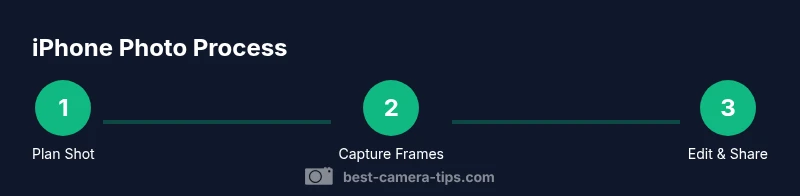
- 1
Plan your shot
Define the subject, scene, and lighting; choose a target mood and the frame composition you want. A quick plan prevents wasted frames and ensures consistency across shots.
Tip: Draft a one-line objective for the scene to stay focused during the shoot. - 2
Set up the frame with the grid
Enable grid lines in Settings > Camera. Use the grid to align horizons and place subjects along the rule of thirds for balanced composition.
Tip: Avoid placing the subject directly in the center unless you intend a bold, symmetrical look. - 3
Lock focus and exposure
Tap the screen where the subject is, then hold to lock AE/AF if needed. Adjust brightness by sliding; lock if the light is constant.
Tip: If lighting changes, unlock AE/AF and re-adjust to avoid clipping highlights. - 4
Try multiple modes
Switch between Photo, Portrait, and Night modes as needed. Capture a few frames in each mode to compare results.
Tip: Portrait mode works best with good edge contrast and ample lighting. - 5
Capture the shot
Stabilize the phone, gently press the shutter or use a remote, and avoid rapid tapping that could blur the image.
Tip: Hold breath for a moment to minimize camera shake during the shot. - 6
Review and edit
Open Photos, evaluate exposure and color, and apply gentle adjustments. Save a copy of the original before heavy edits.
Tip: Compare before/after to ensure edits improve the image without sacrificing detail.
Common Questions
What basic settings should I start with on an iPhone camera?
Start with grid lines on, ensure HDR is active if your model supports it, and pick a mode appropriate for the scene. Keep a consistent exposure while you learn. Turn off Live Photo if you want pure stills.
Turn on grid lines, enable HDR if available, pick the right mode, and keep exposure stable as you practice.
How do I shoot better photos in low light with an iPhone?
Use Night mode when available, stabilize the shot with a tripod or steady surface, and avoid zooming. Increase exposure slightly if necessary, but don’t overdo it, which can flatten detail.
Turn on Night mode, stabilize the camera, and avoid digital zoom to keep detail sharp.
Should I use RAW format on iPhone photos?
RAW (where available) gives more editing latitude but requires processing after capture. For quick workflows, JPEG/HEIF can be sufficient and faster to share.
RAW provides more flexibility for editing, but JPEG is faster for everyday use.
Can I achieve bokeh without a dedicated camera lens?
Portrait mode simulates depth of field by blending background blur with subject detection. For real depth, lighting and distance matter; you can approximate using spacing between subject and background.
Portrait mode mimics depth of field, but real depth effects depend on distance and lighting.
Is it better to edit on iPhone or desktop?
Edit on whichever you’re most comfortable with. iPhone edits are quick and portable; desktop tools offer advanced controls. Start with small, non-destructive adjustments.
Edit on whichever device you prefer; start with gentle adjustments on mobile, then move to desktop if needed.
What’s a quick workflow for practicing photography daily?
Set a simple daily goal, shoot in different modes throughout the day, review results, and save one improved shot. Over time, this builds consistent progress.
Set a daily goal, shoot in different modes, and review your best shot to learn quickly.
Watch Video
The Essentials
- Plan and pose before shooting to save time
- Use grid lines to improve composition instantly
- Lock exposure when lighting is steady
- Edit lightly to preserve natural look
- Experiment with modes to expand your skill set