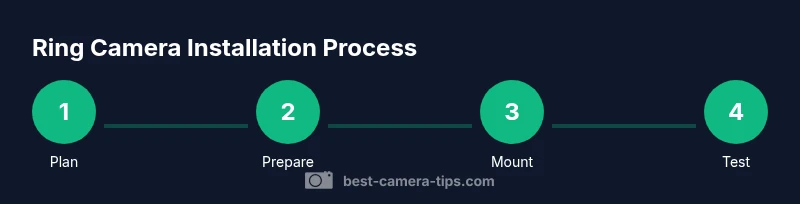
What Is Needed for a Ring Camera: A Complete Setup Guide
Learn exactly what you need to install a Ring camera—from power and Wi‑Fi to mounting hardware and app setup. This comprehensive guide from Best Camera Tips walks beginners through every requirement and step.


You can set up a Ring camera by meeting three core requirements: a Ring device, stable Wi‑Fi, and a Ring account. You'll also need mounting hardware and an appropriate power option (battery or wired). This quick answer highlights the essentials to get your Ring camera online. It assumes you are using a standard Ring Video Doorbell or camera, and that you have a router that supports modern security settings.
What is needed for a Ring camera: core prerequisites
If you're asking what is needed for a ring camera, the answer starts with three core things: a Ring device, reliable internet connectivity, and a Ring account. You’ll also need mounting hardware compatible with your surface and a power option that suits your device choice. In practice, most installations hinge on a steady network and a predictable power source, with the Ring app guiding setup. This combination ensures the camera can stream video, send alerts, and integrate with your Ring ecosystem.
Power options and mounting hardware
Ring cameras offer flexibility in power: some models run on rechargeable batteries, while others can be wired to your home power circuit. Battery-powered units are convenient for quick installs and places without outlets, but wired options provide constant power and potentially longer uptime. Regardless of option, you’ll need a mounting bracket, screws, wall anchors, and a surface that supports the camera’s weight and field of view. Always follow the manufacturer’s mounting guidelines to avoid obstructions or exposure to the elements.
Network requirements and router setup
A Ring camera relies on a stable home network. A strong Wi‑Fi signal at the installation point is essential, and many Ring devices recommend a 2.4 GHz network for reliability, with 5 GHz as a possible secondary option if your router supports it. If your home is large or has thick walls, consider a mesh network or a Wi‑Fi extender to reduce dead zones. Ensure your router’s firmware is up to date and that your network password is strong and unique to protect the camera feed.
Creating your Ring account and using the app
Begin by creating a Ring account or signing into an existing one. The Ring app will guide you through adding a new device, naming it, and configuring basic settings like motion zones and alert preferences. Keep your login credentials in a secure place and enable two‑factor authentication where available. The app also lets you customize privacy options, set activity timelines, and manage access for household members.
Placement strategies for optimal coverage
Mounting location determines how well a Ring camera performs. Aim for a clear line of sight to entry points, avoiding glare from direct lights or reflective surfaces. Position the camera at an appropriate height to detect people at the typical eye level of visitors, and angle it to cover doorways, driveways, or gates without obscuring the lens. Weather exposure should be considered; many Ring cameras are built for outdoor use, but you should still avoid mounting in direct rain if the device isn’t rated for submersion.
Storage options and subscription basics
Ring cameras feed into a storage plan that can be cloud-based or local depending on model and your region. If you choose cloud storage, you’ll need an active Ring subscription that covers video history, motion alerts, and access from multiple devices. Local storage options exist for certain models via microSD or other methods, but cloud plans often provide broader access and longer retention. Review plan tiers and features to match your security needs.
Safety, privacy, and data security considerations
Take privacy seriously when deploying a Ring camera. Ensure the device is physically secure to prevent tampering and use the Ring app’s privacy controls to limit who can view feeds. Keep firmware up to date to minimize vulnerabilities, and network security best practices such as strong router passwords and guest networks for visitors. If you share access, regularly review permissions and disable access for former household members.
Troubleshooting basics after installation
If the camera won’t connect, verify the power option and ensure the device is within strong Wi‑Fi range. A common fix is rejoining the device to the network via the Ring app, or temporarily moving the camera closer to the router to complete the initial setup. If motion alerts aren’t triggering, review the motion zones and sensitivity settings. For video quality issues, check bandwidth usage in your home network and adjust settings accordingly.
Final readiness checklist
Before you consider the installation complete, confirm the following: the device powers on and connects to Wi‑Fi, the Ring app recognizes the camera, motion zones are set as intended, and you can access live view from multiple devices. Review privacy settings and ensure firmware updates are enabled. With these steps, you’ll have a functional Ring camera ready to monitor your property.
Tools & Materials
- Ring device (Doorbell or Camera)(Model compatibility with your home setup)
- Power option(Battery or wired adapter per model)
- Stable Wi‑Fi network(2.4 GHz recommended; 5 GHz as available)
- Smartphone with Ring app(iOS or Android, latest app version)
- Mounting hardware(Bracket, screws, anchors suitable for surface)
- Screwdriver and drill (optional)(Required for mounting on hard surfaces)
- Cable management supplies(Cable clips or conduit for neat installation)
- Measuring tape(Helpful for optimal placement and level)
- Safety equipment(Ladder or step stool for elevated mounting)
Steps
Estimated time: 30-45 minutes
- 1
Confirm device compatibility
Ensure your Ring model supports the planned power option and mounting surface. Check the user manual for weight limits and outdoor rating, if applicable. This avoids compatibility issues later in the process.
Tip: Double-check model-specific requirements in the official manual. - 2
Choose power option
Decide between battery or wired power based on location and access to outlets. Batteries offer flexibility but require periodic charging or replacement, while wired setups provide continuous power.
Tip: If unsure, start with a battery-powered setup to test location before running wires. - 3
Select mounting location
Pick a spot with a clear view of entry points and minimal glare. Take ambient light and weather exposure into account for best visibility.
Tip: Mark the screw holes with painter’s tape to test fit before drilling. - 4
Install mounting hardware
Attach the bracket to the surface using the included screws and anchors. Ensure the surface is sturdy and level before proceeding.
Tip: Use a level to prevent angled feeds and suboptimal coverage. - 5
Mount the camera
Secure the camera onto the bracket and adjust the angle to maximize coverage. Avoid obstructing the lens or motion sensors.
Tip: Test the tilt after mounting by walking through the scene to confirm coverage. - 6
Connect to Wi‑Fi and Ring app
Open the Ring app, add a new device, and follow on-screen prompts to connect to Wi‑Fi. Name the device and tailor basic settings.
Tip: Keep your network password handy and ensure you grant appropriate permissions within the app. - 7
Configure settings
Set motion zones, sensitivity, and alert preferences. Customize privacy options and ensure notifications reach your devices.
Tip: Start with conservative motion zones and broaden after testing coverage. - 8
Test and verify
Run live view and trigger motion to confirm alerts. Check video quality, latency, and recording status across devices.
Tip: Record a short test clip to confirm retention if using cloud storage. - 9
Finalize and secure
Secure power sources, tidy cables, and review security settings. Ensure firmware updates are enabled for ongoing protection.
Tip: Schedule periodic checks to maintain performance and security.
Common Questions
What is needed to install a Ring camera for the first time?
To install a Ring camera, ensure you have the device, reliable Wi‑Fi, a Ring account, and the appropriate mounting hardware. Then use the Ring app to add the device and configure basic settings.
First, assemble your Ring device, connect to Wi‑Fi, create or sign into your Ring account, and use the app to finish setup.
Can I use a battery-powered Ring camera outdoors?
Yes. Many Ring cameras support battery operation and are designed for outdoor mounting, provided you follow weather resistance guidelines and charge cycles.
Yes, battery models exist for outdoor use; just ensure proper weatherproofing and charging intervals.
Do I need a cloud storage plan for video history?
Video history is typically part of Ring’s cloud storage plans. Check your model and chosen plan to confirm retention periods and access across devices.
Usually, cloud history comes with a plan; verify what your selected option covers.
How do I improve Wi‑Fi coverage for the Ring camera?
Place the router closer to the camera or use a mesh system to reduce dead zones. Avoid obstructions like thick walls between the router and the camera.
Move the router or add a mesh node to eliminate dead spots.
What maintenance is required after installation?
Regularly check for firmware updates, test alerts, and ensure mounting hardware remains secure. Periodically review privacy settings as needed.
Keep firmware updated and test alerts to maintain performance.
Is professional installation recommended for high mounts?
If you’re mounting on difficult surfaces or high locations, professional installation can ensure stability and proper angle.
For hard-to-reach installs, a professional can help.
Watch Video
The Essentials
- Plan power and placement before installation.
- Use the Ring app to tailor motion zones and alerts.
- Ensure secure network and firmware for safety.