Is Ring Camera Hard to Set Up? A Practical How-To Guide
Learn whether Ring camera setup is hard and follow a clear, step-by-step plan to install, configure, and test your Ring device for reliable home security.


Yes, most Ring cameras are straightforward to set up when you follow a clear plan. This guide covers prerequisites, the official pairing steps, and best-practice tips for reliable Wi‑Fi, proper mounting, and secure notifications. If you stay organized, you can complete a successful setup in one sitting.
Is ring camera hard to set up
This question surfaces often among new Ring users. The simple truth is that the setup is not inherently hard when you approach it with a plan. The phrase is ring camera hard to set up is common, but the experience varies with your preparation. According to Best Camera Tips, the core factor isnuture the process is ensuring prerequisites are met and following the guided pairing flow in the Ring app. When you keep expectations realistic and break the task into defined actions, you turn a potentially intimidating setup into a sequence of small, repeatable steps. The app walks you through each stage, from account login to naming the device and fine-tuning motion settings. In practice, most homeowners achieve a successful setup by verifying network compatibility, charging or installing batteries, and keeping the device within range of a stable router. With patience and careful attention to prompts, you will verify live view, configure alerts, and ensure privacy controls before finishing.
Prerequisites: planning before you start
Before you begin, inventory the essentials and align them with your home network. A compatible smartphone or tablet with the Ring app installed, an active Ring account, and a reliable 2.4 GHz Wi-Fi connection form the foundation. Power options matter too: battery-powered models offer flexibility, while plugged-in variants provide continuous power. Make sure you know your router password, and if you plan to mount the camera, gather mounting screws or anchors ahead of time. This pre-work prevents mid-setup stalls and helps you keep the process moving smoothly. Best Camera Tips emphasizes that success is built on preparation, not frantic button-pressing once you start.
During planning, consider where the device will live. A location with a solid power source or reliable battery life, a clear line of sight to your router, and a field of view that covers entry points will yield fewer false alerts and quicker configuration.
The official pairing flow: what happens in the app
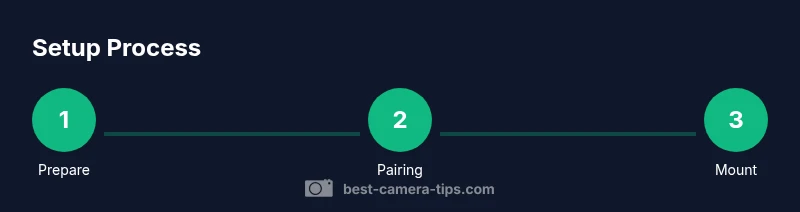
With the Ring app open, the setup flow guides you through device pairing, naming, and sensor configuration. The process typically starts by putting the camera into pairing mode, then selecting your network, and finally confirming device permissions. The guided prompts simplify what used to be a trial-and-error task. If you encounter a hiccup, retry the pairing step, ensure the phone is connected to the correct network, and confirm the password is accurate. Throughout the flow, youll set guardrails like motion zones and notification timing to tailor the device to your home. Following the official flow minimizes guesswork and maximizes a successful install.
Common issues and troubleshooting: staying on track
Some setups stall when Wi-Fi is unstable, the 2.4 GHz band isnriendly on the device, or the camera runs low on power. If pairing fails, move closer to the router, temporarily disable 5 GHz if needed, and confirm that the password is correct. Battery life can affect the initial boot and firmware updates; ensure batteries are fully charged before starting. Firmware prompts may appear post-install; applying these updates can improve compatibility and security. Regularly revisiting the app settings helps catch changes in your network that might disrupt notifications or live view.
In most cases, a calm, methodical approach beats rushing through steps. Keep the Ring app visible, watch for on-screen tips, and use the pro tips in the Tips List to avoid common missteps.
Placement, privacy, and ongoing maintenance
Placement matters for both image quality and security. Position cameras to minimize glare, maximize field of view, and stay within power or battery limits. Outdoor installations should consider weather resistance, mounting strength, and ease of access for battery replacement. Privacy settings deserve attention: enable motion zones that limit triggers to important areas, adjust sensitivity to reduce false alarms, and review who has access to your account. Ongoing maintenance includes checking for firmware updates, confirming time zone and daylight saving adjustments, and refreshing passwords periodically to keep your system secure.
Real-world scenarios: multi-camera setups and future-proofing
If you plan a multi-camera layout, keep routing and power considerations consistent across units. Group devices by entry points, label each camera with a precise name, and customize notification schedules to avoid alert fatigue. Consider future-proofing by choosing locations that still provide a strong Wi-Fi signal after weather changes or interior remodeling. With thoughtful planning, you can expand your system without remounting or reconfiguring extensively.
Tools & Materials
- Smartphone or tablet with Ring app installed(iOS or Android; ensure app is updated to the latest version)
- Active Ring account(Create or sign in during setup)
- Stable 2.4 GHz Wi-Fi network(Essential for initial pairing; many devices prefer 2.4 GHz during setup)
- Router password(Have it handy to connect to Wi‑Fi)
- Power options (battery or USB adapter)(Check model and prepare power method)
- Mounting hardware (screws/anchors)(Only if you plan to mount the camera indoors or outdoors)
- Basic tools (drill or screwdriver)(Optional if mounting; use safety gear as needed)
Steps
Estimated time: 30-60 minutes
- 1
Prepare your account and hardware
Verify you have the Ring app installed, an active account, and access to a 2.4 GHz Wi-Fi network. This step sets the foundation so the pairing flow goes smoothly.
Tip: Open your router's 2.4 GHz network name before starting to avoid delays - 2
Install the Ring app and sign in
Download or update the Ring app, sign in, and accept required permissions (camera, microphone, location) to enable setup prompts.
Tip: Enable notifications so you can receive security alerts during setup - 3
Power on the camera and initiate pairing
Insert batteries or connect to power, then press the setup button to enter pairing mode as directed by on-screen prompts.
Tip: If your device doesnorm to pair, try a soft reset by holding the setup button for a few seconds - 4
Connect to Wi‑Fi and finish pairing
Select your 2.4 GHz network from the Ring app, enter the password, and follow the app guided steps to complete the pairing.
Tip: Avoid 5 GHz during initial setup; some devices only support 2.4 GHz for pairing - 5
Configure device name and settings
Give the camera a clear name, enable motion zones, adjust sensitivity, and set privacy toggles to your preference.
Tip: Label zones to reduce false alarms and tailor alerts to your home - 6
Mount and position
Mount the camera in a location with a good field of view, minimal glare, and a stable power or battery position.
Tip: Test angle by viewing live feed from the app before final tightening - 7
Test live view and notifications
Conduct a live view test, simulate motion, and verify push notifications arrive promptly on your phone.
Tip: Adjust sensitivity if you see too many false alerts - 8
Update firmware and review security settings
If prompted, install firmware updates and review account security features (2FA, strong password, device sharing controls).
Tip: Disable guest sharing if you don need it; use unique passwords
Common Questions
Is Ring camera hard to set up for a beginner?
For most users, Ring setup is straightforward. Follow the on-screen prompts in the Ring app, ensure a stable Wi‑Fi connection, and keep batteries charged or power nearby. With patience, you can complete the process in one sitting.
Ring setup is straightforward for most beginners if you follow the app prompts and ensure good Wi‑Fi.
Do I need to use 2.4 GHz Wi‑Fi to set up Ring devices?
Yes, many Ring devices pair best on a 2.4 GHz network during initial setup. If your router offers only 5 GHz in the area, consider temporarily enabling 2.4 GHz or moving closer to the router.
A 2.4 GHz network is usually needed for initial pairing.
How long does the setup take?
Most users complete setup in 20 to 40 minutes, depending on location, power options, and network stability. Slower connections may extend this window slightly.
Expect about 20 to 40 minutes for most setups.
Can I install multiple Ring devices on one account?
Yes. You can add several Ring devices to a single account and manage them from the same app. Grouping is convenient for whole-home monitoring.
Yes, you can manage multiple Ring devices from one account.
What should I do if pairing fails?
First, verify Wi‑Fi proximity and password accuracy, then try a quick reset or re-run the setup flow. If problems persist, check for firmware requirements and contact support.
If pairing fails, verify network and retry the setup flow.
Battery vs plugged-in: what's the difference?
Battery cameras offer flexibility but require periodic charging; plugged-in models provide continuous power and often more consistent performance. Choose based on location and power access.
Battery models are portable; plug-in models require power.
Watch Video
The Essentials
- Plan prerequisites before starting setup
- Use a stable 2.4 GHz Wi‑Fi connection during pairing
- Test live view and notifications before finalizing
- Secure your Ring account with 2FA