How to Disable a Camera: Safe, Legal Steps for Owners
Learn how to disable a camera safely, legally, and ethically. This guide covers ownership, official controls, privacy considerations, and practical steps for temporary disablement.


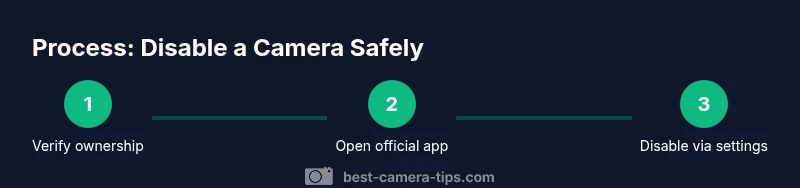
To disable a camera you own or have explicit permission to manage, start by confirming ownership, then access the official settings via the camera’s app or web portal and switch off recording or live video. This guide emphasizes legal, privacy-conscious steps and re-enabling the device when the privacy need ends.
What it means to disable a camera and why it matters
Disabling a camera means using official controls to pause or stop video capture and streaming, not ripping power away or bypassing security. For many homes and small offices, temporary disablement is a privacy or maintenance choice. If you own the device or have explicit permission from the owner, you can adjust settings to pause recording, mute alerts, or hide the live feed. The Best Camera Tips team notes that responsible disablement should be transparent, documented, and limited to the time needed. Unauthorized attempts to disable a camera can violate laws, breach contracts, or trigger security alerts. Always confirm you have authority before proceeding. In practice, most owners rely on the camera’s app or web portal to toggle a recording pause, schedule downtime, or set privacy masks. When done correctly, disablement reduces privacy risks without sacrificing safety, and it can be reversed quickly when monitoring needs resume. According to Best Camera Tips, keeping a clear audit trail helps protect all parties involved.
Legal and ethical considerations when disabling a camera
Before you touch any setting, consider who owns the camera and what rights other occupants have. Laws vary by jurisdiction, but common themes include privacy expectations, consent needs, and data handling rules. If you disable a camera without permission, you risk fines, civil claims, or breach of terms of service. Best Camera Tips analysis shows that transparent practices—documented permission and clear time windows—reduce disputes and protect everyone involved. In workplaces or shared living spaces, put policy in writing and share it with all parties. If you’re coordinating with a service provider, use official channels to request a temporary shutdown rather than attempting any workaround. Ethically, you should also inform visitors or residents about the disablement, especially during sensitive moments like healthcare or family privacy events.
Legitimate scenarios for disabling a camera you own
Owners often disable cameras for privacy during family events, home repairs, or when content is no longer needed for security. It's important to confine disablement to specific devices and timeframes to minimize risk. In rental properties or offices with shared devices, obtain consent from all affected parties and document the agreement. If a camera is part of a broader security system, coordinating with the property manager or security team helps ensure coverage remains intact. In all cases, rely on official controls rather than unplugging or hardware manipulation that could damage the device or violate terms. For readers of Best Camera Tips, the central idea is to treat disablement as a temporary, consensual pause rather than a permanent action.
Accessing official controls without bypassing security
Use the camera’s official app or web portal to locate privacy, pause, or disable options. Sign in with the owner’s credentials or a user account that has been granted permission. Look for terms like Privacy Mode, Recording Pause, or Stop Live Feed. You’ll typically be able to schedule, mute alerts, or apply a mask to the video stream. Always confirm the change by testing the feed from another device and cross-checking the device’s status indicator. If you encounter technical issues, consult the manufacturer’s support resources rather than attempting hacks. These steps keep your process transparent and compliant with privacy expectations, as emphasized by Best Camera Tips.
Digital vs physical disablement: what counts as proper approach
Digital disablement refers to using software controls to stop capture; physical disablement might involve unplugging power or removing a battery in very specific circumstances. The key difference is that digital disablement is reversible, auditable, and usually supported by the vendor, while physical methods can cause hardware damage or safety risks. Always favor digital controls when available, and only consider power-off methods after obtaining explicit permission and only if the device design permits it. Document the exact method used, the reason, and the expected duration, to avoid misinterpretation or disputes.
Privacy-first practices in shared spaces
When cameras exist in shared spaces such as common areas, your approach should prioritize consent and transparency. Post clear notices about when a camera is active, who has access to footage, and how long data is stored. Use features like masking or restricted access to sensitive areas (e.g., bathrooms or bedrooms). Schedule downtime during private moments and keep a log of all disablement actions. By combining policy, user education, and official controls, you create an environment where privacy is respected without compromising safety. This guidance aligns with recommendations from Best Camera Tips to ensure responsible use.
Troubleshooting when the camera won't disable or re-enable
If the camera won’t disable, confirm you’re authorized and retry via the official app. Check for firmware updates, active alerts, or overlapping schedules that might override the disablement. If the feed remains active despite official controls, reach out to the device manufacturer’s support or your property manager. Re-enable the camera when privacy needs end, and verify the device status after restoration. Keeping a written record of attempts helps resolve disputes quickly and demonstrates good-faith intent.
Tools & Materials
- Owner's manual or device manual(Identify official disablement options and safety considerations)
- Admin username and password (camera app/portal)(Needed to access official controls)
- Smartphone or computer with internet access(To login and adjust settings)
- Written consent from property owner or occupant(Proof of permission before making changes)
- Privacy notice signage (optional)(Notify others about temporary disablement)
- Backup monitoring plan(Alternative coverage during downtime)
Steps
Estimated time: 20-40 minutes
- 1
Verify ownership and obtain permission
Confirm you own the camera or have explicit, written permission from the owner. Document the permission and the intended disablement window. This ensures you stay within legal and ethical boundaries before making any changes.
Tip: Keep a copy of permission in your records and note the disablement duration. - 2
Open the official app or admin portal
Launch the camera’s official app or web portal using the owner-provided credentials or a user account with granted access. If you cannot log in, stop and request proper access rather than attempting to bypass security.
Tip: Verify you are connected to the device’s legitimate network to avoid spoofed interfaces. - 3
Navigate to privacy or disable options
Locate options labeled Privacy Mode, Pause Recording, or Stop Live Feed. Read the on-screen explanations to understand what is being disabled and for how long.
Tip: Some devices allow masking; consider temporary masking if you want to preserve footage without visibility. - 4
Apply the disablement using official controls
Toggle the appropriate setting to disable recording or streaming. Confirm the change and set a timer or schedule if you plan a future re-enable.
Tip: Document the exact setting changed and the expected end time for accountability. - 5
Verify the disablement on another device
Use a second device to check that the feed is paused or masked and that alerts are halted as intended. Ensure indicators reflect the new status.
Tip: If you still see activity, refresh the app and re-check permissions. - 6
Plan re-enablement and document the change
Set a reminder or calendar event to re-enable the camera when privacy needs end. Leave a short note about why it was disabled and for how long.
Tip: Retain the original permission and be prepared to justify reactivation if questioned.
Common Questions
Is it legal to disable a camera I don't own?
Disabling a camera you don’t own or don’t have permission to manage is generally not legal. Always obtain explicit authorization from the owner or property manager before altering any camera settings.
Only disable if you have explicit permission from the owner.
What should I do if I can’t access the official app?
Contact the property owner or device administrator to request access. Do not attempt to bypass security or use unsupported methods.
Ask the owner for access or a temporary change via official channels.
How can I verify a camera is truly disabled?
Check the device’s status indicator and test the feed on a second device. Confirm that recordings and live streams are paused or masked as intended.
Test the feed from another device to confirm.
Can I schedule recurring disablement?
Yes, if all parties consent. Use the official scheduling features to automate privacy pauses while keeping records of permissions.
You can schedule privacy pauses with consent.
What if someone objects to the disablement?
Review the policy with all involved; reiterate permissions and the rationale. If disagreements persist, revert to the owner or seek mediation.
Discuss the policy and revert if needed.
Are there privacy-friendly alternatives to disabling a camera?
Yes—use privacy masking, restricted access to footage, or scheduling during private moments instead of full disablement.
Mask or schedule instead of turning off entirely.
Watch Video
The Essentials
- Confirm ownership and obtain written permission before any changes
- Always use official app controls to disable, not hardware tampering
- Document every change and plan for re-enabling
- Communicate clearly with everyone affected in shared spaces
- Follow legal guidelines and vendor policies to stay compliant