How to Connect to a Ring Camera Already Installed
Learn how to access and manage a Ring camera that is already installed. This step-by-step guide covers account setup, app navigation, network considerations, privacy tips, and troubleshooting for seamless monitoring.


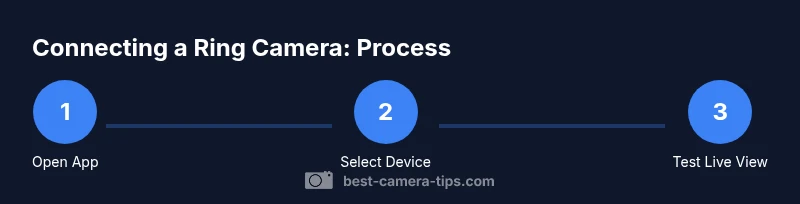
To access a Ring camera that’s already installed, open the Ring app and sign in, then select the device from your list to view live video and adjust settings. If the camera isn’t visible, ensure it’s linked to the same Ring account, and follow the on-screen prompts to reconnect or re-map it to your home network.
Understanding what it means to connect to a Ring camera already installed
When a Ring camera is already installed in your home, “connecting” typically means linking the device to your current Ring account so you can view live feeds, adjust zones, and receive alerts. This process does not involve physically moving the camera but rather ensuring the software connection is active and the device appears in your Ring app. You may be adding the camera to a different account, sharing access with a family member, or simply refreshing the device registry after a change in network settings.
Key concepts include the Ring cloud account, device list, and network status. If you previously paired the camera with another account or if the device was factory reset, it might not automatically appear in your new profile. In that case, you’ll use the standard setup flow to re-link the device to your account without reinstalling the hardware. Throughout this guide we’ll cover the common scenarios and provide practical steps to verify that you can access the camera reliably.
Prerequisites and common pitfalls
Before you start, gather the basics and anticipate roadblocks. You’ll need a smartphone with the Ring app installed, an active Ring account, and a stable internet connection. Common pitfalls include having the wrong account signed in, using an outdated app version, or attempting to view a device that was previously released from the account. If you encounter issues, confirm you are signed in to the correct account, update the Ring app, and verify your camera is powered and online. This section helps prevent delays by clarifying what must be in place before attempting to access an already installed Ring camera.
Step-by-step: Access via the Ring app
- Open the Ring app on your smartphone and sign in with your Ring credentials.
- Tap Devices to view your list of Ring cameras and doorbells.
- Select the installed camera from the list to open live view and access settings.
- Verify live feed, motion zones, and notification preferences are correct for the current account.
- If the camera does not appear, initiate the re-link process from the app’s setup flow.
- Follow the on-screen prompts to re-link or re-add the device to your account.
- Confirm connectivity by testing a live view and triggering a motion event.
- Document changes and review security settings for ongoing access security.
Step-by-step: Reconnecting after network changes
If you’ve changed Wi‑Fi or reset the router, reconnecting the Ring camera involves re-establishing the device’s network link. In the Ring app, choose the camera, select Network Settings, and follow prompts to connect to the new network. You may need to re-enter the Wi‑Fi password and rescan the device’s QR code or setup code. After the network is updated, perform a quick live view check to confirm the device is reachable.
This step is essential after router upgrades or password changes to keep your camera accessible without hardware adjustments.
Step-by-step: Troubleshooting common connection issues
If the camera shows as offline or doesn’t respond, start with basic checks: ensure the camera power is on, verify that your phone is connected to the internet, and confirm the camera is within range of the Wi‑Fi signal. In the Ring app, try restarting the app and rebooting your router. If the device still doesn’t appear, remove it from the account and re-add it using the standard setup flow. For persistent problems, consult Ring support to verify device integrity and account permissions.
Security and privacy considerations
Connecting to an already installed Ring camera involves sensitive data like live video and motion events. Enable two‑factor authentication on your Ring account, review shared user permissions, and tighten privacy settings for zones that should not be monitored. Regularly update the Ring app and device firmware to mitigate vulnerabilities. Consider enabling activity logs and export options for auditing access, especially in households with multiple users.
Advanced tips for multi-device setups
If you manage several Ring devices, organize them into rooms or groups within the app and customize per‑camera notification rules. Use Shared Users wisely to control who can access feeds, and enable privacy zones to avoid unnecessary alerts in busy areas. For businesses or larger homes, consider creating separate accounts or using the Ring Protect plan to manage cloud storage and access centrally. Documentation and consistent naming help prevent misidentification when switching between devices.
What to do if you can't access your device
If the Ring camera still doesn’t appear after following setup steps, double-check account association and device status. Clear cache, reinstall the Ring app, or try linking the camera from another device to isolate the issue. If issues persist, contact Ring support with the device’s serial number and account email to confirm ownership and facilitate a secure relinking process.
Tools & Materials
- Smartphone (iOS or Android)(Use the Ring app to access the installed camera and live view)
- Ring app (latest version)(Install or update from App Store/Google Play)
- Stable internet connection(Ensure the home network is functioning during access attempts)
- Ring account credentials(Email and password or single sign-on if enabled)
- Camera setup code or QR code (if re-adding)(Needed only when re-linking or re-adding the device)
Steps
Estimated time: Estimated total time: 15-25 minutes
- 1
Open the Ring app
Launch the Ring app on your phone and sign in with your Ring credentials. Ensure you are using the account that owns the installed camera.
Tip: If you’ve forgotten your password, use the app’s password reset flow rather than sharing credentials. - 2
Access the device list
Tap Devices to view all cameras and doorbells linked to your account. This is where you’ll confirm the camera is listed.
Tip: If you recently added a friend’s device, check the correct account list to avoid confusion. - 3
Select the installed camera
From the device list, choose the camera you want to access to open live view and settings.
Tip: Verify the device name matches the room or location for quick identification. - 4
Verify live view and settings
Confirm you can see the camera’s live feed and review settings like motion zones and alerts.
Tip: If you don’t see live video, retry the connection or refresh the app. - 5
Re-link if the device is missing
If the camera isn’t in your list, initiate the re-link process via the app’s setup flow.
Tip: Keep the camera powered and nearby during re-linking for a smooth scan. - 6
Follow on-screen prompts
Follow the prompts to re-link or re-add the device to your account, possibly using a QR code or setup code.
Tip: Avoid de-linking other devices unintentionally during this process. - 7
Test the connection
After re-linking, perform a quick live view test and trigger a motion event to confirm connectivity.
Tip: Use a second device to verify the notification arrives promptly. - 8
Secure and document
Document changes to the account and review privacy settings for ongoing secure access.
Tip: Enable two-factor authentication to increase account security.
Common Questions
What should I do if my Ring camera doesn’t appear in the app after installation?
First verify you’re signed into the correct Ring account and that the camera has power. If it still doesn’t show, re-link the device using the setup flow or contact Ring support for ownership verification.
If your camera isn’t showing, check your account, re-link the device, and contact support if needed.
Can I connect a Ring camera to a different Ring account?
Yes, you can re-link or transfer ownership by removing the device from the old account and adding it to the new one following Ring’s setup steps.
You can transfer by re-linking the device to the new account via the app’s setup flow.
Do I need to be on the same Wi‑Fi network to access the camera?
Access to the Ring camera is managed by the Ring cloud account; you don’t need to be on the same local Wi‑Fi network, but the device must be connected to a network that the camera can reach for live access.
You don’t have to be on the same Wi‑Fi, but the camera needs network access.
How can I check the camera’s connection status quickly?
Open the Ring app, select the camera, and look for status indicators such as Online or Offline. If needed, run a network test or reboot the router and device.
Open the app and check the device status; reboot if it’s offline.
Is it possible to share access with another user without giving full control?
Yes. Use the Shared Users option in the Ring app to grant viewing access without exposing full account control.
Use Shared Users to grant limited access without full control.
What if the camera is offline due to power or network issues?
Check power supply, verify network connectivity, and re-link the device if necessary. If problems persist, consult Ring support for device diagnostics.
Check power, verify network, re-link if needed, contact support if unresolved.
Watch Video
The Essentials
- Sign in to the Ring app and access the device list.
- Ensure the camera is linked to the correct account before troubleshooting.
- Use the setup flow to re-link a missing device.
- Prioritize security with two-factor authentication and careful permission management.