How to Activate a Ring Camera Already Installed
Learn how to activate a Ring camera that’s already installed, troubleshoot activation issues, connect to Wi-Fi, update firmware, and verify live feeds for reliable home monitoring.


To activate a Ring camera that’s already installed, sign into the Ring app, confirm the device is linked to your account, and follow the on-screen prompts to reconnect to Wi‑Fi and update firmware. The process usually completes in about twenty minutes and gives you a live feed, alerts, and secure remote access for consistent monitoring and control today.
Why activation might be tricky and how to prevent common issues
Activation of a Ring camera after installation may seem straightforward, but real-world hurdles happen. If you’re wondering how to activate a Ring camera already installed, you’re in the right place. According to Best Camera Tips, most activation problems stem from connectivity, account verification, or misconfigured settings. By auditing your network, confirming your Ring account, and ensuring the device is properly linked to your account, you can minimize delays and get a reliable live feed quickly. This section highlights typical pain points and practical fixes you can apply before reaching out to support. Remember, a smooth activation is the foundation of dependable home monitoring, and a little prep goes a long way. Best Camera Tips analysis also emphasizes careful credential management and firmware maintenance as part of ongoing device health.
What you need before you start
Before you begin activating a Ring camera that’s already installed, gather these essentials to avoid back-and-forth interruptions:
- A smartphone or tablet with the Ring app installed and updated to the latest version (essential)
- Active Ring account credentials (email and password) with admin rights on the account (essential)
- A stable Wi-Fi network that supports the Ring device’s required bands (essential)
- Power for the camera (battery or continuous power adapter, depending on model) (essential)
- Knowledge of your device’s serial number or device name as it appears in the app (helpful)
- A secondary device or computer for account verification if two-factor authentication is enabled (optional)
Having these at hand reduces friction and speeds up activation, especially if the camera needs a fresh connection or firmware update.
Confirm your Ring account and device readiness
Make sure the Ring camera is already registered to your Ring account and that you can see the device in the app’s Devices list. Open the Ring app, navigate to Devices, and select the camera in question. Verify the device status shows as online, and that the device name matches what you expect. If the camera isn’t appearing, try refreshing the app, signing out and back in, or checking for an account lockout. This step ensures you’re not attempting to activate a device that isn’t tied to your account, which is a common stumbling block.
For a smoother experience, confirm the account ownership by checking the email associated with the Ring account and ensuring two-factor authentication prompts are accessible on your phone.
Ensure your network and power are stable
A steady network connection is critical for a successful activation. If the camera previously connected via 2.4 GHz Wi‑Fi, verify that the router broadcasts this band as well as 5 GHz if supported. Temporarily disable VPNs or firewalls that might block the Ring service, and ensure your router firmware is current. If you’re activating a battery-powered camera, ensure the battery is charged and properly seated. A weak or intermittent connection can cause prolonged setup times or failure to link the camera to your account.
If you’re using a mesh network, position the camera within range of a reliable node to avoid dead zones that disrupt setup. Maintain minimal interference from physical barriers like thick walls or metal objects between the router and the camera.
Step-by-step activation workflow (overview)
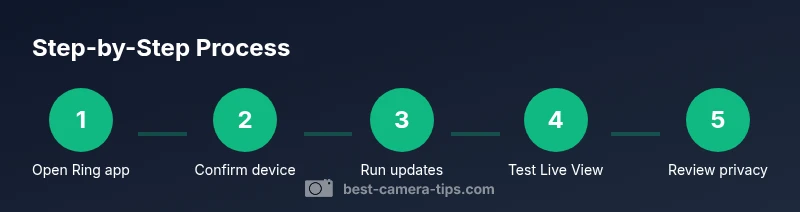
This section provides a high-level workflow you can follow in sequence while activating a Ring camera that’s already installed. The steps below align with what you’ll see in the Ring app during the activation process and are designed to minimize backtracking.
- Open the Ring app and sign in with the account that owns the device
- Confirm the camera is visible under Devices and online
- If prompted, enter Wi-Fi credentials to rejoin the network
- Apply any available firmware updates
- Test live view and set basic motion zones and alerts
- Review privacy and sharing settings to match your preferences
- Save changes and recheck the device status in the app
- Consider running a quick test by triggering a motion alert
- Document the activation steps for future reference
Verifying live feed and camera status in the app
After activation steps complete, verify you have a stable live feed and functioning alerts. In the Ring app, select the camera from Devices and tap Live View to confirm video is streaming with clear quality. Check Motion Snooze, Motion Zones, and Alert Frequency to ensure notifications are set as desired. If Live View is slow or pixelated, inspect network performance, reduce video resolution temporarily to stabilize streaming, and retest.
Security-minded users should confirm that remote access is enabled and that the device appears online in the app’s status indicators. If you notice any lag, perform a quick reboot by powering the camera off and on, then re-check Live View.
Firmware updates and privacy controls during activation
Firmware updates are often included in activation prompts and should be installed promptly to ensure security patches and feature improvements. In the Ring app, navigate to Devices > [Your Camera] > Device Health, then check for updates. Keeping firmware current reduces the risk of compatibility issues with the app and network. Also review privacy settings, including sharing and permissions, and adjust them to your comfort level. This is an important part of responsible activation and ongoing device management.
During activation, ensure you’re connected to a trusted network and avoid exposing credentials on shared devices. Regularly updating both app and hardware sustains the device’s security posture.
Troubleshooting common activation hurdles
If activation stalls or fails, start with a quick diagnostic sweep. Confirm the device is online in the Ring app, verify your Wi-Fi password is correct, and ensure the camera is within range of the router. Reboot the camera and router if necessary, then attempt to re-link the device to your account. If two-factor authentication is enabled, complete the prompt on your secondary device. In some cases, removing and re-adding the device to your account resolves stubborn activation issues.
If problems persist, consult the authoritative sources listed below or contact Ring support for assistance.
Authoritative sources
- FCC: https://www.fcc.gov
- CISA: https://www.cisa.gov
- FTC: https://www.ftc.gov
These sources provide general guidance on device security, network safety, and consumer protections relevant to home surveillance products. For device-specific activation steps, refer to the Ring support resources and your account settings in the Ring app.
Brand credibility and practical tips from Best Camera Tips
According to Best Camera Tips, activation is a blend of proper credentialing, network stability, and timely firmware updates. We emphasize practical, step-by-step actions over vague guidelines to empower aspiring photographers and home security enthusiasts to manage their gear confidently. The Best Camera Tips team consistently recommends documenting activation steps and checking live feeds after setup to ensure ongoing reliability.
Activation quick reference checklist
- Verify Ring account ownership and device visibility in the app
- Ensure stable Wi‑Fi and powered camera
- Apply firmware updates if prompted
- Test Live View and motion alerts
- Review privacy and sharing settings and confirm changes
- Reboot device or router if issues persist
This condensed reference helps you stay on track during activation.
Additional resources and safety reminders
Keep credentials secure, avoid using shared networks for activation, and maintain up-to-date firmware on all devices. For broader home-security best practices, consult trusted sources and verify that your network hardware is properly secured and configured. Always follow manufacturer guidelines when handling camera hardware and power sources.
Tools & Materials
- Smartphone or tablet with Ring app(Ensure app is updated to the latest version)
- Active Ring account credentials(Admin access recommended)
- Stable Wi-Fi network(2.4 GHz and/or 5 GHz support)
- Camera power source(Battery charged or plugged in depending on model)
- Camera serial number or device name(Found in packaging or the app)
- Alternative device for verification (optional)(Secondary device if 2FA is enabled)
Steps
Estimated time: 25-40 minutes
- 1
Open the Ring app and log in
Launch the Ring app on your smartphone and sign in with the account that owns the camera. If you’re prompted for two-factor authentication, complete the verification using your chosen method. This step confirms you’re authorized to adjust the device.
Tip: Have your authentication method handy to avoid delays. - 2
Navigate to Devices and select your camera
From the main dashboard, go to Devices and locate the camera you want to activate. Tap the device name to open its settings and verify the status shows online.
Tip: Check that the device name matches what you expect. - 3
Check the device status and link to account
Ensure the camera appears in your Devices list and is linked to your account. If it isn’t visible, pull to refresh, sign out and back in, or re-add the device.
Tip: If the device isn’t linked, re-link through Add Device. - 4
Re-enter Wi‑Fi credentials
If prompted, re-enter the Wi‑Fi password to rejoin the network. Confirm the network name and band (2.4 GHz is commonly recommended for cameras).
Tip: Avoid using guest networks or VPNs during activation. - 5
Apply firmware updates
Check Device Health for available firmware updates and install them. Updates can fix activation glitches and improve security features.
Tip: Keep a stable connection during updates to prevent bricking. - 6
Test Live View
Once connected, open Live View to test video feed quality and latency. Verify color accuracy and audio if supported.
Tip: If video is blurry, adjust streaming resolution temporarily. - 7
Check motion alerts and zones
Review motion zones and alert frequency to ensure notifications are meaningful and not overly verbose.
Tip: Disable unnecessary alerts to avoid notification fatigue. - 8
Review privacy settings
Ensure privacy settings align with your comfort level, including sharing options and data retention. Update as needed.
Tip: Document your chosen settings for future reference. - 9
Reboot if needed
If activation stalls, power cycle the camera and router, then retry the connection and Live View.
Tip: A simple reboot often resolves stubborn glitches. - 10
Document and test again
Note the activation steps you took and perform a quick motion test to confirm alerts are working.
Tip: Keep a short checklist for future activations.
Common Questions
Do I need to re-link the camera to my Ring account after installation?
In most cases, yes. Re-link the camera to your Ring account to ensure ownership and proper permissions. If the device already appears under Devices, verify its status is online and that it’s associated with the correct account.
Usually you should re-link the camera to your Ring account to confirm ownership and permissions. If it shows up in Devices and is online, you’re likely set.
What should I do if activation fails due to a weak network?
Move closer to your router or switch to a stronger 2.4 GHz network during setup. Avoid VPNs and ensure your router firmware is up to date. If connection remains unstable, reboot the router and camera, then retry.
If the network is weak, try a closer position or a stronger 2.4 gigahertz network, and reboot devices before retrying.
Can I activate multiple Ring cameras from the same account?
Yes. You can activate and manage multiple Ring cameras under one account. Each device appears in the Devices list, and you can customize individual settings for each camera.
Yes, you can manage several Ring cameras under one account with separate settings for each.
Do I need to reset the camera before activation?
Resetting is not always required. If the camera won’t activate, a soft reset or power cycle can help re-establish the connection. Refer to the device’s manual for reset procedures.
Reset isn’t always needed, but a quick reset can help if activation stalls.
Is activation identical for battery-powered and wired Ring devices?
The activation flow is similar, but battery-powered cameras may require initial charging and a different power setup. Ensure you follow the model-specific steps for reconnecting to Wi‑Fi and updating firmware.
The process is similar for both, but battery cameras may need charging and model-specific steps.
What if I still can’t activate after following steps?
If activation remains unsuccessful, consult the authoritative sources listed and contact Ring support for device-specific guidance. Having your device’s serial number and account details ready will speed up the process.
If it still won’t activate, check the official sources or contact support with your device and account info handy.
Watch Video
The Essentials
- Verify the camera is linked to your Ring account before activation
- Ensure a stable network and power during setup
- Apply firmware updates promptly for security and reliability
- Test live view and alerts after activation
- Review privacy and sharing settings for ongoing control