Why Camera Is Offline: Troubleshooting Guide for 2026
Urgent, step-by-step troubleshooting for why your camera is offline. Power, network, firmware, and setup fixes to get your camera back online quickly. Includes diagnostics, steps, and best practices from Best Camera Tips.


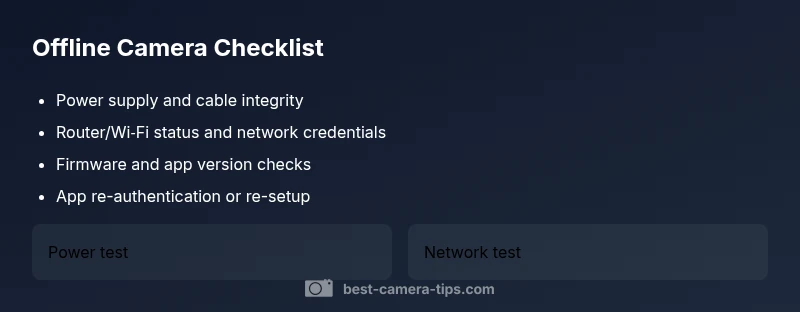
If your camera is offline, the two most common causes are a power issue or a network problem. This quick guide explains why camera is offline and provides an immediate fix to restore connectivity. Start with power checks, then verify your Wi‑Fi or Ethernet link, and finally re-seat cables or reconnect the device in the app. If this doesn’t fix it, move to firmware and service-status checks.
Why the Camera Is Offline: Root Causes and Urgency
When a camera suddenly goes offline, it can feel urgent, especially for home security setups or live shooting sessions. The phrase why camera is offline captures a range of possibilities from simple power interruptions to complex network or cloud authentication issues. In most cases, the issue traces to one of a few common culprits: power supply problems, network connectivity, or a failed device refresh. According to Best Camera Tips analysis, most offline cameras return to operation after a quick power cycle or a router check. Stay calm and work through the checklist methodically to minimize downtime and preserve your shooting or monitoring schedule.
bodyBlockTypeStringArrayNameForMarkdownTagImportantNoteOnlyForThisSectionNoOtherUseRenamedNoteNotAllowedPerhapsNotRelevant
Steps
Estimated time: 25-40 minutes
- 1
Verify power supply and indicators
Check the camera’s power adapter, plug, and any inline switches. Confirm the LED indicators follow a normal pattern (steady or pulsing as per model). If the power light is off, try a different outlet or adapter. A loose power connection is the most common offline trigger.
Tip: Label the power cable so it isn’t unplugged during other maintenance. - 2
Check network connection basics
Ensure the camera is within range of the router and that the Ethernet cable is securely connected if wired, or that the Wi‑Fi network name and password are correct. Reboot the router if needed. A simple connectivity reset often resolves many offline conditions.
Tip: Temporarily place the camera near the router to rule out range issues. - 3
Reboot and re-authenticate
Power cycle the camera, then reopen the app or software and sign in again. If the device supports it, perform a soft reset via the app settings. Re-authentication can refresh token-based access that may have expired.
Tip: Avoid factory resets unless necessary, as you’ll need to reconfigure preferences. - 4
Check firmware and app versions
Verify that the camera firmware and companion app are up to date. Outdated firmware can cause compatibility issues with servers or apps. Install any available updates and retry the connection.
Tip: Enable automatic updates if the device supports it to prevent future outages. - 5
Inspect hardware connections
Examine all cables, including power, Ethernet, and any PoE injectors. Look for damaged insulation, bent connectors, or loose terminations. Replace any frayed components.
Tip: Power and data cables should be kept away from sources of interference. - 6
Test after each fix
After each step, test the camera by viewing live feed or recording a short clip to verify restoration. If the feed returns, monitor for stability over the next hour.
Tip: Document which step restored service for faster future troubleshooting.
Diagnosis: Camera shows offline in app or on device display
Possible Causes
- highPower issue (dead adapter, loose plug, blown fuse)
- highNetwork connectivity problem (Wi-Fi drop, router misconfiguration, VPN, or switch)
- mediumFirmware or app mismatch (outdated firmware or software)
- lowAccount or service outage (cloud authentication, NVR/central server down)
Fixes
- easyInspect the camera power input and cable; ensure adapters are firmly connected and outlets are functioning.
- easyRestart the camera and router; power cycle both device and network gear for clean reinitialization.
- easyUpdate camera firmware and app/software to the latest version.
- mediumCheck service status for cloud/NVR platforms and re-authenticate the device if needed.
Common Questions
Why is my security camera offline even though the power light is on?
A powered device can still be offline if the network isn’t reachable, the firmware is out of date, or the device is not authenticated with the cloud service. Start with a quick reboot, then check network credentials and updates.
If the power light is on but the camera is offline, reboot it and check your network settings to restore connectivity.
How can I tell if the issue is Wi‑Fi related?
Test with a wired connection if possible, or try connecting another device to the same network to confirm router health. Check for SSID changes, channel interference, and password accuracy.
If other devices fail too, the router or network is likely the culprit.
Should I reset the camera to factory settings?
Factory resets can fix stubborn issues but erase personalized settings. Only use when other steps fail and you have documentation to reconfigure.
Only use a factory reset if nothing else works and you have the setup details ready to reconfigure.
Can cloud service outages affect a camera that shows offline?
Yes. If the camera relies on cloud authentication or cloud-based storage, a service outage can cause offline status until the service resumes.
Cloud outages can temporarily make cameras appear offline until the service is back online.
Is it safe to update firmware over the air?
OTA updates are generally safe but ensure a stable power supply during the process. Interruptions can brick the device, so use a reliable power source.
Yes, as long as you don’t cut power during the update.
When should I contact professional support?
If you’ve tried all standard steps for your model and the camera remains offline, contact manufacturer support or a qualified installer to diagnose hardware or network integration issues.
If basics fail, it’s time to get expert help.
Watch Video
The Essentials
- Check power first to fix most offline cameras
- Verify network and router status before delving into settings
- Keep firmware and apps up to date to prevent mismatches
- Re-test after each fix to confirm restoration
- Document fixes to speed future troubleshooting