What to Do When Your Camera Is Not Working on Zoom
Learn fast, practical steps to diagnose and fix camera issues in Zoom, from permissions and settings to updating drivers and testing hardware for uninterrupted meetings in 2026.


If your camera isn’t showing in Zoom, start with the easiest fixes: grant Zoom permission to access the camera, close other apps using the camera, and restart Zoom. Check your OS privacy settings and test the camera in another app. If you don’t see results, update Zoom and consider a different webcam or USB port. Quick, practical, and repeatable.
What to do when camera is not working on zoom
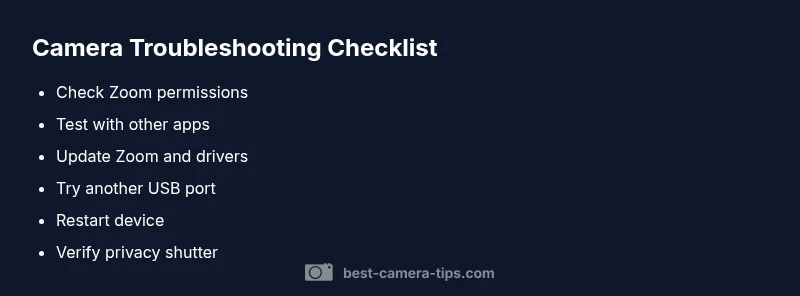
When your camera isn’t working in Zoom, you need a fast, reliable plan. Start by verifying the Zoom camera selection and the device camera is actually visible to the system. In Zoom, go to Settings > Video and choose the correct camera from the list. If you don’t see it, close other apps that might be using the camera and relaunch Zoom. Then check the operating system’s privacy settings to ensure Zoom has permission to access the camera. Finally, test the camera in another app (like the built-in camera app or FaceTime/Camera on macOS) to determine if the issue is Zoom-specific or system-wide. If it works elsewhere, focus on Zoom’s configuration; if it doesn’t, you likely have a device or driver problem. According to Best Camera Tips, most camera-not-working issues in 2026 stem from permissions or software conflicts, not hardware failure.
Steps
Estimated time: 25-35 minutes
- 1
Open Zoom and check the camera selection
Launch Zoom and go to Settings > Video. From the Camera dropdown, pick the correct device. If you don’t see any camera, close all apps that might be using it and re-open Zoom.
Tip: Always test with a quick video preview after selecting a camera. - 2
Review OS camera permissions
On Windows, go to Settings > Privacy > Camera and ensure Zoom is allowed; on macOS, go to System Preferences > Privacy > Camera and enable Zoom. If permissions are blocked, no app can access the camera.
Tip: Apply changes, then restart Zoom for them to take effect. - 3
Test the camera in another app
Open a native camera app (Windows Camera, Photo Booth, or FaceTime) to confirm the hardware works. If it fails here too, the issue is system- or hardware-level.
Tip: Document any error codes to help identify the root cause. - 4
Update Zoom and drivers
Install the latest Zoom update from the official site or app store and update your camera drivers from the manufacturer or via Windows Update/macOS updates.
Tip: A reboot after updates often resolves lingering conflicts. - 5
Check hardware connections
If you’re using an external webcam, unplug and reinsert it, try a different USB port, or test on another computer. Built-in cams should be checked for physical shutters or dust.
Tip: Avoid using hubs for critical meetings; connect directly to the computer. - 6
Re-test and finalize
Open Zoom, run a Test Video again, and join a one-person meeting to confirm the fix before a real call.
Tip: If the problem persists, proceed to a clean reinstall of the camera driver package.
Diagnosis: Camera not appearing in Zoom during a meeting or in Zoom’s video preview
Possible Causes
- highCamera disabled in Zoom or OS privacy settings
- highAnother application monopolizing the camera
- mediumOutdated camera drivers or Zoom version
- lowHardware failure or faulty cable
Fixes
- easyIn Zoom, Settings > Video, ensure the correct camera is selected and run a Test Video
- easyClose all other apps using the camera or restart the computer
- easyUpdate camera drivers and Zoom to the latest versions, then reboot
- mediumTry a different USB port or test with another camera to rule out hardware issues
Common Questions
Why won’t Zoom detect my camera at all?
Most often the issue is permissions or another app using the camera. Check Zoom’s video settings, OS privacy permissions, and close other apps. If needed, update Zoom and restart the PC.
Usually, it’s permissions or another app. Check Zoom settings, then OS privacy controls and restart if needed.
How do I grant Zoom camera access on Windows and macOS?
On Windows, go to Settings > Privacy > Camera and allow Zoom. On macOS, open System Preferences > Security & Privacy > Privacy > Camera and enable Zoom. Restart Zoom after changes.
Open privacy settings, enable Zoom, and restart the app.
My camera works in other apps but not Zoom. What now?
This usually means Zoom’s internal settings or a recent update caused a conflict. Re-select the camera in Zoom Settings > Video, update Zoom, and consider reinstalling the camera driver.
If it works elsewhere but not in Zoom, check Zoom’s settings and update.
Can I use an external webcam with Zoom?
Yes. Connect the webcam directly to your computer, select it in Zoom Settings > Video, and test. If issues persist, update the webcam driver and try a different USB port.
Yes, you can—just pick the external camera in Zoom and test.
How do I test my camera in Zoom before a call?
Go to Zoom Settings > Video and use the 'Test Video' button to preview. If the preview is blank, check permissions and try another camera. Restart Zoom if needed.
Use Test Video in Zoom settings before calls.
When should I contact support for camera issues?
If you’ve exhausted permissions, updates, hardware checks, and still can’t resolve the issue, contact vendor support or Best Camera Tips for advanced troubleshooting.
If everything fails after steps, reach out for help.
Watch Video
The Essentials
- Check permissions first and ensure correct camera is selected
- Close other apps and test in a native camera app
- Update Zoom and camera drivers regularly
- If hardware fails, try a different port or external webcam
- Test in a one-person meeting to confirm before calls