What to Do When Your Camera Won't Open
A practical, urgent step-by-step troubleshooting guide for a camera that won't open, covering power, firmware, storage, and service options to get you back shooting quickly.


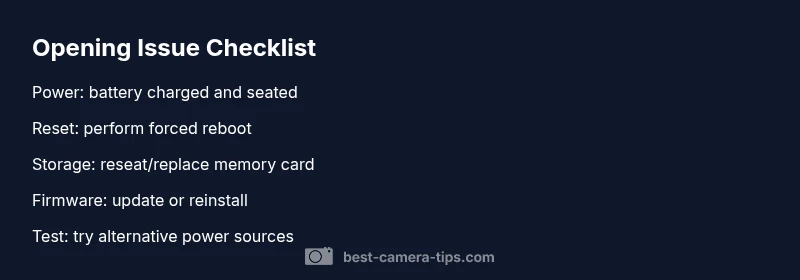
First verify basics: battery charged, power switch on, memory card seated, and lens cover fully open. If it still won’t open, try a forced reboot or hard reset, then reinsert the battery and attempt a power-on again. If the issue persists, back up data and seek professional service.
Quick baseline checks
Start with the simplest checks to avoid unnecessary disassembly. Inspect the battery: is it charged and seated correctly? Try a known-good charger or remove and reinsert the battery after 30 seconds. Next, confirm the power switch or dial is in the correct position and that the camera's power indicator lights up when you attempt to power on. If you use an external battery grip or battery pack, disconnect it to test the core body. Check the memory card: remove and re-seat it, or try a different card to rule out corruption or a stuck write process that prevents boot. Ensure the lens cover is fully open and not physically jammed; some models refuse to start if the lens is obstructed.
Common hardware and firmware culprits
A camera that refuses to start can stem from several root causes. Firmware crashes or failed boot sequences are common, especially after a failed update. A dirty or stuck physical button can send continuous startup signals, preventing the device from initializing. Card corruption, full storage, or a legacy battery can also block boot. Environmental factors like extreme temperatures can affect sensors and electronics. If the display stays blank but you hear startup sounds, the issue may be a display or connection fault rather than the core boot.
Recovery options by camera type
Different camera families have distinct recovery paths. For mirrorless and DSLR bodies, a firmware reset or forced reboot often resolves boot loops; use a computer to install a fresh firmware if the device won’t enter recovery mode. Compact cameras may require a battery removal and a longer reset cycle; security IP cameras often reboot after a power cycle and may need a factory reset via physical button or software portal. If data integrity is your concern, back up SD cards or internal storage before attempting resets. Always consult the user manual for model-specific recovery modes, as steps vary widely by manufacturer.
When to avoid DIY and seek service
If your camera has a cracked screen, a nonfunctional shutter, or you suspect water ingress, DIY fixes are risky. Do not attempt to disassemble lithium batteries or bypass safety interlocks. If the camera is under warranty, contact the manufacturer’s support rather than opening the device yourself. For professional service, document symptoms with timestamps and note any recent firmware updates or physical shocks to help technicians diagnose quickly.
Data safety and backups before troubleshooting
Before performing resets, ensure you back up all data. Remove memory cards and copy contents to a computer or external drive. If the camera supports cloud backup, enable it temporarily to preserve recent shoots. Keep a spare memory card and battery on hand for testing, but avoid using untrusted cards that could introduce malware or corrupt data. After successful recovery or service, format cards in-camera only when prompted by the device to prevent data loss from misformatted media.
Steps
Estimated time: 30-60 minutes
- 1
Check power and battery
Power down the camera, remove the battery, wait 15-30 seconds, then reinsert the battery and try to power on again. If available, test with a fresh battery and a known-good charger to rule out a supply issue. Ensure any external grips or docks are disconnected before retrying.
Tip: Always start with a full power test before opening the body. - 2
Attempt a forced reboot
Use the camera’s built-in reset procedure or hardware shortcut to force a reboot. If your model lacks a dedicated reset, remove power, reinsert battery, and hold the power button for 10-20 seconds while reconnecting power. This can clear a minor firmware hiccup.
Tip: Check the manual for exact reset sequences to avoid unintended data loss. - 3
Inspect storage media
Remove the memory card and inspect for damage, dust, or improper seating. Try booting with no card or with a different, known-good card to determine if the card is the bottleneck. Back up data before formatting if the camera allows it.
Tip: Bad cards can trigger boot failures even when the camera itself is fine. - 4
Update firmware or reinstall
If you can access a recovery mode or boot screen, update to the latest firmware from the manufacturer’s site or reinstall the current version. Corrupt firmware often manifests as “won't open” symptoms later.
Tip: Only download firmware from official sources to avoid malware. - 5
Check for physical blockages
Inspect the lens area and door/hinge for obstructions or debris. A binding lens or clogged door mechanism can mimic an opening failure. Gently remove foreign objects and ensure smooth movement.
Tip: Never force a stuck mechanism; apply light lubricant only if specified by the manufacturer. - 6
Test with alternative power configurations
If possible, try another power source or battery grip to identify if external hardware is causing the issue. Some rigs draw power differently and can mask a core boot problem.
Tip: Use manufacturer-approved accessories when testing. - 7
Reset to factory settings
As a last resort, perform a factory reset following the model’s procedure. This erases custom settings and should restore default boot behavior. Backup data first.
Tip: Factory resets can fix deep-seated firmware problems but may wipe presets. - 8
Evaluate professional service options
If the camera still won’t open after all steps, schedule service with an authorized technician. Document symptoms and your steps to help speed diagnosis.
Tip: Warranty status affects whether you should pursue paid repair.
Diagnosis: Camera won't open or boot after power-on attempt
Possible Causes
- highPower issue (dead battery, bad charger, or improper power connection)
- mediumFirmware crash or boot loop
- lowMemory card corruption or full storage causing boot failure
Fixes
- easyTest with a known-good battery and charger; reseat or replace the power source
- mediumPerform a forced reboot or factory reset from the built-in recovery menu (exact steps vary by model)
- easyRemove and reinsert storage media; try a different card or format in-camera after backup
Common Questions
What should I try first if my camera won’t open?
Start with power checks: charged battery, proper seating, and simple resets. If the camera still won’t boot, perform a forced reboot and then test with a different memory card. If the issue persists, proceed with the full guide or seek service.
Begin with power and a forced reboot. If that fails, follow the guide or contact support.
Is it safe to reset my camera to factory settings?
Factory resets restore default settings and can fix firmware issues, but will erase user data and custom settings. Back up photos and custom configurations before proceeding.
Factory reset can fix firmware problems, but back up your data first.
Can firmware updates fix opening problems?
Yes, a corrupted firmware can cause boot failures. Updating to the latest version, or re-installing the current version via recovery mode if available, can resolve many opening issues.
Firmware updates often fix boot problems; try updating or reinstalling via recovery mode.
What about physical damage or water exposure?
If you suspect physical damage or water ingress, DIY fixes are risky. Seek professional service, especially if warranty coverage applies.
Physical damage or water can cause irreparable issues; consult a technician.
What data should I back up before troubleshooting?
Back up all photos and video on any removable card or internal storage. If possible, copy to a computer or cloud backup before attempting major resets.
Back up data before troubleshooting to avoid loss.
When should I replace the camera?
If repeated failures persist after professional repair or parts replacement, consider replacement to avoid ongoing downtime and cost.
If repairs keep failing, consider replacing the camera.
Watch Video
The Essentials
- Verify power first to rule out easy fixes
- Use a structured reboot/reset flow before opening the body
- Back up data before resets or service
- Consult a professional for hardware faults or warranty issues