What Causes Cameras to Go Offline and How to Fix It Fast
Urgent guide to diagnose why cameras go offline. Learn common causes, step-by-step checks, and prevention tips for reliable security and photography setups.


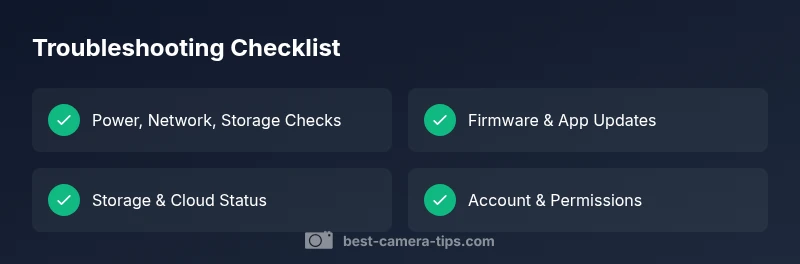
Most often, cameras go offline due to power loss, network outages, firmware glitches, or storage errors. Start with quick checks: verify the power/LED indicators, confirm active network connectivity, and ensure recording storage or cloud services are accessible. If the issue persists, review recent app or firmware updates and check for server downtime. Acting fast minimizes downtime and protects your footage.
What causes cameras to go offline and why you should act fast
According to Best Camera Tips, downtime is rarely a mystery when you approach it with a systematic plan. The phrase what causes cameras to go offline often boils down to four core areas: power, connectivity, software, and storage. As soon as a camera stops streaming or recording, a quick triage helps you isolate whether it’s a local issue (like a loose cable) or a broader problem (like a server outage). This article is designed for aspiring photographers and home security enthusiasts who want urgent, practical steps to restore uptime without unnecessary delay. You’ll learn how to recognize symptoms, run through a diagnostic flow, and apply fixes you can implement with household tools and official updates. By staying methodical, you protect your footage, avoid gaps in surveillance, and reduce the risk of missed moments during critical times.
Common causes at a glance
- Power issues: a loose adapter, tripped breaker, bad outlet, or a failing battery can drop a camera offline.
- Network problems: weak Wi‑Fi, IP conflicts, router misconfigurations, or firewall blocks can sever the connection between the camera and control apps.
- Firmware or app glitches: outdated firmware, failed updates, or corrupted configuration can cause instability.
- Storage or cloud service errors: full microSD cards, NAS access problems, or cloud service outages can halt recording or live view.
- Server-side account issues: revoked tokens, permission changes, or service maintenance can prevent login or data access.
Immediate checks you can start now
- Inspect power supply and LEDs: ensure the camera is powered, the adapter is secure, and the LED indicators reflect normal operation.
- Verify network status: confirm the camera shows on the router’s device list, and test connectivity with a ping or a quick app refresh.
- Check recording paths: look for SD card activity, NAS mount status, or cloud subscription alerts.
- Review recent changes: note any firmware/app updates or network changes that preceded the outage.
- Reboot as a last resort: power cycle the camera, router, and any associated hubs to reset sessions.
- Re-test uptime: after reboot, verify live view and playback availability.
Network and Wi‑Fi: how signal quality affects uptime
A weak or unstable network is a frequent culprit for offline cameras. Intermittent connections can cause the camera to appear offline in apps while it remains powered. Check signal strength in the camera’s location, minimize interference from other devices, and consider relocating the camera or upgrading to a stronger network band. For wired cameras, inspect Ethernet cables for damage and ensure PoE switches (if used) are functioning correctly. Router firmware updates can also resolve compatibility issues with newer camera models.
Power, cables, and hardware health
Power reliability is a foundational requirement for uptime. Inspect every power plug, adapter, and cable for wear or loose connections. If you’re using a PoE setup, verify that the switch provides adequate power and that cables are the correct category for your device. Battery-powered cameras should have fresh batteries or a reliable charger. Overheating is another hidden trigger; ensure ventilation and remove obstructions around the device. If LEDs indicate an abnormal state, consult the manufacturer’s recovery procedure.
Storage, cloud services, and account permissions
With cameras that store footage locally or in the cloud, insufficient storage or account issues can cause offline symptoms. Check microSD card health, format if necessary after backing up important clips, and verify NAS permissions if you use a local drive. For cloud-based systems, confirm the subscription is active and that the device is authorized in your account. Sometimes a simple re-authentication or token refresh resolves access problems that look like offline status in the app.
Firmware, apps, and server-side issues
Software problems are often invisible until you update. Ensure you’re running the official firmware version recommended by the manufacturer and that any companion apps are updated too. If a server-side outage occurs, the camera may still operate locally but fail to stream to the cloud or sync a clip library. In such cases, check the provider’s status page and plan for a temporary drop in cloud features while continuing to monitor local recording.
Prevention and best-practice routines
Create a regular maintenance routine that includes firmware checks, power source testing, and storage health reviews. Maintain a simple backup of critical footage to a secondary location. Set up alerts for uptime or connection losses, and consider redundant paths (local + cloud) for important cameras. Document changes so you can quickly retrace steps if another issue arises. Small, proactive habits reduce surprise outages and protect your work.
Real-world scenarios and quick-action playbook
In a typical home security setup, a camera dies offline after a power surge. A simple cycle of power and a firmware check often restores function. In a remote studio, a weak WAN connection can disrupt streaming but local recording continues. In both cases, the fastest fix is a hardware reset followed by a software check, then a controlled test of playback to confirm full functionality.
Steps
Estimated time: 30-60 minutes
- 1
Verify power and LED indicators
Inspect the power adapter, cable integrity, and outlet. Confirm the camera shows the expected power LED behavior. If in doubt, unplug and replug the power, then wait for a stable boot sequence.
Tip: Use a different outlet to rule out a faulty socket. - 2
Test network connectivity
Check if the camera appears on the router's connected devices list. Ping the camera's IP from a computer on the same network or run a quick diagnostic in the camera app.
Tip: Place the camera within strong signal range or connect via Ethernet/PoE if available. - 3
Inspect storage and cloud status
If local storage is used, verify the SD card or NAS mount. For cloud-based systems, confirm active subscription and successful device authorization.
Tip: Back up important clips before formatting or changing storage settings. - 4
Update firmware and apps
Install the latest official firmware and companion app version from the manufacturer’s site or app store. Reboot the device after updates.
Tip: Only download firmware from trusted sources to avoid bricking the device. - 5
Perform a controlled reset if needed
If issues persist, perform a factory reset following the manufacturer’s instructions, then reconfigure from scratch using a known-good backup.
Tip: Note settings and network details before reset to speed up reconfiguration. - 6
Validate uptime with a live test
After fixes, trigger a live view and then verify a short clip saves correctly. Confirm playback on the app and any connected devices.
Tip: Test on multiple devices to ensure cross-platform reliability.
Diagnosis: Camera shows offline in app or cannot stream live
Possible Causes
- highPower issue
- highNetwork connectivity problem
- mediumFirmware or app glitch
- mediumStorage or subscription problem
- lowServer-side outage or account issue
Fixes
- easyCheck power supply, cables, and LEDs; perform a power cycle if needed
- easyVerify network connectivity, IP address, and router settings; reconnect to the network
- easyUpdate firmware and companion apps; apply any recommended restarts
- easyInspect storage media or cloud subscription status; format back up data if required
- easyCheck for server outages or account/permissions issues; re-authenticate if necessary
Common Questions
Why is my camera showing offline in the app?
Offline status in the app is usually caused by power, network, or software problems. Start with power checks, confirm network connectivity, and verify storage or cloud service status. If issues persist, check for recent firmware or app updates and clear cached data in the app.
Camera showing offline is most often due to power or network issues. Do basic checks first, then test storage and software updates.
What should I check first if a security camera goes offline?
Start with power and LED indicators, then verify network connectivity. If the camera is on a cloud service, check the service status and your subscription.
First check power and network, then look at storage and service status.
Can a cloud service outage cause offline status even if local recording works?
Yes. Local recording may work, but live streaming or cloud-backed features can fail during outages. Check the provider’s status page and temporarily rely on local playback if available.
A cloud outage can disrupt online features while local recording still works.
Is it safe to reset a camera to factory settings?
Factory resetting erases configuration. Only perform it after backing up settings and footage. Reconfigure carefully using documented steps.
Factory resets erase your settings; back up first and then reconfigure step by step.
How long does it usually take to fix offline issues?
Most simple issues resolve within minutes after basic checks. Complex cases with storage or server problems can take longer and may require professional assistance.
Simple fixes are quick; more complex problems can take longer and require help.
When should I contact professional help?
If outages persist after all basic steps, or if your setup protects critical security footage, consult a professional installer or vendor support for deeper diagnostics.
Call a pro if the issue continues after basic troubleshooting or if security is at risk.
Watch Video
The Essentials
- Inspect power first; it’s the most common failure.
- Rule out network issues before blaming software.
- Keep firmware and apps up to date to prevent glitches.
- Secure backups for critical footage.
- Escalate to a pro if downtime recurs after basic checks.