What is Wrong with My Camera? Troubleshooting Guide
Urgent troubleshooting guide to diagnose camera problems quickly. Learn common causes, step-by-step fixes, safety tips, and when to seek professional service for cameras and home-security systems.


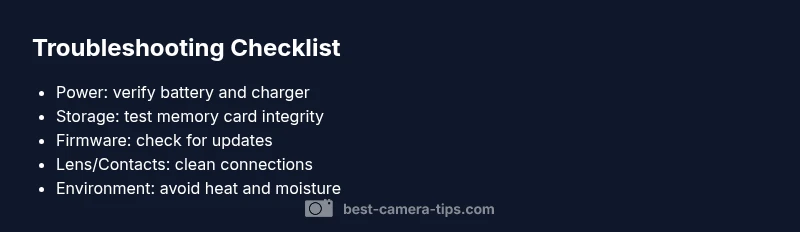
Start with the basics: power, storage, and firmware. Check the battery, try a fresh memory card, and reset minor settings. If the issue persists, follow the diagnostic flow to isolate the symptom and determine the precise fix. Time-sensitive gear calls for a calm, methodical approach.
What is wrong with my camera? A Quick, Urgent Assessment
If you’re asking what is wrong with my camera, begin with the three fundamentals: power, storage, and firmware. Confirm the device powers on, the battery is fresh or fully charged, and the memory card is not write-protected or corrupted. Toggle the mode dial, reset minor settings, and try a different lens or body if you have one. If the camera still misbehaves, move to the diagnostic flow below to isolate the symptom and identify the right fix. In urgent scenarios—whether you shoot events, weddings, or security footage—document each step for warranty or service records. This guide offers practical tests applicable to DSLR, mirrorless, and modern security cameras alike.
Common causes at a glance
Across camera types, the most frequent issues fall into a handful of categories. Power and battery problems top the list, followed by storage integrity, firmware or software glitches, sensor cleanliness, and faulty lens contacts. Environmental factors like heat, dust, and moisture can trigger intermittent faults. Understanding these causes helps you triage efficiently and avoid unnecessary parts replacement. For home-security cameras, check power adapters and PoE connections first, then consider firmware updates as a core maintenance habit.
Diagnostic flow: symptom-to-diagnosis
This section maps typical symptoms to likely causes and practical next steps. If the symptom is “camera won’t power on,” start with: 1) battery charge and charger function, 2) try a known-good battery, 3) inspect the power port for damage. If the symptom is “no image or blank screen,” verify lens connection, sensor cleaning, and memory card status. For “unreliable autofocus,” test with a different lens, examine contacts, and reset focus settings. When you encounter error codes, consult the manual and firmware revision history to pin down compatibility issues. In every case, if the symptom persists after basic checks, escalate to the STEP-BY-STEP section for precise instructions and to document repair or warranty steps.
Step-by-step fixes for the most frequent issues
This section previews practical fixes you’ll perform in the dedicated Step-by-Step guide below. Start with the simplest actions—power cycle, battery swap, and memory card check—before moving to targeted resets or firmware updates. Each fix is designed to be completed in under an hour and includes a quick validation test to confirm success or indicate next steps. For cameras in critical use (live events, surveillance), validate fixes with a controlled test scene after each step. The goal is to restore function with minimal downtime while preserving data and settings where possible.
Safety, prevention tips, and when to seek professional help
Safety comes first. Always power off and remove external power sources before handling internal components. Avoid opening housings if you’re unsure of static risks or warranty terms. Regular maintenance reduces the chance of surprises: clean contacts, use the correct memory cards, and keep firmware updated. If you encounter persistent issues after all safe diagnostics and basic fixes, seek professional repair or warranty service. Document the fault, gather purchase receipts, and note firmware versions to speed up the support process. For complex problems like suspected motherboard failure or water ingress, professional service is strongly advised.
Quick tips for photographers and home-security camera setups
Photographers should maintain a routine: inspect lens contacts, clean the sensor with appropriate tools, and back up files after shoots. For home-security cameras, ensure firmware is current, check power stability, and test remote access during off-hours to confirm reliability. When mixing devices, keep a shared checklist to avoid cross-device confusion and ensure consistent troubleshooting across cameras and recording gear.
Steps
Estimated time: 60-90 minutes
- 1
Power cycle and verify battery
Power down, remove the battery, wait 15 seconds, reinsert and power on. If available, try a different battery and charger. Confirm the charging indicator behaves as expected.
Tip: Use a known-good battery from a working device for a reliable test. - 2
Check memory card health and format
Eject the card and inspect for physical damage. Use a card reader to run a quick health check. If possible, format the card in-camera or with a dedicated tool, then reinsert.
Tip: Back up data before formatting to avoid data loss. - 3
Reset camera settings to baseline
Restore factory defaults or remove recent profile changes that might block startup. Recreate essential settings after boot to see if the issue recurs.
Tip: Note any settings you revert so you can reapply them safely later. - 4
Inspect lens and contacts
Power off, remove the lens, and inspect both lens and camera body contacts for dirt or corrosion. Reattach the lens firmly and retry power on. Try a different lens if available.
Tip: Dirty contacts are a common, overlooked cause of startup issues. - 5
Update firmware and reboot
Check for the latest firmware on the manufacturer site. Install if available, then perform a full reboot and test core functions.
Tip: Only use official firmware to avoid bricking the device. - 6
Professional help and warranty considerations
If the camera still won’t power on, contact authorized service or the manufacturer under warranty. Prepare the serial number, proof of purchase, and firmware version for faster support.
Tip: Document fault time, steps taken, and any error codes observed.
Diagnosis: Camera won't power on
Possible Causes
- highBattery issue or depleted charge
- mediumDamaged or faulty charging port/cable
- lowInternal power board fault or power circuitry failure
Fixes
- easyTest with a known-good battery and charger
- easyInspect and clean power contacts; replace cable if frayed
- mediumIf problem persists, perform a formal service under warranty or contact manufacturer support
Common Questions
Why won’t my camera turn on even with a charged battery?
Most startup failures come from battery contact problems, a damaged charging port, or a firmware glitch. Start by testing with a known-good battery and cleaning contacts, then update firmware if available.
Startup issues usually come from contacts or firmware. Try a known-good battery and a quick firmware update.
How can I tell if the memory card is the problem?
A faulty or full memory card can prevent startup or save errors. Check card integrity with a reader, try a different card, and format the card if needed after backing up data.
Test with a new card and back up before formatting.
My autofocus isn’t working. What should I do?
AF problems often stem from dirty contacts, outdated firmware, or lens misalignment. Clean contacts, try another lens, and ensure AF settings are correct.
AF problems? Clean contacts and test with a different lens.
Should I reset my camera to factory settings?
A factory reset can restore performance if a misconfigured setting is causing the issue. Save essential customizations, perform the reset, and reapply settings gradually.
Reset if misconfigurations block operation, then reapply settings carefully.
Can firmware updates cause issues?
Firmware updates resolve known issues but can temporarily affect performance. Ensure you download the correct version from the official site and follow the update instructions exactly.
Firmware updates help but follow official instructions carefully.
When should I seek professional service?
If the camera won’t power on after all safe steps, or if there are signs of water ingress or physical damage, professional repair is required. Check warranty coverage and service options.
Seek professional repair if basic fixes fail or the device shows damage.
Watch Video
The Essentials
- Diagnose power, storage, and firmware first
- Follow a safe, stepwise flow to isolate the fault
- Document every step for warranty or repair
- Seek professional help when power issues persist