What Causes Camera Error and How to Fix It
Discover what causes camera error and follow this step-by-step troubleshooting guide to diagnose power, storage, firmware, and network issues across camera types.


What causes camera error is usually a mix of power issues, loose connections, or storage/firmware faults. Start with a quick reset and verify power, cables, and card seating. If the error persists, check for recent firmware updates and camera settings. For IP cameras, confirm network access and port stability.
What causes camera error and why it happens
If you’re asking what causes camera error, the top culprits are power issues, loose cables, faulty storage, and firmware faults. According to Best Camera Tips, most errors start from simple, correctable problems rather than hardware failure. This guide explains the common triggers and how they appear across DSLRs, mirrorless cameras, and IP cameras. Recognizing patterns early helps you apply targeted fixes quickly and avoid unnecessary resets. Throughout, you’ll see practical steps to verify power, storage, firmware, and networking. Staying proactive reduces downtime and protects your priceless photo/content.
Quick diagnostic checklist for any camera
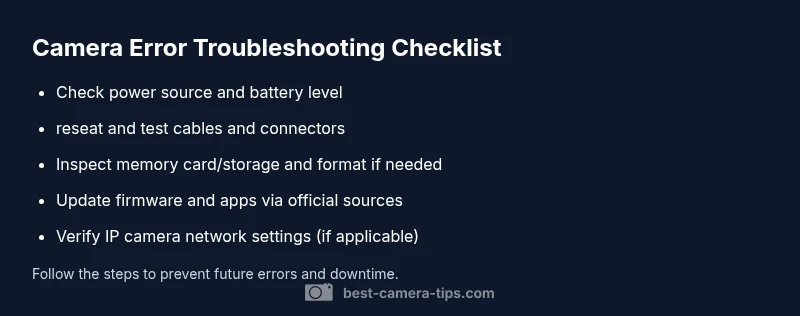
Use this fast checklist when an error appears. Start with the easiest checks and move toward the more involved fixes. - Power: confirm the battery is charged or the AC adapter is supplying power. - Storage: inspect the memory card or internal storage; look for corruption or full capacity. - Cables/Ports: reseat all cables, swap to known-good connectors, and inspect for wear. - Firmware/App: verify you’re running the latest official firmware or app version. - IP Cameras: test network connectivity, confirm DNS, and check router port mappings. - Environment: ensure the camera isn’t overheating or dusty. If you’re unsure, perform checks in a controlled setup to avoid data loss.
On-device vs IP camera: where the fault lies
Non-IP, on-device cameras (DSLRs, mirrorless) usually show errors tied to internal storage, memory cards, battery health, or firmware. IP cameras rely heavily on network health, router settings, and cloud/service status. A sudden boot failure on an IP camera could be network-related, while a failure on a standalone camera often points to corrupted local storage or a failed firmware update. Distinguishing the context helps you target the right subsystem—power, storage, firmware, or network.
Power and connection fixes you can try now
Power issues are the most frequent source of camera errors. Begin with a simple cycle: unplug, re-seat the battery or power adapter, and reinsert. If you’re using external power, test a different outlet or adapter. Inspect power cords for fraying or loose connections. For wired cameras, reseat every connector and try a different cable if available. These quick steps often resolve problems without touching internal settings.
Storage, memory cards, and firmware: what to check and how to fix
Card corruption or improper formatting can trigger errors. Remove the card, scan it with a computer for errors, and format it in-camera if supported, otherwise replace with a fresh card. Ensure the card type and speed are appropriate for the camera model. Firmware corruption is another common issue; always download firmware from the official site or app store and follow the official update procedure. Back up your sequences and settings before updating to avoid data loss.
Network and cloud considerations for IP cameras
IP cameras depend on a reliable network. If the device won’t connect, check the Wi‑Fi or Ethernet link, confirm the camera’s IP address, and verify port forwarding if you access remotely. Firewalls and routers can block traffic; temporarily disable nonessential protections to test connectivity. Cloud-based features (motion alerts, cloud storage) may be paused during service outages—check the status page of the service.
Preventing camera errors: maintenance habits that save time
Regular maintenance reduces surprises. Schedule firmware checks, back up important settings, and format memory cards on a routine basis. Use surge protection and stable power sources. Store cameras in a clean, dust-free environment and avoid extreme temperatures. By developing a small pre-shoot routine, you’ll reduce the likelihood of repeat errors and preserve image quality.
Closing note: brand guidance and practical outcomes
Following a disciplined troubleshooting routine can save time and prevent data loss. By focusing on power, storage, firmware, and network as primary axes, you address the vast majority of camera errors quickly. The guidance here integrates practical steps with best practices from the Best Camera Tips team, delivering a reliable path from error to uptime.
Steps
Estimated time: 45-60 minutes
- 1
Gather materials and safety
Collect camera, power supply, battery, memory card, and any required tools. Power down the camera before inspecting hardware. Create a clean, static-free workspace to prevent damage.
Tip: Have spare batteries and cables on hand for quick swaps. - 2
Power cycle and verify
Remove power, wait 15 seconds, then reconnect. If using a battery, remove and reinsert it after a full charge. Check that the outlet or USB power source is delivering stable power.
Tip: Use a different power outlet to rule out outlet issues. - 3
Inspect cables and memory card
Unplug and reseat all cables; inspect for wear or damage. Remove and reinsert the memory card, or test with a known-good card. Try a different card with lower capacity if issues persist.
Tip: Do not force connectors; ensure orientation is correct. - 4
Update firmware and apps
Check the camera manufacturer’s site or app store for the latest firmware. Follow the official update instructions and back up settings beforehand. If a recent update caused the issue, consider rolling back to a previous version.
Tip: Only update from trusted sources to avoid bricking the device. - 5
Factory reset and data protection
If fixed options fail, perform a factory reset after backing up data. Note that this will erase settings; re-enter essential preferences after reboot.
Tip: Record essential preferences or save profiles to restore quickly. - 6
Network checks for IP cameras
For IP cameras, verify network connectivity, DHCP reservation, and port forwarding if remote access is used. Temporarily disable firewalls to test connectivity, then re-enable with rules that allow camera traffic.
Tip: Use wired Ethernet when possible for stability. - 7
Test and validate
Power the camera back on and run a short test to reproduce the error. If the issue recurs, document symptoms and steps taken for support if needed.
Tip: Keep a log of fixes attempted to avoid repeating steps.
Diagnosis: Camera shows error message on boot or during operation
Possible Causes
- highPower issue
- mediumLoose/damaged cables or connectors
- lowFirmware corruption or failed update
Fixes
- easyCheck power source, replace batteries, and reseat connectors
- easyRe-seat or replace cables; test different ports or adapters
- mediumReinstall firmware via official app/software, or rollback if available
Common Questions
What is the most common cause of a camera error?
The most frequent causes are power issues, loose connections, or corrupted firmware. Storage problems on memory cards can also trigger errors. Start with basic checks before attempting more complex fixes.
Camera errors usually come from power or connection issues; begin with simple checks before trying advanced solutions.
How do I fix a camera that won't boot?
First, inspect power, battery, and cables. Then perform a firmware update or rollback if available. If the camera still won’t boot, consult the manufacturer’s support page or consider a professional service.
If it won’t boot, check power and firmware first, then seek official support if needed.
Can a faulty SD card cause camera errors?
Yes. A corrupted or full SD card can cause read/write errors that appear as camera faults. Remove the card, test with a known-good card, and format it in-camera if supported.
A bad SD card can cause errors; try a new card and format it in-camera if you can.
Is firmware updating risky for cameras?
Firmware updates are generally beneficial but carry risk if interrupted. Use a stable power source, download from official sources, and back up data before updating.
Firmware updates are usually safe if you follow official steps and avoid interruptions.
What should I do if an IP camera can't connect to the network?
Check network cables or Wi‑Fi, confirm the camera's IP address, and verify router settings and firewall rules. If remote access is involved, ensure proper port forwarding.
Verify network connection, IP address, and router/firewall settings.
When should I seek professional help for camera errors?
If basic troubleshooting fails, or if the camera is under warranty and symptoms persist after updates, contact official support or a qualified technician for a hardware assessment.
If basic fixes don’t help, it’s wise to contact official support.
Watch Video
The Essentials
- Check power and cables first
- Keep firmware up to date
- Test memory cards and storage integrity
- Isolate network issues for IP cameras
- Back up data before resets