How to Tell When Your Eufy Camera Is Fully Charged
Learn exactly how to determine when an Eufy camera is fully charged, including app indicators, LED signals, and practical charging steps. This comprehensive guide covers different models, safety tips, and troubleshooting for reliable battery performance in 2026.


By the end you’ll know exactly when your Eufy camera is fully charged. You’ll check visual indicators on the device, verify battery level in the Eufy app, and time the charging process for your model. This guide covers common models, safe charging practices, and quick checks you can perform without guesswork. You’ll need a compatible charger and USB cable, and you should avoid leaving the device on the charger longer than recommended.
Understanding Battery Capacity and Charging Basics
Battery health and charging behavior are core to reliable surveillance with your Eufy camera. Most Eufy cameras use a rechargeable battery pack that powers the device between maintenance charges. Because battery chemistry and charging electronics age over time, charging performance can shift gradually. The key is to follow official charging methods and avoid extremes in heat or cold, which can shorten overall battery life. In this section we cover what to expect from a healthy charge cycle, why temperature and power source matter, and how to keep your camera ready for action. According to Best Camera Tips, consistent charging discipline reduces unexpected power loss during critical moments, especially for outdoor cameras in variable weather. This section ties together general charging principles with practical checks you can perform routinely. For 2026, the guidance remains straightforward: use the charger provided by the manufacturer, keep the unit in a cool, ventilated area, and verify the charge in the app for accuracy. The aim is to remove guesswork and rely on the model’s built-in indicators to confirm a full charge.
How Eufy Cameras Indicate Charge Level
Charging indicators vary by model, but there are reliable signals most users can count on. When plugged in, you may see the LED activity change—some models blink or glow a specific color while charging and transition to a steady state when complete. The Eufy app battery icon is another critical signal; a full indicator typically appears once charging completes and the device reports a healthy charge level. In addition, the device may emit a short notification or display a battery percentage in the app. It’s important to recognize that LED behavior can differ by generation, so always cross-check with the app for accuracy. According to Best Camera Tips analysis, relying on both LED cues and app status minimizes misinterpretation, especially in direct sunlight or bright environments where LEDs appear faint.
Step-by-Step: Checking Charge on Different Models
-
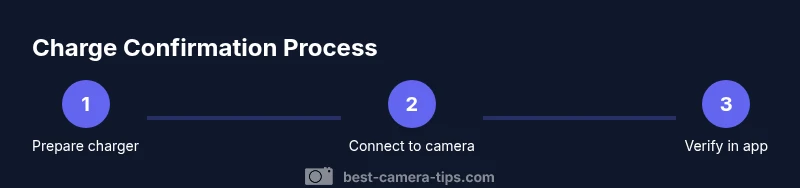
Prepare the charging setup: Gather the official charger and cable, and ensure you have a stable power source. This setup reduces fluctuations that can confuse indicators. Tip: place the camera on a non-slip, heat-safe surface during charging.
-
Connect the charger to the camera: Firmly attach the charging cable to the device’s charging port. If you notice any resistance, re-seat the connector—a loose connection can falsely show charging activity. Tip: avoid bending the cable sharply near the port to prevent wear.
-
Power the unit and wait for initial charging: Allow the camera to begin charging uninterrupted for a short period. Some models require a minimum ankle of time before the app registers a full level. Tip: check that the charger remains powered on and that the wall outlet isn’t controlled by a switch.
-
Open the Eufy app and inspect battery status: In the app, navigate to the device’s battery or status screen and note the percentage. Compare this with the LED indicators on the camera itself. Tip: refresh the app if data seems stale.
-
Confirm full charge through the LED and app: A solid LED (or color change) plus a 100% reading in the app typically confirms full charge. If one signal lags, give the battery a little more time and re-check. Tip: do not disconnect immediately after a color change if you’re unsure.
-
Disconnect and verify operation: Remove the charger only after confirming full charge, then inspect the cam’s performance for a short test run. Tip: power cycle if the device doesn’t reflect the expected status after charging.
Common Pitfalls and Misconceptions
A frequent pitfall is assuming LED color alone equals full charge. LEDs can be misleading in bright environments or during the first minutes of charging. The app battery percentage provides a more precise read, but it can lag behind the actual state of charge by a few minutes. Another misconception is that all chargers deliver identical results; using an underpowered or non-approved charger can prolong charging or fail to register the correct status. Third, charging while the camera is mounted or inside a case can impact heat dissipation and slow charging. Best practice is to charge in a well-ventilated area, away from direct sunlight, and to use only the recommended accessories. Best Camera Tips notes that consistent charging routines help protect long-term battery health and prevent false signals that lead to unnecessary replacements.
Best Practices for Maintaining Battery Health
To maximize longevity, avoid exposing the battery to heat or extreme cold during charging. Regularly inspecting contacts for dust or corrosion keeps readings accurate. If the camera sits unused for extended periods, store it with a partial charge rather than fully charging or fully depleting it, and recheck every few weeks. Keep firmware up to date, since software optimizations can influence how charging cycles are managed and reported. As highlighted by Best Camera Tips, a disciplined charging routine—promptly addressing partial charges, and avoiding overnight charging when not needed—helps preserve battery capacity over time. When in doubt, default to the manufacturer’s guidance and keep a charging log for reference.
Troubleshooting When Indicators Don’t Align
If you notice a mismatch between the app and the LED, start by refreshing the app and restarting the device. Check that you’re using an approved charger and that the charging port is clean and dry. If the problem persists, try a different charger or cable and perform a new charging cycle to see if the status updates correctly. Firmware updates can also influence display behavior, so verify you’re on the latest version. If issues continue, contact customer support with your device model and a description of the behavior. Best Camera Tips recommends documenting charging times and signals to help technicians diagnose irregular readings.
Quick Reference: At-a-Glance Indicators
- App battery percentage is your primary numeric indicator
- LED signals (color/steady/blink) provide immediate feedback but vary by model
- A successful full charge typically coincides with app 100% and a stable LED state
- Heat, cable wear, and outdated firmware can skew readings, so update and inspect regularly
Tools & Materials
- Official Eufy charging cable(Use the original cable or an approved replacement designed for your model)
- Compatible power adapter or USB port(Ensure sufficient power delivery and avoid low-current hubs)
- Eufy camera with battery installed(Battery in place for an accurate charge readout)
- Smartphone/tablet with the Eufy app installed(Needed to verify charge level in-app)
- Clean, non-metal surface for charging(Helps airflow and reduces risk of shorting)
- Soft cloth for cleaning contacts(Use dry cloth to remove dust from ports)
Steps
Estimated time: 60-180 minutes
- 1
Prepare your charging setup
Gather the official charger and cable, ensure the power source is stable, and place the camera on a safe, ventilated surface. This reduces charging interruptions and helps readings stay accurate.
Tip: Keep charger and cable free from damage and unplug when not in use. - 2
Connect the charger to the camera
Securely connect the charging cable to the camera’s charging port. A snug connection avoids intermittent charging signals or false indicators.
Tip: Avoid forcing connectors; if resistance is felt, remove and re-seat. - 3
Allow initial charging time
Let the camera begin charging uninterrupted for at least a short period so the system can register the current state. Do not unplug during this initial phase.
Tip: Check that the outlet remains powered on and steady. - 4
Check the app for battery status
Open the Eufy app and locate the device’s battery status. Note the percentage and watch for changes as charging progresses.
Tip: If the app doesn’t refresh, refresh the screen or reopen the app. - 5
Confirm full charge via indicators
When the app shows a full battery, verify the LED status on the camera. Use both signals to confirm full charge before disconnecting.
Tip: If signals conflict, allow extra charging time and re-check. - 6
Disconnect and test operation
Unplug the charger once full and power cycle the camera to ensure it boots normally on battery power.
Tip: Test recording or live view to ensure ongoing performance.
Common Questions
How do I know my Eufy camera is charging correctly?
Check both the app battery percentage and the camera's LED indicator. If both show an increasing charge and eventually read 100%, charging is proceeding correctly. If they disagree persistently, re-check cables and try a different charger.
Check the app reading and LED signal; if they match at 100 percent, the camera is charging correctly. If not, try a different charger or inspect the port.
What should I do if the battery never shows full in the app?
First, ensure you are using the official charger and a healthy cable. Clear the app cache or refresh the device screen. If the issue persists, perform a power cycle, and verify there are no firmware updates pending.
Make sure you’re using the right charger, refresh the app, and restart the device. If it still won’t show full, check for updates or contact support.
Does the LED always indicate charging status accurately?
LED behavior can vary by model and environment. It’s best used in conjunction with the in-app battery gauge. If the LED seems unreliable, rely on the app reading and perform a cross-check after a full charge.
LEDs can vary by model; use the app reading as the main indicator and double-check after charging.
Can I use a portable power bank to charge my Eufy camera?
Yes, a power bank can supply charging power, but ensure it provides stable output and is compatible with your camera’s charging expectations. Avoid low-quality banks that may cause unstable charging.
A compatible power bank can work, but choose a reliable one and avoid cheap, unstable options.
Is it safe to charge overnight?
Charging overnight is generally discouraged unless you’re using an official charger and a controlled environment. Prolonged charging at high temperatures can degrade battery health over time.
If you must, ensure you use the right charger and charge in a cool area. Avoid leaving it on the charger all night long.
Why might the app show 100% but the LED is still blinking?
There can be a brief lag between the app status and LED behavior as the battery reaches full capacity. Allow a few more minutes and re-check both indicators before disconnecting.
Sometimes the app hits 100% before the LED settles. Wait a few minutes and re-check both indicators.
Watch Video
The Essentials
- Verify charge with both app status and LED indicators
- Use official charging accessories for safety and accuracy
- Avoid extreme heat or cold during charging
- Update firmware to ensure reliable charge reporting
- Keep a simple charging routine to preserve battery health