How to Know If Your Arlo Camera Is Charging
Learn how to confirm Arlo camera charging status with LED indicators, the Arlo app, and proper charging practices. This practical guide from Best Camera Tips covers common models, troubleshooting, and safe charging habits for home security setups.


Goal: verify that your Arlo camera is charging and identify indicators. You’ll inspect the camera’s LED indicators, confirm the charging cable and adapter are connected correctly, and check the charging status in the Arlo app. This guide covers common models and practical troubleshooting steps, with careful safety tips from Best Camera Tips.
Understanding how charging works for Arlo cameras
Charging a modern Arlo camera involves both hardware and software signals. Most Arlo devices use rechargeable battery modules that can be charged through a dedicated charger or via USB power. The charging process is designed to be user-friendly, with the camera reporting its status to the Arlo app and displaying LED indicators on the device itself. While the core concept is straightforward, real-world charging can vary by model, battery health, and whether you rely on solar charging or direct power. According to Best Camera Tips, a reliable charging check depends on combining hardware signals (LEDs and cable integrity) with software signals (battery level in the app) to form a complete picture. This section sets the foundation for the practical checks that follow, helping you avoid guessing and ensure your camera stays ready for security needs.
Visual indicators you should know on Arlo cameras
LED indicators are the most immediate signal that charging is underway or complete. Depending on the model, you might see a soft glow, a color change, or a blinking pattern when charging begins, and a solid color when the battery is full. Because indicator behavior can differ between models, it helps to consult your device’s user guide or model-specific notes. Be mindful of ambient light conditions: outdoor cameras may appear dim in daylight, which can make an indicator seem inactive when it is not. In this section you’ll learn how to interpret common LED cues, what they typically mean, and how to verify them against the app status. If the color codes differ from what you expect, treat the information as model-specific but use the same dual-check approach: hardware LEDs plus software battery data. This approach improves reliability and reduces ambiguity when charging status seems uncertain.
Verifying the charger, connectors, and power source
A secure charging setup starts with the basics: the charger and its cable must be compatible with your Arlo model, the connectors should be clean and undamaged, and the power source should provide stable power. Inspect the USB-C or micro-USB connector for wear, check the charging brick for warmth, and confirm the plug is fully seated in both ends. If you notice looseness, rattle, or visible wear, replace the cable or adapter before continuing. A clean, stable connection minimizes charging interruptions and helps you avoid false negatives in status reports from the app. Practically, keep spare cables handy and store them away from moisture to protect the integrity of the charging path.
Checking charging status in the Arlo app
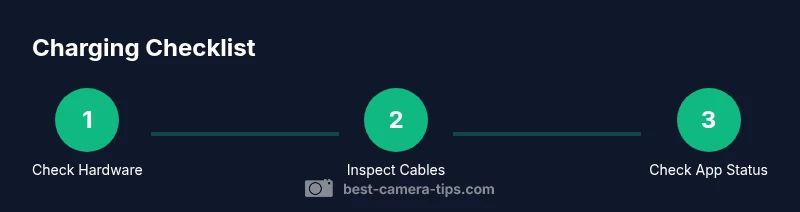
The Arlo app is your long-term ally in monitoring charging progress. Open the app, select your device, and locate the battery section to view a live gauge or a charging label. If the device reports it is charging, compare that with the LED indicator on the camera to confirm alignment. If the app shows a low battery while the LED appears active, refresh the device data or re-sync the camera with the app. Ensure your phone is connected to the internet so status updates propagate promptly. This dual-check method—hardware indicator plus app readout—reduces ambiguity and helps you act quickly if charging stalls.
Charging paths: battery vs. solar vs. USB charging
Arlo cameras can use different charging paths depending on model and installation. Some devices rely solely on a rechargeable battery, while others can use USB power for charging or solar panels as a trickle source. Understanding the charging path helps you set expectations: solar can keep the camera topped up during exposure to daylight, while USB charging is a more reliable fix when energy is needed quickly. When assessing charging status, note which path is active and whether the battery health supports sustained charging. This awareness helps you decide when to swap batteries, connect solar, or adjust placement for optimal charging.
Troubleshooting common charging problems and quick fixes
Charging problems often stem from simple issues: a loose connection, a damaged cable, or an out-of-date app. Start by rechecking connections and trying a different known-good cable and charger. If the LED remains dark or the app shows no charging status, reboot the camera via the app or power cycle, then recheck. Dust, moisture, and temperature can affect charging; ensure the charging area is clean and dry. If problems persist, test with a spare battery or consult model-specific guides. While addressing issues, log any recurring patterns to share with support later. This methodical approach aligns with practical guidance from Best Camera Tips and minimizes guesswork.
Tools & Materials
- USB charging cable(Original cable that came with your Arlo model; use USB-C if your model uses USB-C connectors.)
- Charging adapter/power source(Use a reliable wall charger or the manufacturer-provided adapter; avoid low-quality USB ports.)
- Clean microfiber cloth(Wipe dust from connectors and contacts before reconnecting.)
- Spare battery module(Keep a charged spare handy if your model supports swappable batteries.)
- Small screwdriver (model-specific)(Only for models that require battery access; follow safety guidance.)
Steps
Estimated time: about a short wait
- 1
Inspect the camera and battery
Carefully examine the camera housing and battery area for signs of damage, corrosion, or loose covers. Check the battery contacts for dirt or debris and clean gently with a dry cloth if needed. If you see any damage, do not attempt to charge until the item is inspected by a professional or replaced.
Tip: Handle the device with dry hands and avoid touching metal contacts directly to reduce static risk. - 2
Check the charger and power source
Inspect the charging cable and connector for wear, and confirm the charger is firmly plugged into a stable power source. Try a different cable or charger if you suspect a fault, and avoid charging through low-quality USB hubs. A reliable power path reduces false negatives in charging indicators.
Tip: Test with a known-good cable first to isolate the fault. - 3
Connect the charger securely
Attach the charger to the camera’s charging port and ensure the connection is snug. If your model uses a removable battery, ensure the battery is correctly seated before reconnecting the charger.
Tip: If the camera has a battery door, avoid forcing it open; use the proper sequence documented for your model. - 4
Monitor LED indicators
Observe the LED on the camera for the charging signal—color, blink pattern, or illumination level. Compare with model-specific guidance, since indicators vary across Arlo models. Use this hardware signal in tandem with the app status for a reliable view of charging progress.
Tip: If LEDs don’t align with expectations, proceed to the app check to corroborate status. - 5
Verify charging status in the Arlo app
Open the Arlo app, navigate to your device, and view the battery section to confirm charging status. Refresh data if necessary and confirm that the app indicates charging or rising battery level. If no status is shown, re-sync the device with the app.
Tip: Ensure your phone has an active internet connection so status updates are current. - 6
Test battery health and duration
Leave the camera charging until the app reports a solid battery level and the hardware indicators reflect the same state. If the battery drains rapidly after charging, this may indicate aging cells or a need for maintenance; consider battery health checks or support contact.
Tip: Document any rapid drain patterns to share with support for faster diagnosis.
Common Questions
Can Arlo cameras charge while they are in use?
Charging behavior can vary by model. Some Arlo cameras support charging while active, but always confirm with your device’s model-specific guidance and monitor both hardware indicators and app status.
Some Arlo cameras can charge while in use, but check your model’s guidance and watch both LEDs and the app for confirmation.
Why is my Arlo camera not charging even when plugged in?
Check the cable and connector for wear, verify the charger and power source, and ensure the device is synced to the app. If these steps fail, try a different charger or battery and consult model-specific instructions.
If it isn’t charging, inspect the cable, try another charger, and make sure the device is synced to the Arlo app.
How do I check the battery level in the Arlo app?
Open the Arlo app, select the device, and view the battery status in the device panel. If available, refresh the data to ensure you’re seeing the current status.
Open the Arlo app, pick your device, and look for the battery status in the device panel.
Is it safe to use solar charging with Arlo cameras?
Solar charging is supported on some models; ensure the solar setup is appropriate for the device and does not overheat the battery. Follow manufacturer recommendations.
Solar charging is possible on some Arlo models, but follow the manual and avoid overheating the battery.
What should I do if the LED doesn’t indicate charging?
Check the cable connection, power source, and model-specific LED codes. If still unresolved, verify status in the app and consider testing with a different charger.
If the LED doesn’t show charging, inspect the connections and try the app status as a backup.
Do charging indicators differ by Arlo model?
Indicators vary by model. Always refer to your specific model’s guide, and use both hardware LEDs and app status for a reliable check.
Indicator signals depend on the model; use both LED signals and the app for accuracy.
Watch Video
The Essentials
- Verify charging with both LED indicators and app status.
- Use the original charger to ensure safe, reliable charging.
- Regularly check battery status in the Arlo app for accuracy.
- Inspect cables for wear and replace if damaged.
- Follow safety tips to avoid hazards during charging.