How to Fix Camera in Teams: A Practical Guide
Learn a comprehensive, step-by-step approach to fix camera issues in Microsoft Teams. From hardware checks to permission tweaks and driver updates, this guide helps aspiring photographers and home security enthusiasts get reliable video in Teams meetings.


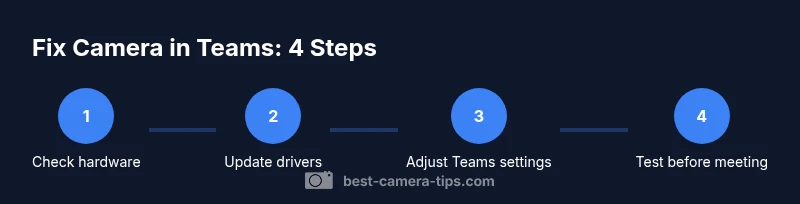
To fix a malfunctioning camera in Teams, verify hardware availability, grant camera permissions, update drivers, and adjust Teams settings. You'll need a webcam or built-in camera, a working internet connection, and an updated Teams app. This guide covers common causes and a clear, step-by-step approach to restore video in meetings.
Why Teams camera issues happen
Camera problems in Microsoft Teams can arise from a few root causes: hardware conflicts, permissions, outdated drivers, and Teams settings. This section breaks down each factor with practical examples and quick checks you can perform before diving into deeper fixes. By understanding the common culprits, you can target your efforts efficiently and avoid unnecessary steps. Remember, even small settings mismatches can prevent video from appearing in a meeting. As you troubleshoot, ensure your camera is properly connected and recognized by the operating system before testing in Teams. This understanding helps you differentiate between a hardware fault and a software misconfiguration, saving time and frustration for aspiring photographers and home security enthusiasts who rely on clear video for demonstrations or surveillance setups.
Practical takeaway: start with the simplest checks and progressively move toward configuration changes that affect Teams’ permission model and the device driver stack. The goal is to restore a stable video feed without introducing new issues. Best Camera Tips’s approach emphasizes methodical verification, documentation of changes, and testing in realistic meeting scenarios to confirm a reliable fix, not just a temporary workaround.
Quick hardware and software checks
Before changing settings, rule out easy problems: verify the camera appears in your OS device manager (Windows) or system information (macOS). Test the camera with another app (such as the built-in Camera app or Photo Booth) to confirm hardware is functional. Check Teams' permissions: Windows Privacy Settings > Camera must be allowed for Teams; macOS System Preferences > Security & Privacy > Camera must allow Teams. Ensure your Teams client is up to date and that you have a stable internet connection. If you use a USB webcam, try a different USB port and remove any USB hubs that could cause bandwidth issues. This baseline eliminates most false alarms and saves time during the call. In practice, hardware age or loose connections are common culprits, so reseating cables and renewing power to external cameras often resolves mid-call freezes and blank screens. Connecting to a secondary monitor can also reveal whether display routing is affecting the video stream. Best Camera Tips emphasizes routine checks so that photographers and security enthusiasts can reproduce the fix across devices.
Additionally, verify that no other app is holding exclusive access to the camera, as this prevents Teams from acquiring the stream. On Windows, close competing apps and check Task Manager for processes that might be blocking the camera driver. On macOS, quit nonessential apps and revoke any unusual permissions if a third-party utility claims camera access. After these steps, you are ready to isolate software-level causes from hardware-level failures.
When to adjust Teams settings and drivers
If hardware is fine, focus on software: update or reinstall your camera drivers from the device manufacturer's site or via your OS update channel. In Teams, go to Settings > Devices and select the correct camera; disable background effects if they cause compatibility issues; check whether "Disable HD video" is enabled in Windows or any GPU-accelerated settings that could conflict with real-time video encoding. For corporate devices, confirm there are no group policies blocking camera access. Temporarily disabling antivirus or firewall rules that may interfere with media streams can also reveal the root cause. Finally, validate that the Teams version aligns with your operating system version—an out-of-sync build can produce intermittent video behavior and force Teams to revert to 480p by design. Best Camera Tips finds that aligning hardware drivers, OS, and app versions yields the most durable fix for aspiring photographers experimenting with camera rigs during online shoots or tutorials.
If you rely on a specific camera profile (e.g., color balance for product demos), consider comparing your device color pipeline across other video meeting platforms to determine whether color management is a Teams-specific issue or a broader pipeline problem.
Advanced troubleshooting and alternate paths
If the issue persists, try these advanced steps: reset Teams cache by quitting Teams and deleting the cache folder; sign out and back into your account; try Teams on a different device to determine if the problem is device-specific; test with a different camera to identify if the original is faulty. Consider using the Teams web app as a fallback. For recurring problems, document the steps and contact IT with your findings. In complex environments (multiple cameras, enterprise policies, and custom virtual camera software), a systematic approach—recording times, changes, and outcomes—helps you detect correlations between updates and failures. Best Camera Tips recommends creating a repeatable diagnostic checklist so you can reproduce a fix across devices and avoid repeat issues in future calls.
Testing and verification after fixes
With fixes applied, perform a controlled test: run a private video call, enable all features you typically use, and request a friend or colleague to verify audio and video quality. Check for consistent frame rate, color accuracy, and stable focus. Validate that meeting invites display the correct camera in the preview and that switching cameras during a call behaves as expected. If the camera remains unresponsive, attempt a clean reinstall of Teams, ensure Windows/macOS privacy settings are conservative, and recheck hardware connections. Finally, document the exact steps you took and the results so you can share a clear summary with your IT team or with Best Camera Tips for future reference.
AUTHORITY SOURCES
- https://learn.microsoft.com/en-us/microsoftteams/hardware
- https://support.microsoft.com/en-us/office
- https://www.microsoft.com/en-us/microsoft-teams
Tools & Materials
- Computer or laptop with Teams installed(Windows or macOS; ensure OS is up to date.)
- Camera (built-in or external webcam)(If external, connect via USB 2.0+ port.)
- Stable internet connection(Prefer wired connection for stability.)
- Teams app updated(Check for updates through the app store or Office update channel.)
- Camera drivers up to date(Install from manufacturer site or Windows Update.)
- Alternate camera or device (optional)(Helpful for testing and isolation.)
Steps
Estimated time: 30-45 minutes
- 1
Check hardware and connections
Physically inspect the camera connection and power. If external, unplug and replug the USB cable, try a different port, and test the camera in another app to confirm it is functional. A loose cable or failing port is a common cause of no video in Teams.
Tip: Use a different USB port to rule out port-specific issues. - 2
Verify Windows/Mac camera permissions
On Windows, go to Settings > Privacy > Camera and ensure Teams is allowed. On macOS, open System Preferences > Security & Privacy > Camera and confirm Teams has access. Without permission, Teams cannot acquire the video stream.
Tip: Restart Teams after adjusting permissions to apply changes. - 3
Update or reinstall camera drivers
Update the camera driver from the manufacturer site or Windows Update. If issues persist, uninstall and reinstall the driver, then reboot the computer. Driver conflicts are a frequent source of online video problems.
Tip: Always back up any custom camera settings if available. - 4
Check Teams camera settings
In Teams, go to Settings > Devices and select the correct camera. If you use background effects, turn them off to test whether they interfere with video. Ensure HD video is enabled if your hardware supports it.
Tip: Test multiple cameras if you have more than one option. - 5
Test in a controlled call
Schedule a private test call with a colleague or use the Teams test call feature (if available) to verify video and audio. Confirm the preview shows the correct camera before joining the meeting.
Tip: Use a consistent lighting setup to avoid exposure issues. - 6
Check for software conflicts
Close other programs that may access the camera (video editors, conferencing apps). Some apps hold exclusive access and block Teams. If problems persist, reboot the computer to reset hardware interfaces.
Tip: Disable any privacy-hardened security products temporarily to test. - 7
Try Teams on another device
If the camera works on another device, the issue may be device-specific (driver, OS, or policy). This helps isolate whether the problem is the camera or the Teams deployment.
Tip: Transfer the same camera to a different device to compare results. - 8
Consider a clean reinstall of Teams
If all else fails, uninstall Teams completely, delete residual cache folders, reinstall the latest version, and reconfigure your camera settings. This often resolves stubborn issues caused by corrupted app data.
Tip: Back up settings or notes from Teams before reinstalling.
Common Questions
What should I do first when my Teams camera isn't working?
Start with hardware checks, verify permissions, and update drivers. Then test in a private Teams call to confirm video returns. If unresolved, proceed to more advanced steps like resetting cache or reinstalling Teams.
Begin with hardware checks and permissions, then update drivers, and test in a private call.
How do I grant camera access in Windows 10/11 for Teams?
Open Settings > Privacy > Camera, ensure Camera access for this device is on, and check that Teams is allowed to use the camera. Restart Teams after changing permissions.
Check Windows privacy settings to allow Teams camera access, then restart the app.
Why does Teams show a blank screen while my camera works in other apps?
This usually indicates a Teams-specific setting or a driver conflict. Update or reinstall the camera driver, check Teams camera selection, and test other apps to isolate the issue.
A blank screen usually points to Teams settings or driver conflicts; update and reconfigure accordingly.
Can I use a virtual camera in Teams?
Yes, but ensure the virtual camera is compatible with Teams and does not conflict with the physical camera. Disable other video devices if needed and test in a private call.
You can use a virtual camera, just verify compatibility and test before meetings.
What if my camera works on another device but not this one?
The problem may be device-specific—focus on device drivers, OS permissions, and Teams version on that machine. Reproduce the fix with the exact steps on the problem device.
If it works elsewhere, fix steps on the affected device to align drivers and settings.
How can I test my camera before a meeting?
Use Teams' Settings > Devices to preview the camera, or place a private test call. Confirm the right camera is selected and lighting is adequate.
Preview the camera in Settings or run a quick test call before the meeting.
Watch Video
The Essentials
- Verify hardware first: a loose connection is often the culprit
- Grant proper camera permissions for Teams on your OS
- Keep Teams and drivers up to date for best compatibility
- Test fixes in a controlled call to validate success
- Document steps to enable quick fixes in future meetings