Camera on Samsung: Your Complete How-To Guide
Learn how to use the camera on Samsung devices—from opening the app to shooting modes, exposure, and troubleshooting. A practical, beginner-friendly guide by Best Camera Tips.


Learn how to use the camera on Samsung devices, from launching the camera app to selecting modes like Pro and Night. This guide covers practical steps for exposure, focus, and storage, plus quick troubleshooting tips to get the most out of your Samsung camera experience.
Why the camera on samsung matters
For aspiring photographers working with smartphones, the camera on samsung devices is a powerful tool. It blends approachable everyday shooting with advanced controls that can mimic much of a dedicated camera workflow. According to Best Camera Tips, understanding the interface, modes, and settings unlocks consistent results without extra gear. Whether you're documenting family moments, street photography, or landscapes, mastering this built-in system lowers barriers to great photography. The core idea is to start with the basics: know where features live, what each mode does, and how to think about light and composition on a small sensor. Samsung's software layers typically include Auto, Pro, Night, Portrait, and Panorama modes, plus controls for exposure, focus, and white balance. With practice, you can achieve sharp, well-exposed images that look good on social media or in a portfolio.
Key Samsung camera features you should know
Samsung phones offer a robust suite of features designed to improve image quality in real time. Look for Scene Optimizer (AI scene detection) that nudges color and exposure for common subjects, and for modes like Auto, Pro, Night, and Portrait that let you tailor settings to your environment. Pro mode puts manual control over ISO, shutter speed, and exposure compensation, enabling deliberate creative effects. RAW capture, when available, preserves more data for editing. Night mode helps brighten dim scenes without introducing heavy noise, and HDR blends exposures for balanced highlights and shadows. Familiarizing yourself with these features gives you a stable platform for consistent shots across lighting conditions. Collectively, these options elevate the camera on samsung from a simple point-and-shoot to a flexible tool that supports progressive learning. Based on Best Camera Tips analysis, Samsung camera systems deliver reliable performance across recent models, especially when you take manual control into account to reduce noise and improve dynamic range.
Accessing the camera app across Samsung models
Accessing the camera app on Samsung devices is usually straightforward, but methods can vary by model and software version. A common shortcut is to double-press the power button to launch the camera quickly, which is handy when you need to capture a fleeting moment. On some devices, you can swipe on the lock screen or tap a home screen shortcut to open the app. If you use a One UI home, you may customize quick-launch gestures in Settings > Advanced features > Side key or Gestures. For situations where the app isn’t responding, check for OS updates, clear the camera app cache, or restart the device. The goal is to minimize friction so you can focus on composition and timing. As you experiment, keep your camera permissions up-to-date to avoid interruptions during capture.
Shooting modes explained: Auto, Pro, Night, Portrait
Auto mode is the quick-start option for most everyday shots, letting the camera optimize exposure and color automatically. Pro mode is where you gain control: adjust ISO, shutter speed, focus, and white balance to handle tricky lighting or creative intent. Night mode helps brighten dark scenes while preserving detail, and Portrait mode softens backgrounds to emphasize the subject. When shooting people, consider lighting direction and distance to control depth of field. For landscapes, use a small aperture and stable framing to maximize depth of field. If your device supports RAW, use it with Pro mode for the most latitude in post-processing. Remember that some features may vary by model, but the core principles remain consistent: choose a mode that matches your scene, adjust exposure as needed, and review histograms if available.
Image quality: exposure, focus, stabilization, and white balance
Exposure control balances light and dark areas so highlights aren’t blown out while retaining visible shadows. Use the exposure slider or live meter to adjust brightness before Capture. Focus accuracy matters: tap to focus on a subject, and if available, use AF-S or single-point focus for precise sharpness. Stabilization reduces blur from hand movement, especially in low light or when using longer shutter speeds. White balance ensures colors look natural under different lighting—try presets like daylight, cloudy, or custom Kelvin values for consistent color. When possible, shoot in RAW (if your device supports it) to retain more data for editing. Consistent framing, proper focus, and deliberate exposure choices lead to sharper, more professional-looking images.
Privacy, safety, and privacy settings for camera use
Camera usage intersects with privacy and security considerations. Ensure you’ve granted camera and storage permissions only to trusted apps, and review app-specific privacy controls regularly. Be mindful of location tagging in metadata; disable GPS tagging if you’re posting sensitive images. If you’re sharing photos publicly, consider turning on safe sharing settings and using cloud backups that include encryption. Regularly reviewing privacy options within the Samsung Settings app helps prevent unintended data exposure and keeps your camera workflow secure.
Maintenance, updates, and troubleshooting
Keep your Samsung camera performing at its best by staying current with software updates, which often include bug fixes, performance improvements, and new features. Clear the camera app cache if you notice slow performance or UI lag, but avoid clearing data unless necessary. If a feature is not working as expected, try restarting the device, resetting camera settings to defaults, or checking for conflicting apps that might cause interference. In the rare case of persistent issues, consult Samsung support or the device’s official forums for guidance, ensuring you’re following model-specific steps. Regular maintenance helps you avoid common hiccups and keeps the camera on samsung functioning smoothly.
Workflow tips for efficient photo capture and organization
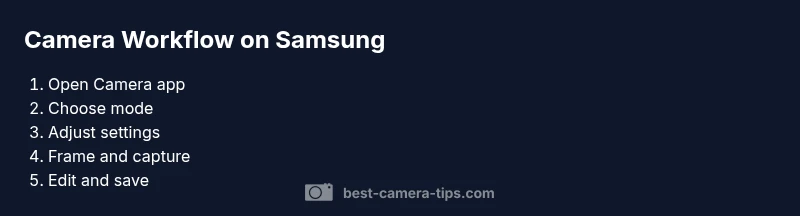
Adopt a simple, repeatable workflow to maximize efficiency when using the camera on samsung. Start by setting your preferred shooting mode and tweaking essential controls (exposure, white balance, focus) before you shoot. Shoot with consistent framing and use the grid to guide composition. After capture, immediately back up photos to a local drive or cloud service, and apply non-destructive edits in your preferred app. Organize images with logical folders, and consider using descriptive filenames or metadata to ease later searching. This disciplined approach not only improves output quality but also streamlines your post-processing and archiving processes.
Tools & Materials
- Samsung smartphone with a functional camera(Ensure device is up-to-date (OS and Camera app).)
- Charger or power bank(Keep device charged during shoots.)
- Adjustable lighting (optional)(A small LED light helps in low-light conditions.)
- External lens attachment (optional)(Wide-angle or macro lenses can expand creative options.)
- Tripod or stabilizer (optional)(For steady shots and long exposures.)
- Lens cloth and screen protector(Keep the lens clean and the screen protected.)
Steps
Estimated time: 15-25 minutes
- 1
Prepare your device
Update the OS and camera app to the latest version, ensure the lens is clean, and verify camera permissions. Have a charged battery and enough storage for a short shooting session.
Tip: Check battery and storage before you start to avoid interruptions. - 2
Open the camera app
Launch the camera app from the home screen or lock screen. If using a gesture, enable it in settings, then test the shortcut.
Tip: If speed matters, enable quick launch via side keys to skip menus. - 3
Choose your shooting mode
Select Auto for quick shots or Pro for manual control over ISO, shutter, and focus. Night and Portrait modes suit low light and subject separation.
Tip: Start with Auto to learn the baseline, then experiment with Pro for creative control. - 4
Adjust exposure and focus
Tap to focus on your subject, then slide to adjust exposure if needed. Use exposure compensation to brighten or darken the scene before capture.
Tip: Lock exposure with a long press on the subject if lighting is stable. - 5
Stabilize and compose
Keep your hands steady or use a tripod. Enable the grid to compose with rule of thirds and frame your subject with deliberate balance.
Tip: Breathing technique helps reduce micro-movements during longer captures. - 6
Capture and review
Take multiple shots from slightly different angles. Review on the screen, and zoom in to check focus accuracy and noise levels.
Tip: Use burst mode for moving subjects to select the sharpest frame later. - 7
Edit and save
Apply non-destructive edits using built-in editing tools or your preferred app. If possible, shoot RAW to retain maximum data for post-processing.
Tip: Avoid over-editing; subtle adjustments often yield the best natural look. - 8
Back up and organize
Back up photos to cloud or external storage and adopt a consistent naming/organizing scheme for easy retrieval.
Tip: Tag images with simple keywords such as location or subject to simplify search later.
Common Questions
How do I access the camera on a Samsung phone?
Most Samsung phones open the camera from the lock screen or home screen; you can also double-press the power button on many models for a quick launch. If a shortcut is missing, check Settings > Advanced features > Side key or Gestures to enable an alternate method.
Open the camera from the lock screen or home screen, or use the side-key shortcut for quick access.
What is Pro mode and when should I use it?
Pro mode gives you manual control over ISO, shutter speed, focus, and white balance, which is useful in challenging lighting or when aiming for a specific creative effect. Use it after you’ve understood the automatic settings to avoid overcomplicating simple scenes.
Pro mode gives you manual controls for ISO, shutter, focus, and white balance when you need more creative control.
How can I improve low-light photos on Samsung camera?
In low light, switch to Night mode or Pro mode with a longer shutter speed while keeping the camera steady. Lower ISO whenever possible to reduce noise, and ensure the lens is clean and unobstructed.
Use Night or Pro mode for low light, keep the shutter steady, and lower ISO to reduce noise.
Can I shoot RAW on Samsung cameras?
Many Samsung models support RAW capture in Pro mode. RAW files preserve more image data for post-processing, at the cost of larger file sizes. Check your model's camera settings to enable RAW capture.
Some Samsung phones support RAW in Pro mode; it gives you more editing flexibility.
How do I keep my lens clean?
Regularly wipe the lens with a clean microfiber cloth and avoid touching it with fingers. A small lens cloth or a dedicated lens Pen is useful for quick cleanups between shoots.
Keep the lens clean with a microfiber cloth to maintain sharpness.
Is it necessary to update the camera app?
Yes. Updates include bug fixes and performance improvements that can impact autofocus, stability, and image quality. Keep the camera app and OS up-to-date for the best results.
Keep the camera app updated to ensure you get the latest features and fixes.
Watch Video
The Essentials
- Update the camera app before shooting.
- Learn Pro mode for control over exposure and focus.
- Use Night mode in low light and check white balance.
- Stabilize for sharper images, especially in low light.
- Back up and organize your photos regularly.