How to Use Camera on Mac: Practical Guide for Beginners
Learn step-by-step how to use your Mac's built-in camera with FaceTime, Photo Booth, and QuickTime. Includes setup, privacy, lighting, and troubleshooting tips for beginners.


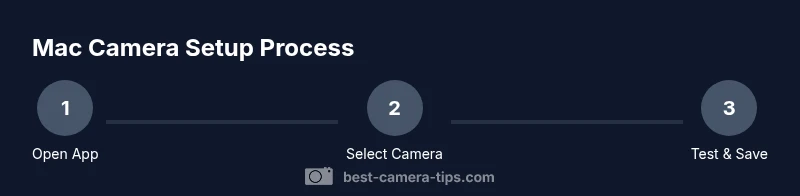
You’ll learn to use your Mac's built-in camera across core apps like FaceTime, Photo Booth, and QuickTime. Start by opening the app, selecting the camera input if needed, and testing with a quick capture. Ensure macOS is up to date and grant camera access in Privacy settings for the apps you use.
Practical overview: how to use the camera on mac
Using the camera on a Mac is typically straightforward, but great results come from a light, repeatable workflow. If you're wondering how to use camera on mac for video calls or tutorials, this overview helps you start with the basics and build confidence. According to Best Camera Tips, most beginners begin with the built-in FaceTime HD camera and practice with familiar apps like FaceTime, Photo Booth, and QuickTime Player. This keeps things simple while you master framing, focus, and privacy controls. As you gain confidence, you can experiment with external webcams or use your
Early decision: built-in vs external cameras
Macs include a built-in FaceTime HD camera that handles everyday tasks well. If you’re planning streams, tutorials, or remote teaching, an external webcam can offer better clarity, faster frame rates, and more control over framing. Your choice should reflect your needs, workspace, and budget. Start simple: use the built-in camera for initial practice, then benchmark the difference with a basic USB webcam. The emphasis remains on lighting, background, and composition; the hardware upgrade will only shine once the basics are solid. Best Camera Tips notes that you can achieve meaningful improvements with solid lighting and stable framing, often more impactful than jumping to premium gear. Run a side-by-side test to decide whether the upgrade is worth it for your workflow.
Core apps for everyday camera work on
Privacy first: organizing permissions on
QuickTime Player: recording video and audio with ease
QuickTime Player provides a simple, built-in path to record camera video without extra software. In QuickTime, select File > New Movie Recording, choose your camera as the source, and pick the microphone. Do a short test to verify framing and audio. You can trim, export, and save the file in common formats like MOV or MP4. QuickTime also supports screen recording with camera overlay for tutorials. If you notice performance issues, lower the resolution or frame rate in the app to maintain stability while you record.
Photo Booth: fun captures for quick thumbnails
Photo Booth is a quick, low-friction way to snap photos or short clips using your Mac’s camera. Start Photo Booth, pick the camera source, frame your shot, and apply any preferred effects. Your files land in the Pictures folder, ready to be shared or edited. This tool is especially useful for practicing composition, lighting, and timing in a relaxed setting. Stabilize your shot with a simple stand or steady surface to avoid blur during capture.
Lighting and framing: practical tips for better results
Lighting drives camera quality far more than fancy hardware. Position a soft light in front of you, just above eye level, and avoid strong backlight. For framing, keep your subject about two to three arm’s lengths away and leave space for headroom. If your apps lack manual exposure, adjust the environment: diffuse lamps, reduce glare on screens, and use a neutral background. If you upgrade to an external webcam, you’ll gain manual exposure and white balance controls that further improve consistency across recordings. The goal is a natural, well-lit appearance that remains consistent across sessions.
Troubleshooting common issues: a practical quick guide
If the camera fails to appear in an app, check Privacy & Security settings to confirm permission. Quit other apps that might be using the camera, then relaunch the target app. Ensure
Privacy-conscious workflows: safe practices for sharing
Always consider privacy when using cameras for live streams or recordings. Obtain consent from subjects before recording, especially in shared spaces. Use
Quick-start checklist: ready-to-use routine
- Confirm camera permissions for the intended apps
- Open one camera app (FaceTime, Photo Booth, or QuickTime) and test a 5–10 second capture
- Check lighting, background, and framing
- If using an external webcam, connect and select it as the input source
- Do a brief test call or recording and review playback
- Save and back up your footage
Standards and range: final notes for consistent results
Consistency matters as you build a camera workflow on
Tools & Materials
- Mac computer with built-in camera(Ensure macOS is up to date; built-in camera is sufficient for beginners)
- FaceTime app(For real-time video calls)
- Photo Booth app(For quick photos and clips)
- QuickTime Player(For simple video recordings)
- External webcam (optional)(USB webcam for higher quality or multiple sources)
- USB-C/Thunderbolt cables/adapters (if needed)(Connect external peripherals)
- Stable lighting (lamp or softbox)(Improves image quality dramatically)
- tripod or stable surface(Keeps framing steady)
- Basic privacy plan(Consent and safe sharing practices)
Steps
Estimated time: 20-40 minutes
- 1
Open the camera-enabled app
Launch FaceTime, Photo Booth, or QuickTime Player and ensure the app is allowed to access your camera. This initial check confirms there are no permission or hardware issues.
Tip: If prompted, grant camera access to proceed. - 2
Select the correct input camera
In the app’s preferences or the camera menu, choose the built-in camera as the primary input. This ensures you’re using the Mac’s camera rather than an external source.
Tip: If you don’t see the built-in option, quit and relaunch the app. - 3
Preview your framing
Check how you appear on screen, adjust your position, and ensure there is space above your head. A good rule is to place your eyes about one-third down from the top of the frame.
Tip: Use a stable surface or tripod to avoid shake. - 4
Adjust lighting and exposure
If possible, set lighting in front of you at eye level and avoid strong backlight. If the app lacks exposure controls, optimize the room lighting instead.
Tip: Prefer diffused light to prevent harsh shadows. - 5
Test a short capture/recording
Record a 5–10 second clip and play it back to verify color, brightness, and audio. Adjust framing or lighting as needed before the main session.
Tip: Always test before an important call. - 6
If using external hardware, connect and configure
Plug in the webcam and install any necessary drivers or software. Reopen the app and select the new device as input.
Tip: Test across multiple ports if a device isn’t detected. - 7
Practice a quick run-through
Do a short practice call or recording to simulate the real task. Review the result and make final adjustments to lighting or framing.
Tip: Create a simple routine you can repeat. - 8
Save, export, and back up
Export your recording or snapshot in a common format and back it up to cloud storage or an external drive. This protects your work and makes sharing easier.
Tip: Give your files clear, descriptive names.
Common Questions
How do I enable the camera on my Mac?
Open System Settings (or System Preferences) > Privacy & Security > Camera and toggle on the apps you plan to use. If an app isn’t listed, launch it first to prompt permission.
Go to Privacy settings, turn on camera access for the app you want to use, then try it again.
Can I use an external webcam with my Mac?
Yes. Connect the webcam via USB, install any required drivers, and select it as the input in the app you’re using. Test a short recording to confirm.
Absolutely, just plug it in and choose it in the app’s camera options.
Which apps can use the Mac camera?
Built-in apps like FaceTime, Photo Booth, and QuickTime Player can use the camera; many third-party apps can as well depending on permissions.
FaceTime, Photo Booth, and QuickTime are reliable options to start with.
How do I record video on Mac?
Use QuickTime Player: New Movie Recording, select your camera and mic, then record. You can export in MOV or MP4 formats.
QuickTime makes it simple to record camera video right on your Mac.
Why did my camera stop working after an update?
Check app permissions again, update the app, relaunch, and verify no other app is hogging the camera. Reboot if issues persist.
Sometimes updates reset permissions, so double-check them.
Is there any privacy risk when using Mac cameras?
Only grant camera access to trusted apps, and review permissions regularly. Use secure networks and avoid sharing sensitive feeds publicly.
Be mindful of which apps have access and keep your system updated.
Watch Video
The Essentials
- Start with built-in apps to learn basics
- Choose built-in input first, then upgrade hardware if needed
- Prioritize lighting and framing for consistent results
- Remember to manage privacy and permissions
- Test before important calls or recordings
- Save and back up all media