How to Get Camera on MacBook: Enable, Grant Permissions, and Troubleshoot
Learn how to enable your MacBook camera, grant app permissions, update macOS, and fix common issues with the built-in FaceTime HD camera. This practical guide covers privacy settings, hardware checks, and step-by-step troubleshooting for aspiring photographers and home-security enthusiasts.


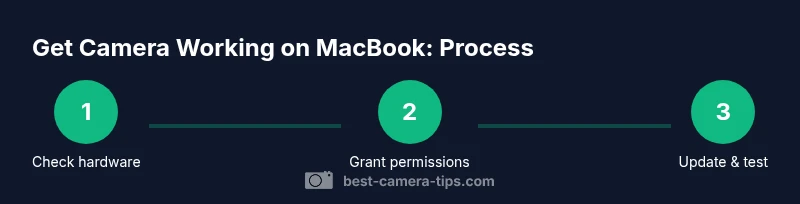
Here's how to get camera on macbook: verify the built-in camera is active, grant the correct privacy permissions, and ensure macOS is up to date. You’ll test with FaceTime, then confirm camera access for apps like Zoom and Safari. This quick path minimizes permission and software conflicts. If a problem persists, try a simple restart.
Why Your MacBook Camera Might Not Be Visible
There are several reasons a MacBook camera might appear to disappear or fail to function in apps. The most common culprits are privacy permissions, macOS updates, and hardware indicators. Start by confirming the camera is physically present and the green light (if present) turns on when an app attempts to use it. If you see no light, the problem could be a hardware issue or a blocked camera by software. In this section we cover how to identify the root cause, with practical tests. For photographers and home-security enthusiasts, understanding these factors helps you quickly diagnose when the camera isn’t showing up in major apps like FaceTime, Zoom, or security software. How to get camera on macbook often begins with a permissions check and a quick hardware test.
Key idea: most camera issues are solvable with privacy settings and software updates rather than hardware replacements.
Inspect the Hardware and Indicator Lights
The MacBook camera is usually active when any app requests it, and many models show a small indicator light. If the light never comes on, you may have a hardware fault or a background block from software. Start with a simple test by launching FaceTime and trying to start a video call. If you don’t see any sign the camera is in use, close other apps that may be using it in the background, and then retry. Visual clues like sudden app crashes or lag when opening a camera-related feature can point to software conflicts, not hardware failure. If the light is blinking inappropriately or never activates, proceed with the rest of the checks.Tip: keep a log of when the issue occurs to spot patterns around certain apps or tasks.
Step 1: Check macOS Privacy Settings to Permit Camera Access
On macOS, camera access is controlled by Privacy & Security settings. Open System Settings (or System Preferences on older versions), then go to Privacy & Security > Camera. Ensure that the toggle is on for each app you want to use the camera (FaceTime, Zoom, Safari, Photo Booth, etc.). If an app is missing, launch it once to trigger the permission prompt, then approve. This step often fixes the core issue of a blank or “camera unavailable” screen. For the keyword how to get camera on macbook, the privacy route is usually the quickest win.
Why it helps: macOS restricts apps from using hardware without explicit permission, so granting access directly resolves most first-contact failures.
Step 2: Test Camera Permissions for Individual Apps
Even when general camera access is enabled, individual apps may have separate permission prompts. Open each app (FaceTime, Zoom, Photo Booth, Safari) and attempt to start a video session. If you’re prompted, grant permission. If you don’t see a prompt, check the app’s in-app settings to confirm camera usage is enabled. Some apps also offer “default camera” selections; ensure the built-in camera is chosen. If a particular app still cannot access the camera, consider reinstalling the app or resetting its permissions by removing and re-adding it to the allowed list in Privacy & Security.
Pro tip: restarting the app after granting permission often resolves lingering permission prompts.
Step 3: Update macOS and Your Apps
An outdated macOS or app can cause compatibility issues with the camera. Check for macOS updates in System Settings > General > Software Update and install any pending updates. Then verify that your camera-related apps are on the latest version. If you rely on a third-party conferencing tool, visit the developer’s site for the latest patch notes and compatibility guidelines. After updating, restart the MacBook and re-test the camera in a known-good app like FaceTime.
Why update matters: newer macOS builds include camera driver fixes and security updates that improve stability and privacy handling.
Step 4: Reset NVRAM/PRAM and SMC (When Hardware Issues Persist)
If the camera still won’t appear, reset NVRAM/PRAM and SMC as a last-resort hardware sanity check. For Intel Macs, shut down, then turn on and immediately press Option-Command-P-R for about 20 seconds to reset NVRAM/PRAM. For Apple Silicon Macs, Apple recommends simply restarting and ensuring the latest updates are installed, as SMC resets are not user-accessible on these models.</br>Next, reset the SMC if your model supports it (the process varies by model). These resets can restore default hardware configurations that sometimes impact the camera. After resetting, boot the MacBook and test the camera again with FaceTime.
Important: do not perform resets if you’re unsure which model you have; check Apple’s official guidance before proceeding.
Step 5: Check for External Cameras and Conflicting Software
If you use an external webcam, disconnect it and test the built-in camera first. Some external devices can temporarily hijack camera resources, causing the built-in camera not to respond. Reconnect the external camera after you confirm the built-in camera works. Also review security software, antivirus, or privacy tools that may block camera access. Disable or adjust their settings and re-test. If external hardware is your goal, ensure drivers are up to date and the hardware is compatible with your macOS version.
Note: for home-security setups, ensure camera feeds aren’t restricted by firewall or network policies in ways that block your MacBook’s access to the feed.
Authority Sources and Further Reading
To deepen your understanding of camera privacy and macOS permissions, consult official documentation and reputable tech outlets. Apple’s support resources outline how camera privacy works on macOS, while peer-reviewed security references discuss best practices for device privacy and app permissions. This page consolidates practical steps from expert sources to help you resolve most MacBook camera issues.
- Official macOS privacy and camera permissions guidance (Apple Support)
- General privacy and security best practices (major tech publications)
- Hardware troubleshooting and driver guidance from recognized outlets
Common Issues and Quick Fixes
- If the camera indicator light is off, start with permissions testing and app updates.
- If you receive a “camera unavailable” error, revoke and re-grant permission for the affected app.
- If FaceTime works but Zoom doesn’t, check Zoom’s privacy settings and reinstall if necessary.
- If nothing resolves the issue, contact Apple Support or visit an Apple Store for hardware diagnostics.
Tools & Materials
- MacBook with built-in camera(Ensure it’s a model with a functional camera (FaceTime HD or later))
- macOS version up-to-date(Check Software Update and install pending updates)
- Internet connection(Needed for updates and app permission prompts)
- FaceTime, Zoom, Photos/Photo Booth(Apps to test camera access)
- External webcam (optional)(Useful for comparison or additional setups)
- Apple Support access(For official guidance and troubleshooting)
Steps
Estimated time: 30-60 minutes
- 1
Inspect hardware and indicators
Power on and attempt to use the camera in FaceTime. Look for the indicator light and any fan or heat signs that accompany camera usage. If there’s no light or response, proceed to the next steps to isolate the issue.
Tip: Check the physical lid switch (if your model has one) to ensure the camera isn’t occluded by hardware. - 2
Open Privacy & Security and enable Camera access
Navigate to System Settings > Privacy & Security > Camera. Make sure each app you want to use has permission enabled. If an app isn’t listed, launch it once to trigger a permission prompt, then approve.
Tip: Don’t skip apps you frequently use; a hidden permission block is a common cause of camera failures. - 3
Test app permissions individually
Launch FaceTime, Zoom, and Safari one by one and attempt a video session. If prompts appear, grant access; if prompts don’t appear, check the app settings or reinstall the app.
Tip: Reopen the app after granting permission to ensure changes take effect. - 4
Update macOS and applications
Go to System Settings > General > Software Update and install any available updates. Update Zoom, FaceTime, and browser apps from their own update channels. Reboot after updates.
Tip: Software fixes for camera often arrive in separate updates; staying current reduces regressions. - 5
Reset NVRAM/PRAM (and SMC if needed)
If the camera still doesn’t respond, reset NVRAM/PRAM (and SMC on eligible models) following Apple’s official guidance. After the reset, re-test the camera.
Tip: Only perform resets if you’re comfortable; incorrect steps can impact other hardware settings. - 6
Test with an external camera (optional)
If you have an external webcam, connect it to verify whether the MacBook’s built-in camera is the issue or the software chain. If the external camera works, the problem may be with the built-in hardware; consider service.
Tip: External cameras can reveal whether the issue is software or hardware related. - 7
Review security software and network factors
Some antivirus or security tools block camera access. Temporarily disable these tools and test again. If you rely on network-only feeds, ensure your firewall settings permit camera usage.
Tip: Security software can silently block camera access; test with it disabled (briefly) to confirm. - 8
Contact Apple Support if unresolved
If none of the above steps fix the camera, contact Apple Support or visit an Apple Store for hardware diagnostics. Document the steps you’ve tried to speed up service.
Tip: Hardware failures require professional assessment; avoid DIY fixes that may void warranties.
Common Questions
Why is my MacBook camera not turning on even with apps installed?
Most commonly this is due to privacy permissions or an app-specific permission prompt. Check System Settings > Privacy & Security > Camera and ensure each app has access. If the issue persists after granting permission, update macOS and the apps, then restart.
Usually permissions are the culprit. Check Privacy settings first, then update and restart.
How do I grant camera access to apps on macOS?
Open System Settings > Privacy & Security > Camera, then toggle on access for the apps you use. If prompted, allow access when launching the app for the first time.
Open Privacy settings and enable camera access for the app, then relaunch it.
Can I use an external camera if the built-in one fails?
Yes. Connect an external webcam via USB and test it with a video app. If the external camera works, the built-in camera may have a hardware issue or be disabled at the system level.
You can use an external camera as a workaround while you troubleshoot the built-in one.
Should I reset SMC/NVRAM for camera problems?
Resetting SMC/NVRAM is a troubleshooting step when basic checks fail or after major hardware changes. Follow Apple’s official instructions for your model to perform the reset safely.
Resetting NVRAM/SMC helps fix low-level hardware settings that can affect the camera.
Where can I find official guidance on camera privacy for macOS?
Refer to Apple Support’s camera privacy documentation for macOS. It provides step-by-step instructions on enabling camera access and managing permissions across apps.
Apple’s official guide is the best source for camera privacy on Mac.
What should I do if a specific app still can’t access the camera after all steps?
Reinstall the app, ensure it’s updated, and try a fresh permission prompt. If it continues to fail, test with another app to determine if the issue is app-specific or system-wide.
If one app still blocks the camera, reinstall and test with another app to identify the scope of the problem.
Watch Video
The Essentials
- Test privacy permissions first before hardware checks
- Update macOS and apps to fix camera issues
- Reset NVRAM/PRAM and SMC only if necessary
- External cameras help diagnose hardware vs software problems
- Consult official sources for authoritative guidance