QR Code Scan Camera: Setup, Use, and Troubleshooting
Learn how to choose, set up, and troubleshoot a qr code scan camera. Practical, step-by-step guidance for aspiring photographers and home-security enthusiasts seeking reliable QR decoding.


QR code scan camera refers to a camera that natively reads QR codes, decodes the embedded data, and can trigger apps, authentication, or automation without an external scanner. It streamlines device setup, access control, and data capture by letting the camera itself read static or dynamic codes in real time.
Why QR code scanning matters for cameras
In modern photography and home-security setups, the ability to read QR codes directly from the camera stream unlocks faster workflows. A qr code scan camera reads codes in real time, triggers actions, and reduces the need for separate scanners or apps. According to Best Camera Tips, cameras with native QR decoding can streamline onboarding, inventory checks, and access control. When you rely on a camera to interpret codes, you gain hands-free operation, improved reliability, and a clearer audit trail. In practice, you might use a QR-enabled camera to automatically pull product data from a label, grant entry to authorized devices, or log an inspection by scanning a tag. However, not every camera is built for QR reading, so it’s important to verify model specs and firmware capabilities. This section sets the stage by clarifying what QR decoding means, what it enables, and where to expect limitations (like code size, contrast, and lighting).
How QR code scanning works in cameras
QR code scanning relies on image capture, decoding, and data routing. Cameras with QR support typically have a dedicated image processor or firmware module that recognizes the standard QR code finder pattern and the tiny data modules. The camera decodes the pattern, validates the error-corrected data, and passes the payload to a connected app or service. This can trigger automation, populate a form, or unlock a device. For best results, ensure the code has sufficient contrast, is not damaged, and sits within the camera’s autofocus range. If your camera uses a two-step approach (capture then decode), you may need to enable a specific scanning mode or integrate via the camera’s API. Test under realistic conditions and align expectations with code size, print quality, and lighting. Best Camera Tips notes that some models support dynamic QR codes that update data after each scan, while others only read static codes. Understanding your device’s decoding pipeline helps you troubleshoot issues and design more reliable workflows.
Typical use cases for qr code scan cameras
Common scenarios include quick device pairing, inventory management, access control, attendee check-in, and contactless data capture. In photography workflows, a qr code scan camera can pull shot metadata, link to a gallery, or attach a lens profile by scanning a code on a tag. For home security, scanning codes on labels can authorize cameras to fetch configuration profiles or refresh credentials without touching the main app. When evaluating use cases, list the required actions after a scan, the expected data payload, and the environment (indoor vs outdoor).
How to choose a camera for qr code scanning
Key considerations include native QR decoding support, compatibility with your app ecosystem, lighting tolerance, and code size support. Look for models that advertise 'QR code scanning' in the specs and verify the maximum code size and distance. Check the firmware update cadence and whether the vendor provides an SDK or API for integration. If you plan to deploy at scale, consider a camera with robust processing, local decoding, and secure data transmission. For photographers, lens compatibility and autofocus performance matter to keep the code in frame. For security-focused setups, ensure the device supports encrypted connections and strong authentication.
Setup and testing workflow
Start by validating the environment: ensure stable power, adequate lighting, and a clean surface where codes will be tested. Load the latest firmware and confirm the QR decoding feature is enabled. Prepare a set of test codes with varying sizes and contrast. Establish a simple test plan: one camera, one app, and a few common tasks (scanning to trigger an action, pulling product data, or recording a log entry). Document the results and adjust camera settings for consistency. Finally, repeat tests under different angles and distances to map the focus range and reliability of decoding.
Advanced tips and best practices
To maximize reliability, train users to present codes within the camera’s optimal focus range and avoid reflective surfaces. Maintain consistent lighting and avoid moving codes during scanning. Consider creating a small library of codes with known sizes for quick benchmarking. Keep firmware up to date and review security settings regularly. If you deploy across multiple cameras, standardize the scanning workflow to reduce training time and errors.
Security and privacy considerations
QR codes can carry sensitive payloads, so it’s essential to encrypt data in transit and validate what each scan triggers. Disable unnecessary decoding features on devices not in use. Review audit trails and ensure access controls align with your security policies. Regularly update firmware and monitor for vulnerabilities related to QR decoding libraries. Always balance convenience with privacy by limiting data collected through scans.
Tools & Materials
- Camera with built-in QR code scanning(Verify firmware supports native QR decoding and check for updates.)
- Test QR codes (printable or digital)(Include codes of different sizes and contrasts.)
- Smartphone or tablet for integration testing(Useful to validate app/API integration when needed.)
- Stable power source or fresh batteries(Prevents interruptions during testing.)
- Test surface and ambient lighting(Ensure codes lie flat and lighting is consistent.)
- Camera manual or vendor docs(Helpful for model-specific scanning steps.)
Steps
Estimated time: 45-60 minutes
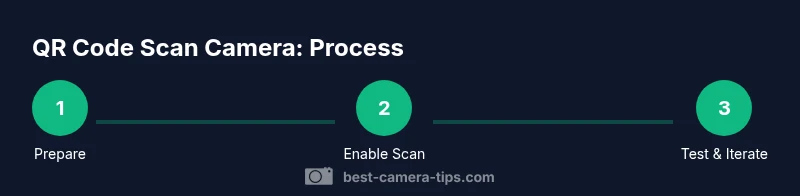
- 1
Prepare the camera and environment
Power on the camera, update firmware if available, and set up a stable test area with even lighting. This ensures the camera’s decoding engine is ready for reliable scans.
Tip: Check for a firmware update before enabling QR scanning. - 2
Enable QR code scanning mode
Navigate the camera's menu to activate the native QR decoding feature. If an SDK is involved, confirm the API is accessible and the permission prompts are handled.
Tip: Document the exact menu path for future reference. - 3
Prepare test QR codes
Arrange codes of various sizes and contrasts on a flat surface. Ensure codes are not damaged and remain within the camera’s focus range.
Tip: Include at least one dynamic code if supported. - 4
Conduct initial scans
Hold or position the camera to scan each code. Note successful decodes, the prompt behavior, and any delays.
Tip: Record the distance and angle for each successful decode. - 5
Test under different lighting
Repeat scans with bright, dim, and angled lighting to assess reliability. Document any glare or reflections that hinder decoding.
Tip: Use a diffuser or indirect light to reduce hotspots. - 6
Troubleshoot and document
If a code fails to decode, verify code integrity, retry at a closer distance, adjust focus, and check for software updates. Keep a log of issues and fixes.
Tip: Isolate whether the issue is lighting, distance, or code quality.
Common Questions
What is a QR code scan camera?
A qr code scan camera is a camera with built-in QR code recognition that reads codes directly from the image stream, triggering associated actions without a separate scanner.
A camera with built-in QR decoding reads codes directly and can trigger actions automatically.
Do all cameras scan QR codes natively?
No. Only cameras marketed with native QR decoding or those with available firmware/SDK support can read QR codes without extra hardware.
Not every camera can read QR codes; check specs or firmware before buying.
How do I test QR scanning on my device?
Start with simple, high-contrast codes at close distance, then widen distance and angle. Confirm the decoded data routes to the intended app or action.
Test with a few codes at different distances to ensure decoding works as expected.
Can QR codes be used for security access?
Yes, many systems use QR codes for access, but you should encrypt data in transit and restrict what each scan can trigger.
QR codes can unlock actions, but secure handling is essential.
What factors affect scan reliability?
Code size, contrast, lighting, and camera focus all influence reliability. Larger, high-contrast codes in good light decode more quickly.
Reliability depends on code size, contrast, lighting, and focus.
What should I do if scanning fails?
Verify code integrity, adjust distance or angle, check firmware, and try again. If issues persist, consult the vendor’s support resources.
If a scan fails, check the code, distance, and firmware, then retry or contact support.
Watch Video
The Essentials
- Define your scanning use case clearly.
- Choose a camera with reliable QR scanning.
- Test extensively under varied lighting.
- Keep firmware up to date.
- Optimize code size and contrast.