Camera Web Setup: A Practical Guide for Secure Remote Access
Learn to connect cameras to the web with secure remote access. This in-depth guide covers hardware, networking, privacy, and practical steps for photographers and home security enthusiasts.


According to Best Camera Tips, the camera web means securely streaming live video and controlling cameras over the internet for photography and home security. This guide covers hardware choices, network setup, privacy considerations, and practical steps to get you started. You’ll learn how to select a compatible camera, secure your connection, and test remote access with confidence.
What is camera web and why it matters
The term camera web describes the practice of connecting cameras to a network and exposing their live feeds and basic controls through a web interface or mobile apps. This enables remote monitoring, live photography workflows, or surveillance from anywhere. For aspiring photographers, camera web can simplify remote studio checks, light-timing adjustments, and live review of takes. For home security enthusiasts, it allows real-time monitoring of entry points and asset protection. According to Best Camera Tips, understanding camera web principles helps both photographers and home security enthusiasts. The core idea is to balance accessibility with security: you want convenient access without creating insecure exposure. The landscape includes IP cameras with built-in web GUIs, USB cameras connected to a local computer that shares a stream, and cloud-linked solutions that provide features like motion alerts and cloud storage. As you explore, you’ll encounter two fundamental models: local-only access within your home network, and remote access via the public internet. Each has different setup requirements, privacy considerations, and potential risks. By thinking through these models, you’ll choose a setup that fits your use case without compromising safety.
Core concepts: streaming protocols, privacy, and accessibility
Two core ideas drive camera web setups: how streams are transported and how access is controlled.
Streaming protocols: IP cameras commonly offer RTSP for reliable, low-latency video, HTTP-based streaming for easy access, and occasionally WebRTC for real-time interactivity. If you’re building a simple viewer, HTTP or RTSP with a basic player is often enough. For interactive controls or live collaboration, WebRTC can reduce latency and improve compatibility across devices. When selecting gear, check which protocols are supported and whether you can enable or disable them from the administrator interface. This ensures you choose a solution that aligns with your network setup and privacy goals.
Privacy and access control: Strong, unique passwords for cameras and admin interfaces are non-negotiable. Turn on encryption where available (HTTPS for web interfaces, TLS for streams) and enable two-factor authentication if the device supports it. Avoid exposing admin panels directly to the public internet; instead, use a VPN or a secure DDNS service to connect remotely. Finally, keep firmware updated—vendors fix security flaws and improve compatibility with new viewers over time. Best Camera Tips recommends treating camera web as a security-sensitive feature that deserves careful authentication and ongoing maintenance.
Hardware and network prerequisites
A solid camera web setup starts with matching hardware and a dependable network.
Hardware essentials: A network-enabled camera with a web interface (IP camera) is the simplest path. Ensure it supports RTSP/HTTP streaming and has an accessible admin panel. A router with built-in firewall and VPN support is highly beneficial. A reliable power source or PoE (Power over Ethernet) capability can improve reliability. A computer, tablet, or smartphone for the initial setup is required, and you may want an optional NVR for local recording.
Network prerequisites: A stable home network with separate guest and device networks is ideal. If you’re remote, plan for a Dynamic DNS (DDNS) service or a static IP, and decide whether you’ll forward ports (less secure) or deploy a VPN (more secure). Disable UPnP on the router to minimize automatic exposure, and enable basic firewall rules that restrict access to known devices. Finally, assemble a simple plan for how you’ll monitor and update devices on a regular basis.
Basic setup workflow: from camera to web viewer
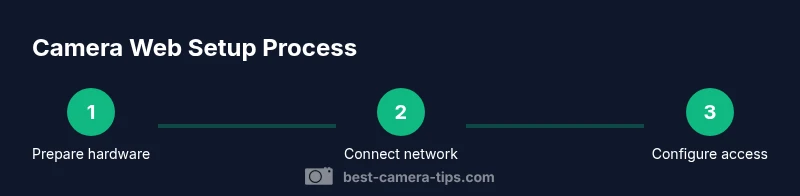
Getting a camera web view up and running involves a clear sequence of actions. First, physically install the camera and connect it to your network. Next, access the camera’s web interface from a local device to configure network settings and change default credentials. Then enable streaming, select a preferred protocol, and note the streaming URL or port. If you plan remote access, choose between a VPN, a DDNS-enabled setup, or a carefully secured port-forwarding rule. Finally, test the viewer on multiple devices to ensure compatibility and responsiveness across platforms.
In this section, you’ll learn practical checks, such as confirming the camera’s IP address, testing latency, and verifying that the viewer can connect both inside and outside your home network. A successful camera web deployment should deliver stable, low-latency streams with reliable authentication and straightforward access for approved users.
Security best practices for camera web
Security is foundational to camera web success. Start by changing all default usernames and passwords, and enable MFA if available. Use HTTPS/SSL where possible and verify that your streaming URLs are not exposed in logs or browser histories. Prefer VPN-based remote access over open port forwarding; if port forwarding is necessary, restrict it to specific IP addresses and ports and monitor the traffic. Regular firmware updates are essential, as vendors patch known vulnerabilities. Consider segmenting camera traffic on a separate network or VLAN to limit potential lateral movement if one device is compromised. Finally, enable activity logs and alert features so you’re aware of unusual login attempts or configuration changes.
Real-world use cases: photography studio, home surveillance, remote monitoring
Camera web setups aren’t one-size-fits-all. In a photography studio, camera web can allow technicians to monitor lighting and backdrop changes remotely, ensuring shoots stay on schedule without interrupting talent. For home security, remote monitoring allows you to verify door or window status and take quick actions from afar. In more advanced remote monitoring scenarios, small studios or classrooms can use camera web to share feeds with collaborators, enabling real-time feedback and collaborative shooting. Regardless of the use case, the core principles—secure access, reliable streaming, and clear viewer experiences—remain the same.
Common challenges and troubleshooting tips
Users often face issues with discovery, latency, or access denial. If you can’t reach the camera from within your network, verify the IP address, ensure the camera is online, and check firewall settings. For remote access, ensure the VPN is connected or the DDNS hostname resolves correctly; verify that the streaming port is open and that the URL is correct. Latency can be caused by network congestion; reduce resolution or adjust bitrate. If the feed stops, check power, reboot the device, and inspect logs for authentication errors or firmware warnings. Documenting your configuration helps you quickly re-create a working setup after a reset or update.
Resources and next steps
To deepen your understanding, consult vendor manuals for your specific camera, router, and viewing software. Practice with a safe, closed network before exposing anything externally. If you’re pursuing professional-grade camera web setups, consider complementary gear like a dedicated NVR, mesh Wi-Fi, or enterprise-grade VPN. Tracking firmware updates and review notes from security advisories helps you stay ahead of threats. By iterating on the basics, you’ll expand your capabilities and tailor camera web setups to your exact use case.
Ethics, privacy, and maintenance mindset
Open camera access carries responsibilities. Always respect privacy by limiting who can view streams, masking areas where needed, and securing all devices against intrusion. Establish a routine for firmware updates, password audits, and access reviews. Maintain an inventory of devices, credentials, and network mappings so you can respond quickly to issues. With a proactive maintenance mindset, camera web becomes a dependable tool rather than a source of risk.
Tools & Materials
- IP camera with web interface(Supports RTSP/HTTP and admin access)
- Router with firewall and VPN capability(Enable VPN for remote access to the camera network)
- Ethernet cable or reliable Wi‑Fi(Stable connection for setup and streaming)
- Computer or smartphone for setup(Used to configure camera settings and viewer)
- Power supply for the camera(Ensure continuous operation; PoE is optional)
- Dynamic DNS service or static IP (optional)(Helpful for persistent remote access)
- Network Video Recorder (NVR) or camera management software (optional)(Adds local storage and centralized control)
- Strong unique passwords and a password manager(Critical for safeguarding admin interfaces)
Steps
Estimated time: 60-90 minutes
- 1
Prepare hardware and network
Lay out your IP camera, router, cables, and setup device. Verify power and basic connectivity before starting configuration to avoid mid-step interruptions.
Tip: Label devices with simple names to reduce confusion later. - 2
Connect camera to network
Attach the camera to your router using Ethernet or connect via Wi‑Fi. Confirm the camera powers up and appears on the network.
Tip: Keep the camera within the same subnet as your setup device during initial access. - 3
Access the camera’s web interface
From your setup device, enter the camera’s default IP in a browser, then log in with the default credentials and change them immediately.
Tip: Record the new admin credentials in a password manager. - 4
Enable streaming and pick a protocol
Turn on the streaming option and select RTSP or HTTP based on your viewer needs. Note the stream URL and port for later use.
Tip: Prefer encrypted access for streams when available. - 5
Secure remote access
Decide between VPN-based access or DDNS with restricted port forwarding. Implement authentication checks and disable unnecessary services.
Tip: VPN is typically the safest option for outside access. - 6
Set up a web viewer
Install or choose a simple web viewer or app that can consume the selected streaming protocol. Configure viewing permissions for trusted devices.
Tip: Test on multiple devices to ensure compatibility. - 7
Test internal and external connections
Verify the feed works on your local network and then attempt remote access through VPN or the public URL. Check latency and stability.
Tip: Keep monitoring tools handy to detect future issues quickly. - 8
Set up storage and alerts
If needed, enable local storage with an NVR and configure motion alerts or email notifications for critical events.
Tip: Only enable alerts you’ll act on to avoid notification fatigue. - 9
Review security posture periodically
Regularly update firmware, rotate credentials, and audit access logs to defend against emerging threats.
Tip: Schedule quarterly reviews and keep a change-log.
Common Questions
What is camera web and why should I care?
Camera web refers to delivering live camera feeds and controls over the internet in a secure way. It enables remote monitoring and control for photography setups or home security. The basics involve selecting compatible hardware, configuring safe access, and maintaining privacy.
Camera web lets you view and control cameras remotely. It’s useful for studios and security, but requires careful setup to stay protected.
Do I need a static IP for camera web?
A static IP or a dynamic DNS service simplifies remote access, but you can also use VPN-based solutions that don’t rely on a fixed address. The choice depends on your network setup and comfort with managing DNS or VPN.
Static IPs help with direct access, but VPNs offer flexibility and security.
Which streaming protocol should I use?
RTSP is common for reliable streaming, while HTTP-based streaming is easier to access through browsers. WebRTC offers low latency for interactive apps but may require more complex setup. Choose based on your viewer’s compatibility and security needs.
RTSP is common for reliability; HTTP is browser-friendly; WebRTC is for interactivity.
How can I protect my camera web from hackers?
Change default credentials, enable encryption, use VPN for remote access, and keep firmware updated. Disable unnecessary services and regularly check access logs for unusual activity.
Use strong credentials, enable encryption, and monitor logs to stay safe.
Can I access my camera web from outside my home network?
Yes, via VPN, DDNS, or secure port forwarding. VPN is the safest option because it minimizes exposure to the internet.
Yes, with VPN or secure remote access methods.
What should I do if the feed stalls or lags?
Check network bandwidth, reduce streaming resolution, and verify device settings. Reboot devices and confirm firmware is up to date.
If the feed stalls, adjust bitrate and verify connections.
Is cloud storage necessary for camera web?
Cloud storage is optional. Use local storage for privacy, or a reputable cloud option for redundancy if your setup supports it.
Cloud storage is optional; consider your privacy and needs.
What are common mistakes beginners make?
Using weak passwords, exposing admin interfaces, and skipping firmware updates are common errors. Start with strong credentials, secure remote access, and regular maintenance.
Avoid weak passwords, insecure access, and ignored updates.
Watch Video
The Essentials
- Choose hardware with secure streaming support.
- Secure accounts with strong passwords and MFA.
- Set up VPN or DDNS for remote access.
- Test remote viewing on multiple devices.
- Regularly update firmware and review logs.