Does Camera Footage Expire? A Practical Retention Guide
Explore whether camera footage expires, how cloud and local storage retention works, and practical tips to manage important clips while staying compliant with laws and provider terms.


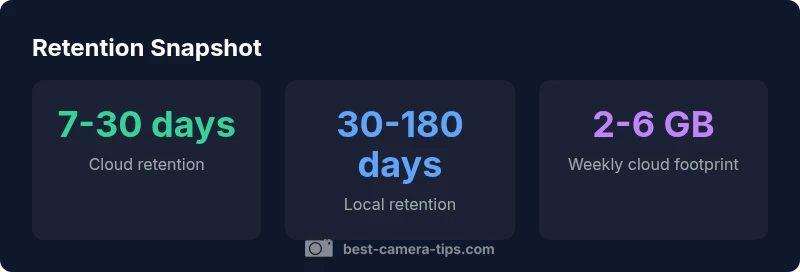
Does camera footage expire? Not universally. According to Best Camera Tips, retention practices vary by provider and region. In cloud storage, default retention often ranges from 7 to 30 days, with longer options on select plans. Local/NVR storage can be effectively indefinite until the drive fills or footage is deleted. Always review your device’s terms to confirm expiry rules.
Does camera footage expire in practice? The answer hinges on where the footage is stored and the policies that govern it. For many home security setups, you may encounter a default window after which footage is automatically overwritten or removed, especially in cloud storage. However, this is not a universal rule, and many providers offer extended retention options for a fee or through a business plan. From a practical standpoint, a user who wants to preserve an incident clip should treat expiry as a policy decision rather than an absolute physical limit. According to Best Camera Tips, the best approach is to start with the default retention, then tailor it to your needs based on the incident risk, storage costs, and legal constraints. This perspective frames retention as a policy choice with real consequences for evidence preservation.
Cloud retention mechanics and how to adjust them
Cloud storage providers typically apply a retention window that dictates how long clips stay available before automatic deletion or overwriting occurs. The exact window varies by plan, region, and compression settings. Users can often extend retention by upgrading plans, enabling longer retention, or exporting key clips before expiry. The upside is predictable access to footage from the cloud, while the downside includes higher ongoing costs and potential privacy considerations. A practical step is to review the default window, test the export process, and confirm that critical clips survive any planned expiry.
Local storage and NVR retention considerations
Local storage—whether on an NVR, NAS, or SD card—tends to offer more control over how long footage remains accessible. Retention is primarily a function of drive capacity, overwrite settings, and recovery workflows. If you choose longer retention, you’ll need larger hard drives or faster storage media and a routine to manage older clips. The trade-off is greater on-site control versus higher cloud costs, but you must balance reliability, backup, and physical security when deciding how long to keep local footage.
Legal and policy considerations around retention
Legislation and regulatory requirements can shape retention practices, especially for businesses or public facilities. Some jurisdictions require keeping certain categories of footage for specific periods, while others prioritize privacy and data minimization. Always align retention settings with applicable laws, and document your retention rationale for audits or inquiries. Best Camera Tips emphasizes that lawful retention is as much about intent and policy design as it is about the technology itself.
How to audit and adjust retention settings: a practical workflow
Start with a baseline: identify where footage is stored (cloud, local, hybrid) and the default retention. Then map retention to incident risk—keep longer for events likely to matter to investigations. Test export workflows to ensure you can preserve important clips permanently if needed and set reminders to review policies annually. Finally, document retention decisions and obtain consent if your system captures sensitive information from bystanders or residents.
Strategies to preserve crucial footage without breaking the bank
Preserve critical clips by exporting them to an external drive or a dedicated cloud archive. Use event tagging and intelligent search features to quickly locate important footage. Create a retention calendar to review and prune non-critical clips, while archiving key incidents in a separate, long-term storage solution. For small businesses, consider tiered storage: keep recent footage on cloud or local high-performance storage, and move older clips to an offline archive.
Common myths about expiry and how to debunk them
A frequent myth is that footage never expires on any system. In reality, retention is determined by plan, policy, and hardware. Another misconception is that higher resolution always means shorter retention; modern codecs often compress data more efficiently, allowing longer retention within the same budget. Finally, many users assume that expiry applies to all devices; in practice, local storage and cloud services behave differently and require separate management strategies.
Quick-start checklist for households and small offices
- Check default cloud retention and available extensions. - Verify local drive space and overwrite settings. - Test exports of important clips. - Set up event tagging and long-term archiving for critical footage. - Review retention policies annually and adjust as needed.
Retention options by storage type
| Storage Type | Typical Retention Range | Pros | Cons |
|---|---|---|---|
| Cloud | 7-30 days | Easy to manage, scalable | Ongoing costs, privacy considerations |
| Local/NVR | 30-180 days | Full control, no monthly fees | Drive capacity limits, manual maintenance |
Common Questions
Does camera footage expire in cloud storage?
Yes, cloud storage often uses a default retention window that can vary by plan and region. You can usually extend the window by upgrading or exporting clips before expiry.
Cloud footage often expires on a default window, but you can extend it by changing plans or exporting key clips.
How long should I keep important clips for security incidents?
Keep critical clips for weeks to months based on incident risk, and export the clip to a long-term archive if it needs permanent retention.
Keep important clips longer if they’re key evidence, and archive them properly.
Does expiry apply to SD cards or local storage?
Local storage and SD cards do not have a universal expiry, but footage can be overwritten as drives fill up or settings overwrite older clips.
Local storage doesn’t have a fixed expiry, but older footage may be overwritten when space runs out.
Can I disable expiry entirely?
Some cloud plans let you keep footage indefinitely, while local storage can be configured for long retention with adequate hardware. However, some expiry or overwrites are still possible depending on settings.
You can sometimes keep footage indefinitely with the right plan or hardware, but check your device’s settings.
How can I prevent important footage from being deleted?
Export key clips to an external drive or cloud archive and set up long-term retention for events you don’t want to lose.
Export important clips and back them up to avoid deletion.
What best practices help manage retention across devices?
Tag events, keep a short-term archive on cloud or local storage, and periodically review retention policies to ensure critical clips aren’t lost.
Tag and archive key events; review retention policies regularly.
“Retention rules depend on your setup and jurisdiction, but steady review and archiving of critical clips will protect you from accidental deletions.”
The Essentials
- Know retention is policy-driven, not a universal rule
- Start with default cloud windows, then extend for incidents
- Archive critical clips to offline or long-term storage
- Regularly audit retention settings and privacy terms