Fixing Bad Camera Quality: A Practical Troubleshooting Guide
Learn practical fixes for why your camera produces blurry or underexposed images. This guide from Best Camera Tips covers common causes, settings tweaks, lighting tips, and safe steps to restore sharp, accurate photos.


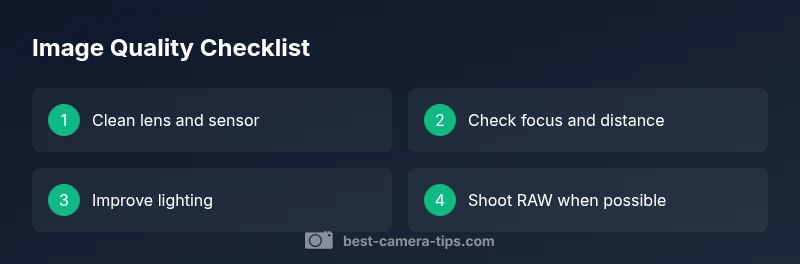
Start with the easiest fixes: clean the lens, check autofocus and subject distance, and improve lighting. If images remain soft or noisy, adjust ISO and compression, and test shooting in RAW. This quick, practical guide from Best Camera Tips helps you diagnose and fix bad image quality quickly and reliably.
Common image quality culprits
When your photos look soft, grainy, or flat, the problem is rarely one single issue. According to Best Camera Tips, most quality problems come from a combination of lens cleanliness, autofocus performance, lighting, and file handling. Start by asking: is the lens clean and free of fingerprints? Are you shooting at the right distance and focus mode? Is your scene properly lit, with balanced exposure? Are you compressing or resizing too aggressively? By answering these questions, you can often pinpoint the root cause before diving into settings. The Best Camera Tips team found that even entry-level cameras can produce stunning images once the basics are solid: clean optics, accurate focus, proper exposure, and mindful post-processing.
We’ll dive into a practical checklist below, with steps you can apply today to reclaim sharpness, color accuracy, and detail. If you adopt a methodical diagnostic approach, you’ll avoid chasing phantom issues and waste less time testing improbable fixes.
Lens and sensor cleanliness
Dirt, fingerprints, and smudges on the front element or sensor can soften detail and introduce haze. Always start with a clean lens. Use a microfiber cloth, gentle cleaning solution, and a blower to remove loose dust. Inspect the sensor area if your camera offers a sensor-clean mode. Avoid touching the glass with bare fingers, and store gear in a dusty environment. Regular cleaning intervals help maintain maximum sharpness and color fidelity over time.
Autofocus, focus distance, and depth of field
Auto-focus can misfire in low contrast scenes or with moving subjects. Ensure you’re in the correct AF mode, lock focus on your subject, and consider using manual focus for critical work. Check your distance to subject and adjust your field of view to avoid soft edges. If you’re using a shallow depth of field for portraits, note that even small focus errors become noticeable. A slight tweak to aperture or focus point can dramatically improve perceived sharpness.
Lighting, exposure, and white balance
Poor lighting is the enemy of image quality. Harsh shadows, backlighting, or underexposure will wash out detail and color. Improve lighting when possible, use exposure compensation, and verify that your white balance reflects the scene. If you’re shooting indoors, add a soft light or bounce flash to fill shadows. When color is off, adjusting WB in-camera or during post produces more natural skin tones and accurate whites.
ISO noise, compression, and file formats
High ISO increases sensor noise and reduces detail. Aim for the lowest ISO that preserves a correct exposure, or supplement with light. Avoid excessive JPEG compression; if your camera supports RAW or high-quality JPEG, choose the highest quality setting. If you must crop heavily, consider capturing at a higher resolution or using lossless formats to retain detail in post-processing.
Equipment and lenses for sharpness
Quality isn’t only about settings—gear matters. A good lens with a clean optical path, proper stabilization, and appropriate focal length will produce noticeably sharper images than a budget setup. Check for lens alignment issues, zoom barrel play, and internal element movement. If you notice consistent softness across lenses, investigate camera body stabilization, sensor micro-vibrations, or firmware updates.
Quick fixes to test today
Apply these rapid tests to see if results improve: 1) Clean the lens and re-test at the same distance and settings; 2) Switch AF to a single-point focus and recompose; 3) Increase lighting or reduce ISO and reshoot; 4) Shoot RAW and compare to JPEG; 5) If possible, capture with a different lens or body to isolate the issue. Record results so you know which change made the biggest impact.
When to seek professional help or upgrade
If you’ve methodically tested the above steps and image quality remains poor, consider professional service for the sensor or electronics, or evaluate whether an upgrade to a sharper lens or newer camera body is warranted. Before purchasing, compare your current gear’s resolution, dynamic range, and autofocus performance against your targets. The goal is to maximize what you already own before spending on new gear.
Steps
Estimated time: 30-50 minutes
- 1
Assess gear and scene
Take a moment to review your current camera settings, lighting, and subject. Confirm you’re shooting in a mode appropriate for the scene and that your lens is clean. This initial check often reveals the simplest fixes quickly.
Tip: Document the original settings to compare before/after. - 2
Clean and inspect optics
Gently clean the front lens element with a microfiber cloth and isopropyl-free cleaner if needed. If you have access to sensor cleaning, perform a routine check. Keep the cap on when not shooting to prevent dust buildup.
Tip: Use a dedicated lens cleaning kit; never rub hard. - 3
Test autofocus and distance
Switch to a single-point autofocus, lock focus on a high-contrast standard subject, and recompose. If the subject is moving, try continuous AF and a faster shutter. Verify you’re not undersampling the scene due to a too-wide aperture.
Tip: If focus confirms, proceed with the next step. - 4
Improve lighting and exposure
Add light where possible and adjust exposure compensation to avoid clipping shadows or highlights. If indoors, consider softboxes or bounce lighting. Check histogram to ensure data is not crushed on the right or left.
Tip: Even a small lighting boost can drastically improve clarity. - 5
Control ISO and file quality
Set ISO to the lowest value that maintains a good exposure. If needed, use a tripod or stable surface; shoot in RAW to preserve detail for post-processing. Avoid aggressive compression on JPEGs.
Tip: Test with RAW vs JPEG to see the difference. - 6
Experiment with focal length and aperture
If possible, adjust focal length for better sharpness and check depth of field. Use a moderate aperture to balance sharpness and subject isolation. Consider testing with a different lens if sharpness remains elusive.
Tip: Avoid extreme apertures unless depth of field is intentional. - 7
Review and compare results
Compare new captures with your original; look for improvements in detail, color, and noise. If there’s still a problem, try a different body or lens to identify the source.
Tip: Keep a simple log of what changes yield the best results.
Diagnosis: Images are blurry, soft, or grainy across a range of shooting conditions
Possible Causes
- highDirty lens or sensor
- highIncorrect autofocus or subject distance
- mediumUnderexposure or poor lighting
- mediumHigh ISO noise due to low light
- lowAggressive compression or poor file format
Fixes
- easyClean lens and sensor; inspect front element and sensor cover if accessible
- easyCheck AF mode and focus point; ensure subject is in focus; try manual focus for critical work
- easyImprove lighting or adjust exposure compensation; shoot in RAW where possible
- easyReduce ISO; add light or use slower shutter/ tripod; enable noise reduction in post-processing
- easyChoose higher quality file formats and avoid aggressive JPEG compression
- easyUpdate firmware and calibrate lens/body if available
Common Questions
Why is my camera's image blurry even in auto mode?
Blurry images in auto mode are often caused by misfocused autofocus, incorrect subject distance, or poor lighting. Check the focus mode, ensure you’re targeting the right distance, and improve lighting before retesting in auto.
Blurry results usually come from focus or lighting issues. Check your focus mode, distance, and lighting, then test again in auto.
Can low light cause noise and grain in photos?
Yes. Shooting in low light typically requires higher ISO, which introduces noise. Improve lighting, use a tripod, or shoot at a lower ISO with longer exposure when possible.
Low light causes noise; add light or stabilize and lower ISO when you can.
Does shooting RAW actually improve quality?
RAW preserves more image data than JPEG, giving greater latitude for post-processing to recover detail and correct issues. JPEG is more compact but loses information you may need later.
RAW keeps more data for editing, which helps you improve quality later.
How often should I clean my lens?
Clean the lens whenever you notice smudges or dust. Regular, gentle cleaning with a microfiber cloth prevents buildup that softens images.
Clean the lens whenever you see smudges; it keeps images sharp.
When is it worth upgrading gear for better quality?
If you consistently reach the limits of your current gear in resolution, dynamic range, or autofocus, consider upgrading lenses or body. Compare your needs against what you own.
If your gear limits you often, upgrading may be justified.
Is post-processing essential for quality?
Post-processing can improve contrast, color, and sharpness, but it's best used to enhance a solid capture rather than fix severe issues. Aim for a clean base image.
Editing helps, but you should start with a solid capture.
Watch Video
The Essentials
- Clean lens and sensor first
- Ensure proper focus and lighting
- Prefer RAW and moderate processing
- Test changes with careful documentation