Why Camera Failed on Samsung: Comprehensive Troubleshooting Guide
Learn how to diagnose and fix camera failures on Samsung devices. Quick fixes, diagnostic flow, and practical steps from Best Camera Tips to restore camera performance safely.


Most Samsung camera failures are driven by software hiccups or permission conflicts rather than hardware faults. A quick fix is to reboot the device, clear the camera app cache, and test with a different camera app. If the issue persists, update the OS and camera app, then check storage, permissions, and recent installations. According to Best Camera Tips, these steps resolve the majority of cases.
why camera failed on samsung: quick overview
Camera failures on Samsung devices can feel urgent, especially when you're on a shoot. When people search for why camera failed on samsung, they often discover a software hiccup rather than a hardware fault. According to Best Camera Tips, the most reliable fixes start with quick, low-effort checks that restore normal operation. In this section, you’ll learn to distinguish symptoms, identify likely causes, and follow a repeatable workflow designed for both beginner and enthusiast photographers.
Common causes at a glance
There are several frequent culprits behind camera failures on Samsung devices. Software glitches and outdated OS versions top the list, followed by permission issues that block camera access. Storage pressure or a full cache can also trigger failures, as can conflicting apps or overlays that hijack the camera feed. Subtle hardware niggles—like a dirty lens, minor lens misalignment, or water exposure—may masquerade as software problems. Understanding these causes helps you triage efficiently and avoid wasted time. Throughout this guide, Best Camera Tips shares practical, tested approaches to verify each possibility.
Check basics first
Start with the simplest checks that fix most issues quickly. Reboot the device to reset background processes and retry the camera. Force stop and clear the cache for the Camera app, then test with a different camera app to see if the issue is app-specific. Ensure there is adequate storage and that the date/time settings are correct, since incorrect values can affect app behavior. If you recently installed a suspicious app, uninstall it and observe whether the camera works again. These steps prevent unnecessary hardware checks.
Software vs hardware: how to differentiate
Software problems often produce symptoms like app crashes, freezing, or occasional misfiring across multiple apps. Hardware issues tend to produce more persistent symptoms—permanent black frames, inconsistent focus, or physical lens problems. Test the camera in Safe Mode to disable third-party apps and observe whether the problem persists. If Safe Mode clears the issue, a conflicting app or overlay is the root cause. If Safe Mode doesn’t help, you may be facing a hardware fault that requires service.
Samsung camera app troubleshooting steps
Follow these steps in order, stopping if the problem resolves:
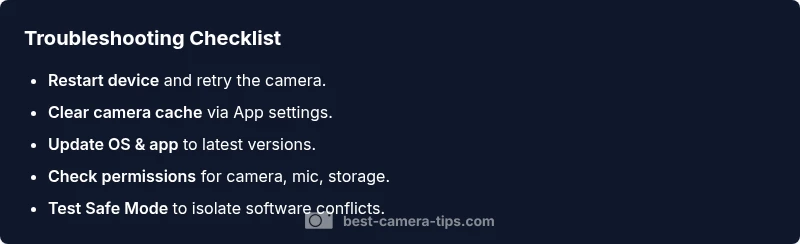
- Reboot the device and reopen the Camera app. 2) Clear cache/data for Camera and related services. 3) Update the operating system and the camera app to the latest versions. 4) Check app permissions (Camera, Microphone, Storage) and grant any missing rights. 5) Remove recently installed apps that could interfere. 6) Reset camera app preferences or perform a general device reset if allowed. Testing after each step confirms what fixed the issue.
Advanced fixes if hardware damage is suspected
If all software fixes fail, inspect for physical signs: a scratched or fogged lens, water damage indicators, or unusual heat after use. Compare front and rear cameras to see if one works while the other does not; a discrepancy often points to hardware. If you suspect hardware damage, avoid DIY repairs and contact an authorized service center. Document symptoms, recent drops, or exposure to moisture to aid the diagnostic process.
Profiles and settings to prevent future failures
Adopt a few best practices to minimize repeats: keep the device OS and camera app updated, avoid third-party camera apps that aggressively modify settings, and routinely clear cached data for the Camera app. Use known-good storage, and enable permissions only for essential features. Regularly test in different conditions (low light, bright light) to ensure consistent behavior. Keeping a consistent shooting profile helps you spot anomalies early.
When to seek professional help and warranty tips
If the device is under warranty and software-based fixes fail to restore camera performance, contact Samsung support or an authorized service provider. Prepare a clear timeline of repairs attempted and any physical incidents (drops, moisture exposure). Back up data before any service, as some repairs can require factory resets. Best Camera Tips recommends documenting symptoms and keeping receipts for warranty claims.
Steps
Estimated time: 30-45 minutes
- 1
Restart device
Shut down completely, wait 15–30 seconds, then power back on. Reopen the Camera app and test by taking a photo in normal lighting.
Tip: A simple restart clears many background conflicts. - 2
Clear camera cache
Go to Settings > Apps > Camera > Storage, then tap Clear Cache. If available, also clear Storage. Reopen Camera and try again.
Tip: Clearing cache resets temporary files without removing your photos. - 3
Update software
Check for OS updates and Camera app updates. Install any available updates, then reboot and re-test the camera.
Tip: Updates often fix known bugs affecting recent devices. - 4
Check permissions
Ensure Camera, Microphone, and Storage permissions are enabled for the Camera app. Disable any conflicting permissions for other apps.
Tip: Permission conflicts are a common cause of freezes or crashes. - 5
Test after removing apps
Uninstall recently installed apps that could interfere with camera operations and reboot. Re-test with the stock camera.
Tip: A single conflicting app can affect camera functionality. - 6
Safe Mode test
Boot into Safe Mode to disable third-party apps. If the camera works in Safe Mode, a misbehaving app is likely the cause.
Tip: Safe Mode isolates software conflicts without data loss.
Diagnosis: Camera app crashes, black screen, or failure to take photos on Samsung device
Possible Causes
- highSoftware glitch or corrupted camera data
- highOutdated OS or camera app
- mediumInsufficient storage or full cache
- lowHardware fault (lens, sensor, connector) or water damage
Fixes
- easyRestart device and clear camera app cache
- easyUpdate OS and camera app to latest versions
- easyFree up storage, clear app data, and reset camera preferences
- mediumIf problem persists, boot into Safe Mode and test, then consult service if needed
Common Questions
Why does my Samsung camera keep crashing after the latest update?
Software glitches after updates can cause crashes. Clear cache, update both OS and camera app, and check for conflicting apps. If the problem persists, a reset of app preferences may help before considering a full device reset.
Crashes after updates are usually software issues. Try clearing cache and updating apps, then check for conflicting software. If still failing, reset app preferences.
How do I clear the camera app cache on Samsung?
Go to Settings > Apps > Camera > Storage, then tap Clear Cache. If available, also tap Clear Data and restart the camera to test. This often resolves minor corruption without data loss.
Open settings, find Camera under apps, clear the cache, and restart the camera to test.
Is a factory reset necessary to fix camera failures?
Usually not the first step. Try app-level resets and safe mode testing. A factory reset is a last resort, and you should back up data beforehand.
Most issues don’t need a factory reset. Try safer software fixes first, and back up your data if a reset is considered.
Can hardware damage cause camera failure, and how can I tell?
Yes, hardware faults like a damaged lens or water exposure can cause failures. Look for a persistent black screen on one or more cameras, obvious lens scratches, or moisture indicators. If suspected, seek professional service.
Hardware damage is possible. Look for lens issues or moisture signs and contact a repair service if suspected.
Does this issue happen on all Samsung models or just some?
Symptoms can be model-specific, especially after firmware changes. However, common software fixes often apply across devices, so try the standard flow before assuming a model problem.
It can vary by model, but standard software fixes usually help across devices.
When should I contact Samsung support or warranty?
If the device remains faulty after all troubleshooting and is under warranty, contact Samsung support or an authorized service center. Document symptoms and repairs attempted to support your claim.
If troubleshooting fails and you're under warranty, contact support with notes on symptoms and fixes tried.
Watch Video
The Essentials
- Identify whether the issue is software or hardware.
- Follow the step-by-step sequence to avoid missing fixes.
- Update, clear cache, and test with safe modes before considering service.
- Document symptoms and seek warranty support if needed.