Where to Find the Camera in MacBook: A Practical Guide
A data-driven guide explaining the MacBook camera's location, how to use it across macOS, privacy controls, Continuity Camera, and external options to improve video quality.


The camera on a MacBook is built into the display bezel at the top of the screen, centered above the display. It is not user-replaceable, and there is no separate camera module you can install. For higher-quality video, consider Continuity Camera with an iPhone or an external webcam. The macOS camera is used by apps like FaceTime, Zoom, and Photo Booth.
Understanding the MacBook Camera Landscape
The question where to find camera in macbook is common among new users. In modern MacBooks, the camera is designed for everyday video tasks like FaceTime and Zoom. It sits tucked in the display bezel at the top of the lid, looking outward as you open the screen. This placement minimizes intrusion while keeping framing predictable for most users. The camera is an integrated component, not a field-upgrade option, so practical considerations focus on software settings, lighting, and external alternatives when you need higher fidelity. By understanding the camera’s location and capabilities, you can plan your setup for efficient video calls, live streams, and tutorials without disassembling your laptop.
Camera location across MacBook models
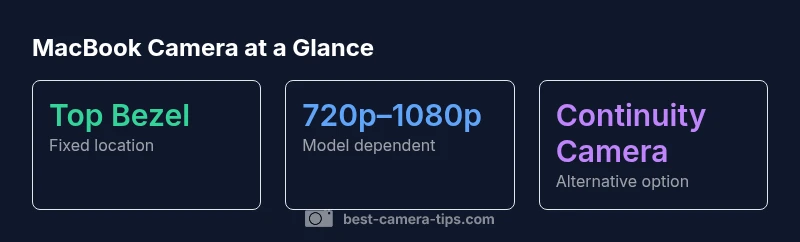
Across current generations, Apple has maintained a consistent physical location for the built-in camera: the top bezel of the display. What changes with model years is the sensor resolution and low-light performance, not the core placement. This means that regardless of whether you own an entry-level MacBook Air or a higher-end MacBook Pro, you should look up from the keyboard and see the camera centered above the screen. For most users, this arrangement works well for daily tasks, while enthusiasts may notice improved detail on newer models. When planning a purchase or upgrade, consider model-specific camera specs and overall system performance rather than relying on a different physical placement.
How macOS exposes the camera to apps
macOS treats the built-in camera as a system resource the moment an app requests access. If you open FaceTime, Zoom, or Photo Booth, the OS prompts you to allow or deny camera permission. You can manage these permissions later in System Settings under Privacy & Security > Camera, where you’ll see a list of apps that request access. If an app cannot see the camera, verify permissions, quit and relaunch the app, and ensure the MacBook isn’t in a restricted user profile. Understanding how macOS controls access helps you troubleshoot quickly when the camera appears to be inactive.
Checking permissions and privacy controls
To ensure smooth operation, review camera permissions periodically. Go to System Settings > Privacy & Security > Camera, then verify that the apps you rely on have permission enabled. If you disable access for a beloved video app accidentally, re-enable it here. In addition to permissions, consider system-wide privacy settings that limit background activity or require authentication for privileged apps. Regularly updating macOS also helps keep camera drivers and security protections aligned with the latest software, reducing unexpected permission prompts during important calls.
Continuity Camera: use your iPhone as MacBook webcam
A standout feature for MacBook users seeking higher-quality video is Continuity Camera, which lets you use an iPhone as your webcam. To use it, ensure both devices meet the continuity requirements (iPhone nearby, Bluetooth/Wi‑Fi on, devices signed into the same iCloud account). In supported apps, select Continuity Camera as the video input, position the iPhone camera for best framing, and utilize features like Portrait mode or Center Stage on compatible iPhone models. This creates a flexible upgrade path without buying new hardware.
External camera options if you need higher quality
If you’re pursuing a more professional look, external cameras are a practical option. USB webcams connect via USB-C or USB-A, often delivering higher resolutions and better low-light performance than built-in cameras. Some users pair a desktop-style webcam with a MacBook using a USB-C hub. Another option is to use the iPhone as a Continuity Camera, combining the advantages of a mobile sensor with Mac software. Remember to balance cost, setup complexity, and the apps you plan to use when choosing an external solution.
Lighting, framing, and practical tips for better video
Even the best camera struggles in poor light. To maximize image quality, place a light source facing you at roughly a 45-degree angle, avoid harsh backlight, and ensure your face is well lit. Framing matters: keep your eyes near the top third of the frame, and avoid extreme headroom. Use a clean background or a subtle blur to minimize distractions. When you locate the MacBook camera, verify your framing in real-time using a quick test call or a photo booth snapshot. Small changes in lighting and angle can yield noticeable improvements.
Troubleshooting common camera issues on MacBook
If the camera seems missing or inactive, start with permissions and app updates. Update macOS, restart the device, and re-launch the app. Check for any third-party software that might block camera access, such as privacy tools or antivirus programs. If Continuity Camera isn’t functioning, ensure Bluetooth and Wi‑Fi are stable and that the iPhone is within proximity. For stubborn issues, reset the NVRAM/PRAM or reach out to Apple Support for hardware checks. These steps cover the most frequent problems users encounter when looking for or using the MacBook camera.
Quick-start checklist to locate and use the MacBook camera
- Open an app that uses video (FaceTime, Zoom) to verify camera presence.
- Confirm camera permissions in System Settings > Privacy & Security > Camera.
- If needed, try Continuity Camera with an iPhone or connect an external webcam.
- Check lighting and framing for better image quality.
- Keep macOS up to date for driver and security improvements.
MacBook built-in camera overview
| Aspect | MacBook models | Notes |
|---|---|---|
| Camera type | Integrated FaceTime HD camera | Resolution varies by model (720p–1080p) |
| Location | Top bezel of display | Centered above the screen across models |
| Privacy indicator | LED when camera is active | Provides a visual cue for privacy awareness |
| External options | External USB webcam or Continuity Camera | No internal hardware changes needed |
Common Questions
Where is the MacBook camera located?
The camera is built into the top bezel of the display, centered above the screen. It is not a separate, user-replaceable component.
The camera is right at the top of your MacBook’s display, centered, and not removable.
Can I use an iPhone as a webcam with my MacBook?
Yes. You can use Continuity Camera to turn your iPhone into a webcam for Mac apps. Ensure both devices are compatible and connected to the same iCloud account.
Yes, you can use Continuity Camera with your iPhone for higher quality video.
How do I grant camera access to an app on macOS?
Go to System Settings > Privacy & Security > Camera, then enable permission for the app you want to use. You may need to restart the app after changing permissions.
Open Settings, grant the app permission, then restart if needed.
What should I do if the camera isn’t working in a video app?
First check permissions, then verify the app is updated and restarted. If necessary, reboot macOS and test with Photo Booth or FaceTime to isolate the issue.
Check permissions and updates, restart the app, and try again.
Is there a privacy indicator light for the MacBook camera?
Yes. An indicator shows when the camera is active, helping you maintain privacy awareness during use.
There’s a light that comes on when the camera is in use.
Can external webcams improve MacBook video quality?
External webcams can offer higher resolution and better low-light performance. They’re a common upgrade when you need a more professional look.
Yes, external cameras can significantly improve quality for professional videos.
“Built-in cameras on MacBooks are designed for everyday tasks and work well with thoughtful lighting and proper privacy controls. For professional video work, external options or Continuity Camera can make a meaningful difference.”
The Essentials
- Locate the MacBook camera at the top bezel above the display
- If you need higher quality, use Continuity Camera or an external webcam
- Manage camera permissions in macOS to ensure app access
- Use good lighting and framing to improve video quality
- Continuity Camera provides a seamless upgrade path without extra hardware