How to Move Camera Without Mouse in Roblox
Learn how to move the Roblox camera without a mouse using keyboard-driven controls. This guide covers Scriptable camera setup, keybindings, accessibility considerations, and testing across devices.


To move the camera in Roblox without a mouse, you can implement a keyboard-driven camera system. This typically means switching the camera to a Scriptable mode and binding keys (such as arrow keys or WASD) to rotate, tilt, and pan the view. While not built into every game by default, many experiences support keyboard bindings or allow script-based customization for accessibility.
Understanding Roblox Camera Basics
The camera in Roblox acts as the player's point of view and can dramatically influence how you experience a game. By default, most experiences use the mouse to rotate and look around, while keyboard input handles movement of your character. If you need to move the camera without a mouse, you should first understand the basic components: CameraType, CameraSubject, and how the game maps input to camera changes. This knowledge helps you design keyboard-based controls that feel natural, predictable, and responsive.
In practice, you’ll be looking to separate camera manipulation from character movement in a way that preserves immersion. A keyboard-driven approach typically relies on a script or an in-game setting that intercepts input and translates it into yaw (left-right rotation) and pitch (up-down rotation). The goal is to keep frames smooth and avoid abrupt jumps when keys are pressed continuously. With the right balance, you can achieve comfortable, precise camera navigation without a mouse.
Why keyboard-only camera control matters
There are several legitimate reasons to explore keyboard-based camera control in Roblox. Accessibility is a major factor: players with limited or no ability to move a mouse can still enjoy a wide range of experiences if games provide keyboard bindings. In addition, some devices such as laptops, tablets, or set-top consoles may have limited pointing devices, making keyboard support essential for opt-in players. A keyboard-centric approach also helps when you want deterministic camera behavior in scripted experiences, where developers want to ensure the camera remains aligned with story cues or puzzle mechanics. While not all games allow customized camera input, community-created experiences often offer alternative input schemes or options to toggle a Scriptable camera mode. If you’re game-curious, try experimenting with small, non-disruptive changes in a private test environment to see how camera responsiveness feels with keyboard input.
Roblox camera basics: CameraType, CameraSubject, and default behavior
Roblox cameras can operate in several modes. The default live camera uses the player's input to rotate, rough-handedly matching motion with the mouse. A Scriptable Camera, when enabled, lets you override the normal input path and program camera yaw, pitch, and position directly. The CameraSubject typically follows the player's character or a chosen object, while CameraType determines how the camera updates every frame. Understanding these basics helps you design a keyboard-focused control scheme that feels smooth and predictable across different titles.
Approaches to achieving keyboard camera control (non-code overview)
There are a few practical paths to move the camera with a keyboard. First, check whether the game offers an accessibility option to rebalance input; many experiences include alternative mappings. If not, you can conceptually map specific keys to yaw (horizontal rotation) and pitch (vertical rotation), plus a reset or home key to re-center the view. The key idea is to separate camera navigation from character movement, so players can look around without affecting their avatar's position. Finally, consider user comfort: prefer gradual rotation and clamp limits to avoid jarring speeds when keys are held down.
Step-by-step plan to implement a keyboard camera control system (overview)
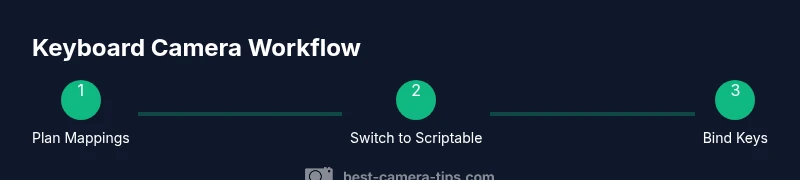
Begin with a clear plan for what keys will control yaw, pitch, and any optional pan or zoom. Then, switch the camera mode to Scriptable so you can intercept input and drive Camera.CFrame or orientation directly. Define safe bounds for rotation (to prevent flipping) and implement smoothing to keep movement fluid. Test with various keyboard layouts and adjust sensitivity accordingly to maintain a natural feel.
Implementation considerations and scripting basics
Implementing keyboard camera control usually requires scripting in Roblox Studio. Start by binding input events to yaw and pitch deltas, then apply those deltas to a target camera orientation. Ensure you clamp pitch to a reasonable range and add optional damping for smooth movement. If your game has UI overlays or assistants, manage focus so that camera input doesn’t interfere with UI navigation or text input.
Testing, QA, and iteration
Testing is essential to validate responsiveness and accessibility. Run the scene with different players and device types to see how input latency and frame rate affect control. Iterate on key mappings and sensitivities based on feedback, and verify that the reset and pause controls work reliably. Document changes so teammates can reproduce results and understand why certain defaults feel better on specific devices.
Accessibility and inclusive design in Roblox experiences
Accessibility means offering options beyond the default mouse-driven input. Provide a keyboard-first option, adjustable sensitivity, and clear visual cues for how input affects the camera. Ensure the control scheme is discoverable in settings and that color contrasts and text sizes remain legible when the camera is moved rapidly. Inclusive design helps more players enjoy the game without sacrificing performance or immersion.
Performance, cross-device testing, and input lag
Camera input should feel instant but not jittery. On lower-end devices, test frame rates and input lag to ensure the camera responds quickly enough without causing motion sickness. Use simple, deterministic animations for rotation to minimize physics-based jitter. If a device struggles, consider lowering rendering quality for a smoother, keyboard-driven experience.
Handling conflicts with existing game controls
Conflicts happen when a game already uses keys for actions like sprint or interact. Provide an option to rebind or disable conflicting keys when enabling the keyboard camera controller. If conflicts are unavoidable, prioritize camera control for accessibility and offer a toggle to switch back to the original input scheme easily.
Example workflow: from design to deployment in a private game
Design a mapping, implement the Scriptable camera path, and test in a private game with a dummy player. Gather feedback from testers, refine rotation speed, and adjust edge cases like rapid key taps. Finally, document the feature and include an in-game hint or tooltip that explains how to use the keyboard camera controls.
Next steps: learning resources and practice tasks
Practice by building a small test scene where the camera is controlled entirely by keys. Experiment with different sensitivities, clamp angles, and smoothing functions. Review Roblox community tutorials and standard UI patterns for accessibility enhancements, then apply lessons to your own experiences.
Tools & Materials
- Roblox Studio(Needed to implement keyboard camera bindings and test in Studio)
- Keyboard with arrow keys / WASD(Essential for input; ensure layout matches your device)
- Text editor or script editor(For editing and saving scripts)
- Accessible input device (optional)(Screen reader or voice control to navigate UI)
Steps
Estimated time: 60-90 minutes
- 1
Plan keyboard mappings
Define which keys will control yaw, pitch, and optional pan or zoom. Decide whether a single key hold should continuously rotate or if a toggle should enable a rotating mode. This planning reduces later confusion and makes testing faster.
Tip: Map yaw to left/right keys first; add pitch after you’re satisfied with horizontal control. - 2
Switch to Scriptable Camera mode
Set up the camera so you can override default input by using a Scriptable camera path. This decouples player input from camera behavior and enables precise keyboard translation.
Tip: Use a test scene to avoid impacting live gameplay during early iterations. - 3
Create yaw rotation controls
Bind keys to rotate the camera around the vertical axis. Implement a consistent delta per frame and consider smoothing to prevent jerky motion.
Tip: Start with a small delta like 0.5 degrees per frame and adjust based on feedback. - 4
Add pitch (up/down) controls
Bind keys to rotate the camera up and down, with an upper and lower bound to prevent flipping. Provide a reset option to return to a neutral position.
Tip: Clamp pitch to around ±45–60 degrees to keep viewing comfortable. - 5
Implement a reset view function
Create a key to instantly return the camera to a default orientation. This helps users recover quickly after disorienting movement.
Tip: Use a single key like Home or R to reset, depending on your layout. - 6
Add smoothing and stabilization
Apply a short smoothing factor to the rotation to avoid stutter as keys are pressed. Smooth movement feels more natural and reduces fatigue.
Tip: Experiment with a dampening value of 0.1–0.3 per frame. - 7
Handle input focus and UI
Ensure camera input does not interfere with typing or UI navigation. When a text field is focused, temporarily disable camera input.
Tip: Test in menus and forms to verify input behavior stays friendly. - 8
Test across devices
Run tests on different devices and operating systems to verify consistent responsiveness and avoid device-specific quirks.
Tip: Ask testers on laptops and desktops to provide feedback on feel and precision. - 9
Document the controls
Provide in-game hints or a settings page that explains the keyboard bindings and how to customize them.
Tip: Clear documentation reduces frustration and improves adoption. - 10
Iterate based on feedback
Collect tester feedback and adjust rotation speed, clamping, and smoothing accordingly. A good keyboard camera feels intuitive after a few iterations.
Tip: Prefer a data-driven approach: adjust by small increments and re-test. - 11
Ensure accessibility toggle exists
Offer an on/off toggle for keyboard camera control to accommodate players who prefer the default mouse-based navigation.
Tip: Place the toggle in an obvious location like the Settings menu. - 12
Finalize and prepare deployment
After multiple rounds of testing, commit to a finalized version and prepare release notes describing the new input option and its benefits.
Tip: Keep a changelog so players understand what changed.
Common Questions
Can I move the Roblox camera without a mouse in all games?
Not every Roblox game supports keyboard camera control by default. Some experiences include built-in accessibility options, while others require custom scripts or developer-enabled settings. In private or your own tests, you can implement Scriptable camera bindings to explore the possibility.
Not every Roblox game supports keyboard camera control by default. Some experiences include built-in accessibility options, while others require custom scripts, but you can test Scriptable camera bindings in your own setups.
Do I need Roblox Studio to implement keyboard camera control?
Yes, implementing keyboard camera controls typically requires editing or creating scripts in Roblox Studio. You can prototype in Studio with a dummy character before applying changes to a live game. Always ensure you have the right permissions before modifying a game.
Yes, Roblox Studio is usually needed to prototype and implement keyboard camera controls. Ensure you have permission before editing a game.
Can keyboard camera controls affect gameplay like aiming or puzzles?
Keyboard camera controls can be designed to run independently of movement so they don’t interfere with aiming or puzzle mechanics. The key is proper input routing and clear visual feedback so players know when the camera is active versus when character control is active.
They can be designed to run separately from gameplay actions, with clear feedback so players know when the camera is active.
What if a game already uses the keys I want for camera control?
Provide a rebinding option or an opt-out toggle for camera controls. Prioritize accessibility by offering an alternate keymap and ensure the game saves user preferences across sessions.
If keys are in use, offer rebinding and an option to disable conflicts while keeping accessibility in mind.
Are there built-in accessibility features in Roblox for camera control?
Roblox supports various accessibility features through game-specific options and platform-level services. Many experiences enable custom input schemes; always check Settings or UI hints for available accessibility modes.
Accessibility features exist in some games and on some platforms; check Settings for options and hints.
How can I test keyboard camera controls effectively?
Test in multiple scenes with different player profiles, device types, and input setups. Collect feedback on rotation speed, sensitivity, and comfort, then adjust accordingly.
Test across scenes and devices, gather feedback on speed and comfort, then refine the controls.
Should I publish keyboard camera controls publicly?
Publish only after thorough testing and clear documentation. Provide instructions and a toggle to revert to default controls for players who prefer mouse input.
Publish only after testing and documentation, with an option to revert to default controls.
Watch Video
The Essentials
- Map keyboard controls to yaw and pitch clearly.
- Switch to Scriptable Camera for keyboard input.
- Include a reset view to reacquire orientation.
- Test across devices and adjust for comfort.
- Document controls for accessibility and onboarding.