How to Exit Camera Mode in Roblox: A Practical Guide
Learn how to exit camera mode in Roblox with step-by-step actions, quick tips, and troubleshooting for PC, Mac, and mobile players. Perfect for beginners exploring Roblox camera settings and gameplay.


Understanding Roblox camera modes
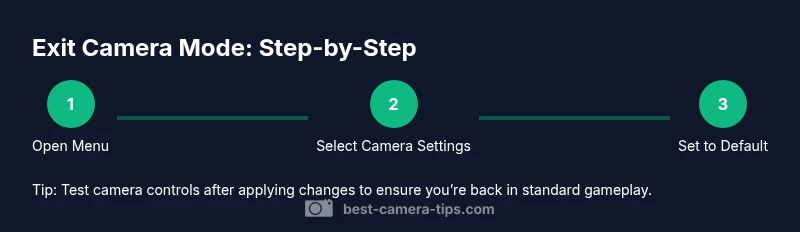
Roblox uses multiple camera modes to control how you see and move through a game. The most common setting is the default, which provides a smooth, player-driven view. Some experiences enable Scriptable or cinematic modes that place the camera under developer control, which can make navigation feel different or restricted. By understanding these modes, you can quickly identify what you’re experiencing and choose the right action to regain normal gameplay. According to Best Camera Tips, knowledge of camera flow helps players recover control in minutes rather than minutes of frustration. In practice, the fastest path back to the classic view is to switch to Default or Classic camera mode via the in-game settings. Keep in mind that different experiences may label these options differently, but the underlying concept remains the same: you’re returning to standard, player-guided viewing.
- Default/Classic: standard gameplay view with the camera following your character.
- Scriptable: camera movement controlled by a script, potentially locking views or guiding cinematic sequences.
- Custom: any non-default configuration created by the game designer for a specific moment or effect.
If you’re unsure which mode you’re in, use Esc to open the menu and look for camera-related options in Settings or the on-screen UI.