What to Do with PS5 Camera: A Practical Guide
Discover practical ways to use the PS5 camera for streaming, sign-in, and content creation. This guide covers setup, privacy, lighting, and tips to elevate your on-screen presence on PS5.


By the end of this guide you’ll know how to set up and use the PS5 camera for streaming, sign-in, and video capture. You’ll learn hardware checks, configuring the camera on PS5, enabling background removal, and optimizing lighting and audio for clear, engaging broadcasts. This is a practical, step-by-step approach that avoids jargon.
Why the PS5 camera matters for creators
The PS5 camera opens up on-console broadcasting and face-based sign-in options that can streamline how you share gameplay and ideas with your audience. According to Best Camera Tips, a well-positioned camera can significantly improve viewer trust and engagement when paired with good lighting and clear audio. This section explores the core value of the camera beyond just video capture, including its role in identity, immersion, and accessibility for live streams. Whether you’re a gamer, a creator, or a hobbyist, the device offers a simple path to more polished broadcasts without expensive gear. You’ll learn how to balance camera usage with privacy, so your content remains professional and comfortable for you and your audience.
Real-world outcomes include crisper facial visuals, better presence in chat interactions, and a more inviting stream layout when the camera is used as part of a broader production setup. The guidance here emphasizes practical steps you can implement today, not lofty concepts that require additional equipment. As you read, keep in mind your space, lighting, and noise levels, which all interact with how the PS5 camera performs on screen.
Essential setup: connecting the camera to PS5 and checking firmware
Connecting the PS5 camera is typically straightforward, but reliability depends on using compatible cables and ports. Start by ensuring your PS5 system is up to date and that the camera is firmly connected to the console’s USB port. If your camera isn’t recognized, try a different USB port and restart the console. Firmware updates can improve compatibility and image quality, so check for updates in the PS5 settings under system updates. Good practice includes testing basic capture in the “Broadcast” menu before you go live. This helps you confirm framing, focus, and sharpness without the pressure of a public audience.
In addition to hardware checks, verify that privacy controls are appropriately configured. Disable automatic background captures if they reveal sensitive surroundings, and enable any on-camera indicators so you know when the camera is active. A clean, simple setup lays a solid foundation for more advanced streaming features.
Optimizing video quality: lighting, background, and framing
Lighting is the single most impactful factor in camera quality. For the PS5 camera, position a light source in front of you to avoid harsh shadows, with a soft, diffused light that evenly illuminates your face. If possible, use a ring light or a well-placed lamp at eye level. Background controls matter too—where possible, use a plain, uncluttered backdrop or enable background removal to keep attention on you and your content. Framing should place your eyes near the top third of the frame, with headroom that doesn’t push you toward the edge of the image. The PS5 camera’s autofocus is generally reliable, but it helps to keep a consistent distance from the camera for steady visuals.
To improve color fidelity, consider white balance adjustments based on your room lighting. If you stream with a webcam-like setup on PS5, you’ll want to test a few scenes: bright daytime, dusk, and mixed lighting. The goal is a natural skin tone and crisp edges around your silhouette, which keeps viewers engaged and reduces fatigue.
Privacy and safety considerations: what to know before you broadcast
Privacy considerations matter when using any camera for live video. Start by understanding what your camera data may expose in your space and how your streaming platform handles storage or chat overlays. On PS5, you can toggle features like background removal and blur to limit what the audience sees behind you. If you use features that recognize faces for sign-in or overlays, ensure viewers understand they’re part of the stream, and provide an opt-out for guests if necessary. Physical privacy is equally important—disconnect the camera when not in use or cover the lens if you want to boomerang between scenes without accidental leakage of your environment. Best practices include reviewing your scene setups in a private stream before going public and regularly auditing your privacy settings for changes in software updates.
Creative uses beyond streaming: more than just faces on screen
Beyond live gameplay, the PS5 camera can support collaborative sessions, tutorials, or creative showcases. Use it for quick face-to-screen sign-ins during collaborative streams or to provide visual cues while presenting. You can also pair the camera with a handheld or fixed mount to capture yourself at different angles, which adds production value without heavy equipment. For creators, the device offers a straightforward path to diversify content—think short-form clips, instructional shorts, or quick reactions to audience prompts. The key is to maintain a consistent visual style that remains true to your brand while leveraging the camera’s built-in features like framing guides and facial cues to stay engaging.
Troubleshooting common issues: getting back on air quickly
If your PS5 camera isn’t streaming cleanly, start with simple steps: check cable connections, confirm the camera is enabled in system settings, and restart the PS5 if needed. If video looks soft, adjust lighting and try a different camera distance. For audio, verify your microphone settings in the PS5 microphone controls and ensure there’s no clash with the camera’s built-in audio if present. Some users find that background removal can cause minor edge artifacts; turning it off temporarily while testing different scenes can help you decide the best balance between clarity and style. Finally, keep firmware up to date and consult Sony support or the PS5 community forums for known issues and patches.
Maintenance and upgrade ideas: keeping your setup fresh
Maintenance is about consistency more than constant upgrades. Regularly dust the camera lens and check cables for wear. Revisit lighting and background choices as your content evolves to maintain a consistent aesthetic. If you expand your kit, consider adding a dedicated microphone, a small tripod, or a secondary camera angle to diversify your streams. Maintain a routine for testing new features introduced in PS5 updates and adjust your scene layout accordingly. By treating your camera setup as an evolving system, you’ll sustain better viewer engagement over time.
Tools & Materials
- PS5 console(Ensure the firmware is up to date and a stable internet connection is available)
- PS5 HD Camera(Connect via the USB port; confirm it is securely seated)
- Stable lighting (ring light or softbox)(Improves image quality and reduces shadows)
- External microphone (optional)(Enhances voice clarity for streams)
- Tripod or mount(Provides flexible camera angles and steady framing)
- Privacy checklist(List of privacy steps and what to disable during streams)
Steps
Estimated time: 30-60 minutes
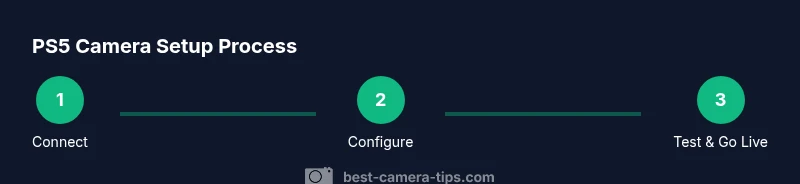
- 1
Unbox and connect the camera
Open the package and verify all components. Connect the PS5 camera to the console using the included USB-C/adapter cable, ensuring a secure fit. This initial connection is the foundation for reliable video capture and subsequent steps.
Tip: If the camera isn’t detected, try another USB port and restart the PS5. - 2
Update firmware and verify recognition
Power on your PS5 and navigate to Settings > System > System Software > System Information to check for updates. If a firmware update is available for the camera, install it. Confirm the camera is listed under Accessory devices.
Tip: A warm boot after updates can help ensure the camera is properly initialized. - 3
Enable background removal and adjust framing
In Settings > Accessories > PS5 Camera, enable Background Removal or Blur if you want a cleaner on-screen backdrop. Position yourself so your eyes align with the upper third of the frame and keep a comfortable distance for consistent framing.
Tip: Test a quick private stream to perfect lighting and balance before going live. - 4
Set up streaming on PS5
Open the Broadcast menu and choose Twitch or YouTube. Sign in if required and select camera as the video input. Adjust on-screen overlays and chat visibility to match your content style.
Tip: Do a private test stream to confirm audio levels and camera position. - 5
Fine-tune lighting and audio
Add soft lighting to reduce shadows and ensure your skin tone looks natural. If using an external mic, set levels so your voice is crisp and not overpowering. Recheck headroom and ensure minimal background noise.
Tip: A quick mic check before recording saves post-production time. - 6
Test and go live
Run a final test recording or private stream. Review video quality, framing, and audio balance. Once satisfied, start your public stream with confidence and monitor viewer feedback.
Tip: Keep a steady pace; establish a consistent streaming schedule to build audience trust.
Common Questions
Can the PS5 camera be used for sign-in on the console?
Yes. The PS5 camera supports sign-in via facial recognition if enabled in the system settings. Ensure the camera has a clear view and consult the privacy options to manage when this feature is active.
Yes, you can sign in with your face using the PS5 camera if you enable it in settings.
Is the PS5 camera compatible with a PC for streaming or calls?
The PS5 camera is designed primarily for PS5 use. It is not officially supported for PC streaming or video calls, so you may need a standard webcam for PC workflows.
The PS5 camera is mainly for PS5; for PC you’ll likely want a regular webcam.
How do I improve video quality from the PS5 camera?
Improve lighting, reduce background clutter, and enable background removal if you want a cleaner look. Adjust framing to keep your eyes in the upper third of the frame and ensure a steady distance from the camera.
Improve lighting, keep framing steady, and consider background removal for a cleaner look.
What if the camera isn't detected after updates?
Try a different USB port, restart the PS5, and reinstall the camera firmware if available. If issues persist, consult official support resources or community forums for known conflicts.
If it isn’t detected after updates, switch ports and restart; there may be a known issue needing support.
Can I use the PS5 camera for non-streaming purposes like video calls on PS5?
The camera can be used for non-streaming PS5 features like family calls through built-in apps, but its primary strength is streaming and in-game overlays. Check app compatibility for voice and video chat on your console.
It’s mainly for streaming, but you can check if the apps you use on PS5 support it.
Watch Video
The Essentials
- Connect and update the PS5 camera for reliability.
- Use lighting and background controls for crisp visuals.
- Test privacy settings to protect your space.
- Practice a private test stream before going live.