Google Outdoor Camera Setup: Tips, Troubleshooting & Best Practices
Learn how to install and optimize a Google outdoor camera, troubleshoot connectivity, configure alerts, and fine-tune night vision for reliable home security. Practical steps, safety tips, and expert guidance from Best Camera Tips.


With this guide you will install and optimize a Google outdoor camera for reliable home security. You’ll confirm prerequisites, perform a step-by-step setup, connect to Wi‑Fi, configure alerts, test motion zones, and fine-tune video quality and night vision. By the end, your camera should reliably record events and push timely notifications.
What is a Google outdoor camera?
According to Best Camera Tips, outdoor camera setups are most reliable when placed with a clear line of sight, weather protection, and a solid network connection. A Google outdoor camera is a weatherproof device designed to monitor an exterior area, stream live video to your phone, and store events either locally or in the cloud. These cameras typically integrate with a companion app and your Google account, enabling you to view footage, customize alerts, schedule recording, and manage privacy settings from anywhere. The core value proposition is simple: real-time visibility of your home's exterior and automated alerts when movement is detected. While models vary, the standard features across most Google-branded outdoor cameras include high-definition video, night vision, two-way audio, motion-triggered recording, and a user-friendly app. Many also offer voice control compatibility, allowing you to ask a smart speaker to show the latest clip or live feed. When choosing a model, consider weather resistance, field of view, mounting flexibility, and power options (wired vs battery).
Planning your installation: location, power, and network
Effective outdoor camera placement starts with a plan. Choose locations with a wide field of view that cover entry points, driveways, and secondary angles. Ensure a stable power source or reliable battery life, and assess wiring routes to minimize exposure. Network considerations are critical: locate the router or a mesh node within strong signal reach, ideally with a clear line of sight and minimal interference from metal objects or thick walls. Weather protection, mounting height, and the camera’s field of view (FoV) will determine how much area you can safely monitor. Finally, confirm privacy and legal considerations in your area, such as signage and data handling, to avoid potential issues.
Installation steps overview and safety considerations
Before you mount anything, review the camera’s manual and safety guidelines. Gather your tools, plan a clean cable route, and check that the mounting surface can support the device. If you are wiring the unit, power down the circuit and use weatherproof connectors. Secure the mounting bracket, avoid over-tightening screws, and test the camera’s aim before finalizing. Safety considerations include avoiding high voltages, ensuring proper cord management to prevent tripping hazards, and protecting the device from extreme weather exposure. A sturdy mount reduces the risk of theft or misalignment during wind and rain.
Enhancing reliability: network, power, and firmware updates
Reliability hinges on a robust network and current firmware. Position the camera within strong signal range of your router and consider network extenders or mesh nodes to fill weak spots. If your camera uses a battery, monitor charge levels and replace as needed to avoid gaps in recording. Keep firmware updated to access the latest security patches and features; enable automatic updates if available. Some users opt for wired power where possible to avoid battery drain altogether. Finally, configure preferred video resolutions and frame rates to balance clarity with bandwidth.
Privacy, access, and sharing: control of access
Modern outdoor cameras include multiple layers of access control. Create strong, unique passwords for the camera account and enable two-factor authentication to prevent unauthorized access. Review who can view the feed and manage sharing permissions, especially if you use family or trusted guests in your home. Consider enabling blurred faces or activity zones to protect privacy in common areas. Regularly audit connected devices and remove access for anyone who no longer needs it.
Maintenance, troubleshooting, and common issues
Regular maintenance extends the life of your Google outdoor camera. Clean the lens and housing to remove dust and water spots, check weather seals, and verify that the mounting remains secure after wind or weather. Common issues include intermittent disconnects, laggy feeds, or missed alerts. If a problem occurs, start with a power cycle and a firmware check, then verify network settings and location. If alerts are not triggering, review motion zones and sensitivity levels. For persistent problems, re-adding the device in the app or a factory reset can resolve configuration glitches.
Authoritative sources and further learning
For deeper guidance, consult authoritative sources on network security and device privacy. This section points you to reputable, non-commercial references that cover best practices for Wi‑Fi security, data privacy, and safe device management. These sources help you implement robust protections while using your outdoor camera as part of a broader home security strategy.
Tools & Materials
- Camera device (outdoor-rated)(Weatherproof model compatible with your ecosystem)
- Power supply or battery pack(Ensure adequate capacity for your model)
- Mounting hardware (bracket, screws, anchors)(Weatherproof fasteners recommended)
- Drill and screwdriver set(For mounting and cable management)
- Weatherproof cable management (clips, conduit)(reduces exposure and tripping hazards)
- Smartphone with Google Home app(Account linked to camera for setup)
- Measuring tape and pencil(For planning placement)
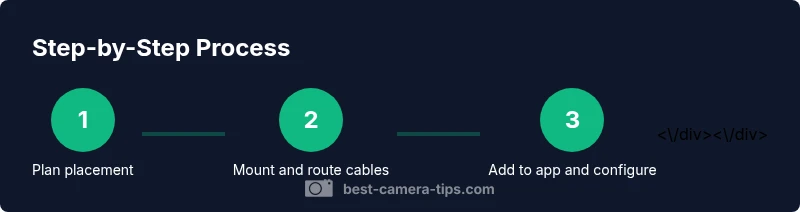
Steps
Estimated time: 30-60 minutes
- 1
Verify prerequisites
Confirm you have all essential items: the outdoor camera, mounting hardware, power or battery, and a compatible smartphone. Check for a reliable Wi‑Fi signal at the chosen location. This reduces surprises during installation.
Tip: Double-check battery status and power options before mounting to avoid mid-work replacements. - 2
Choose mounting location
Select a high, unobstructed spot that covers entry points and minimizes blind zones. Consider weather exposure, glare from sunlight, and potential tampering. Mark the mounting location with a pencil.
Tip: Aim for a vantage angle about 9–12 feet high to balance coverage and tamper resistance. - 3
Mount the bracket
Attach the mounting bracket securely to a solid surface. Use weatherproof anchors if you mount on masonry. Don’t overtighten; allow a slight tilt for precise aiming.
Tip: Use a level to ensure the camera points straight ahead for undistorted footage. - 4
Run power or install battery
Connect the power supply or insert a fresh battery. Route cables through weatherproof channels to prevent water intrusion. If using power over Ethernet, ensure proper PoE compatibility and sealing.
Tip: Test power continuity before finalizing routing. - 5
Install the camera and test aim
Attach the camera to the bracket and adjust its field of view to cover doors and walkways. Power up and confirm the device boots properly. Make minor tilt adjustments as needed.
Tip: Do a quick live view test at night to check for glare and headlights. - 6
Pair with app and name device
Open the Google Home or companion app and add the new camera. Give it a unique, logical name (e.g., 'Front Door Cam'), and sign in if prompted.
Tip: Enable two-factor authentication on the account for better security. - 7
Configure alerts and zones
Set motion detection zones to reduce false alerts. Adjust sensitivity and notification frequency to balance timely alerts with battery/data usage.
Tip: Test alerts by walking through the monitored area and verifying receipt on your phone. - 8
Test playback and finalize
Review live feed and recorded clips. Verify that clips are stored as expected in the cloud or on locally, and adjust video quality to optimize bandwidth.
Tip: Schedule routine checks to ensure ongoing operation.
Common Questions
How do I connect a Google outdoor camera to Wi-Fi and my Google account?
Start by ensuring the camera is powered and in range of your network. Open the companion app and follow the prompts to add the device, connect to Wi‑Fi, and sign in with your Google account. Complete the setup by naming the device and configuring initial alerts.
Open the app, add the camera, connect to Wi‑Fi, sign in, and name the device to finish setup.
What should I do if the camera keeps dropping its connection?
First verify power is stable and the camera is within range of your router. Reboot the camera and router if needed, then check for firmware updates and optimal channel settings to reduce dropouts.
Power cycle the camera and router, then update firmware and check network channels.
Can I use cloud storage exclusively, or is local storage available?
Cloud storage is common for most Google outdoor cameras, but some models also offer local backup when paired with compatible hubs. Review your plan and device capabilities to choose the most reliable option.
Most cameras use cloud storage; some support local backups depending on the model.
How can I optimize motion detection to avoid false alerts?
Create motion zones that cover relevant areas and tune sensitivity to reduce false alarms from trees or small animals. Test at different times of day and adjust based on prior events.
Set motion zones and adjust sensitivity; test during day and night.
How long are recordings stored in the cloud?
Storage duration depends on your plan and settings. Review your subscription and retention options in the app to understand how long clips are kept.
Retention depends on your plan; check app settings for exact duration.
Is the camera suitable for both indoor and outdoor use?
Outdoor-rated cameras are designed to withstand weather outside. They can be mounted indoors if you need a similar surveillance setup, but ensure proper weather sealing and mounting conditions.
Outdoor cameras are built for exterior use but can be used indoors with proper protection.
Watch Video
The Essentials
- Plan placement for wide coverage and privacy.
- Keep firmware updated for security and features.
- Configure alerts and zones to minimize false notifications.
- Regularly test playback to ensure reliable recording.
- Label devices clearly for easy management.