Do You Need to Pay for Blink Camera? A Practical Guide
Learn whether Blink cameras require a paid subscription, how local storage works, and how to decide between cloud vs. local options. This analytical guide helps aspiring photographers and home-security enthusiasts optimize costs and setup.


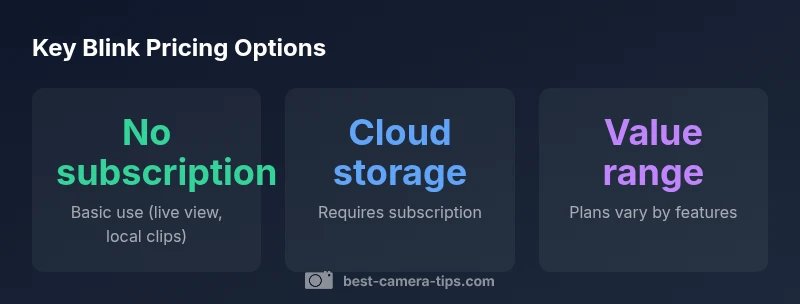
"Do you need to pay for blink camera"? No, not for basic use. Blink cameras work without a paid subscription for live viewing and local storage via the Blink Sync Module 2. A paid Blink Subscription is only required if you want cloud storage, long-term video history, and advanced features like activity zones or multi-camera history.
Do you need to pay for blink camera
If you’re evaluating a Blink setup, a common question is do you need to pay for blink camera. The short answer is no for the basics. Blink cameras can operate without a paid cloud plan, giving you usable live streaming, motion alerts, and local storage when you pair the camera with a Blink Sync Module 2. This makes Blink accessible for budget-conscious setups and for those who value offline retention. According to Best Camera Tips, most beginners can get reliable security coverage without subscribing right away. That said, there are scenarios where paying for cloud storage makes sense, such as if you require a longer history, access from multiple devices away from home, or more robust analytics. In practice, many users keep the basic, free functionality and add cloud storage later if their needs change. For home photographers learning lighting, framing, and timing, Blink’s free mode provides a straightforward testing ground without ongoing costs. The real decision point is how you value remote access, clip history, and multi-camera synchronization. If you want those features, plan for a subscription, but you are not forced to pay to get started.
Local storage options explained
Blink’s local-storage capability centers on the Sync Module 2 with a USB drive. This setup lets you save clips locally rather than uploading them to the cloud. To get started, insert a USB drive (formatted to FAT32 for reliability), open the Blink app, and enable Local Storage in the camera settings. The drive then acts as a dedicated vault for motion clips and recordings, which you can review directly on a computer or the Blink app when connected to the same network. Local storage shines in environments with limited or expensive internet bandwidth or where cloud privacy policies are a concern. However, the drive’s capacity limits clip history and you won’t have remote access to the local clips unless you’re on the same network or logged into the Blink app. Additionally, USB drives have finite write cycles, so expect eventual performance slowdowns if you routinely store long clips. Best practices include using a reliable USB drive, rotating drives after a few months, and keeping a backup of important clips elsewhere when possible.
Cloud storage and subscription explained
Cloud storage is provided through Blink’s optional subscription plans. With cloud storage, you gain access to longer clip history, more robust event data, and the ability to view footage remotely from any connected device. Subscriptions also enable features like smart motion alerts, activity zones, and multi-camera history, which can be valuable for households with multiple sensors and more complex security needs. The subscription model is designed to scale with the number of cameras and the desired retention period. If your priorities include long-term video history and easier remote access, cloud storage offers clear benefits. If those priorities aren’t essential, you can rely on the local storage option for a lower-cost, privacy-conscious setup. When deciding, map out how many cameras you own, how far back you want to store footage, and how frequently you need to access clips from off-site. This helps quantify whether the subscription adds tangible value for your home.
Do a cost-benefit check: How many cameras and features
A practical way to approach Blink pricing is to perform a cost-benefit check before committing to a subscription. Start by listing the number of Blink cameras you plan to deploy and the locations they cover. Then assess how often you need off-site access and how long you want to retain footage. If you mostly monitor events locally and only occasionally review clips, local storage may suffice. However, if you work remotely, have family members who rely on alerts from different devices, or require extended history for security audits, a cloud plan can offer substantial value. Another factor is reliability: cloud storage can reduce the risk of footage loss due to hardware failure or theft, since clips are stored remotely. Finally, consider the hardware you already own; a single Sync Module can support multiple cameras, but adding more cameras increases the potential cloud-storage benefits. In sum, use the local-storage option to minimize costs and add cloud storage only when you recognize a clear advantage in history, accessibility, and automation.
Step-by-step: decide between local and cloud
Follow these steps to make a deliberate choice. 1) Catalog all Blink cameras in your home and note their locations. 2) Decide which clips you want to preserve long-term and how accessible you need them to be from off-site. 3) If you prefer offline retention or have limited internet bandwidth, start with local storage. 4) If your plan includes multiple users or devices away from home, or you need a long retention window, consider cloud storage. 5) Experiment with a basic cloud plan for a trial period if available, then re-evaluate after the trial. 6) Reassess periodically as your security needs evolve. This approach minimizes waste while giving you room to scale features if needed.
Practical tips to maximize value without paying
- Start with a single-camera local-storage setup before expanding to more devices.
- Use a dedicated USB drive with good endurance and back up clips regularly.
- Limit motion-triggered clips to essential zones to save space in either storage method.
- Review privacy settings and device-sharing options to align with your comfort level.
- Keep firmware and app up to date to ensure optimal performance and security.
Beyond price: privacy and data concerns
As you weigh whether to pay for Blink, consider privacy and data security. Cloud storage means third-party servers handle your footage, potentially exposing it to external access. Local storage minimizes exposure but depends on your network security and the physical integrity of the USB drive. Practice good security hygiene: enable strong account passwords, two-factor authentication, and regular password reviews. If you’re sensitive to data sharing, review Blink’s privacy policy and terms of service, then tailor your settings accordingly.
Blink storage options comparison
| Storage Type | Requires Subscription | Key Features | Best For |
|---|---|---|---|
| Local storage (USB) | No | Live view; local clips; USB vault via Sync Module 2 | Small setups without cloud |
| Cloud storage (Blink Subscription) | Yes | Extended cloud clips; motion zones; multi-camera history | Homes needing cloud history |
| Hybrid storage | Optional with module | Both local and cloud features | Users wanting flexibility |
Common Questions
Do you need to pay for Blink camera?
No. You can operate Blink cameras without a subscription for basic features like live view and local storage. Cloud storage and extra features are optional and require a plan.
No subscription is required for basic use. You can access live view and save clips locally.
Can Blink work without the internet?
Remote features rely on an internet connection, but local storage can still function if the device is accessible on the same network. Cloud-based access will need connectivity.
Remote features need internet; local storage can work on the same network.
What features require a paid plan?
Cloud storage, extended video history, and advanced analytics like activity zones typically require a subscription. Local storage and live view do not.
Cloud storage and advanced features usually require a subscription.
Is there a limit to the number of cameras without paying?
You can add multiple cameras without a paid plan, but cloud history and cross-device features scale with the subscription. Review your needs before expanding.
You can add cameras without paying, but cloud benefits scale with plans.
Can I switch between local and cloud storage later?
Yes. You can enable or disable cloud storage and adjust how clips are stored as your security needs evolve.
You can switch storage options as needed.
How secure is Blink storage overall?
Blink provides standard data protection, with cloud storage adding layers from the service provider. Always use strong passwords and enable two-factor authentication.
Security is supported by the provider; use strong credentials and 2FA.
“Blink cameras offer solid basic functionality without a paid plan, while cloud storage and advanced features come with a subscription. The choice depends on your need for long-term history and remote access.”
The Essentials
- Decide based on retention needs and remote access
- Local storage offers cost savings and privacy control
- Cloud storage adds long history but requires a plan
- Consider hybrid storage for flexibility
- Regularly reassess storage choices as your setup grows