Can You Share Blink Camera Access? A Practical Guide
Learn how to safely share Blink camera access with trusted people. This step-by-step guide covers permissions, revocation, notifications, and best practices for secure sharing in 2026.


You can share access to your Blink cameras with trusted family or roommates by inviting additional users through the Blink app. You'll choose permission levels, set sharing duration, and revoke access anytime. This guide walks you through securing your account, choosing between view-only and full-control modes, and keeping notifications intact while preserving privacy.
Can you share blink camera access? What you need to know
Sharing Blink camera access is possible, but it requires careful planning to preserve security and privacy. In this guide by Best Camera Tips, we explain how to safely invite others, manage permissions, and monitor activity without exposing sensitive data. Can you share blink camera access? The short answer is yes, but you should prepare your account, decide on permission levels, and set expectations with invitees. The process is designed for households, roommates, and trusted caregivers who need to view live feeds or receive alerts. Always start with a strong Blink account password and enable two-factor authentication to reduce risk. As you’ll see, you can revoke access promptly if situations change. This article includes practical steps, best practices, and quick checks to help you maintain control while extending access to people you trust.
Key idea: Share access thoughtfully and monitor it regularly to protect privacy while keeping your home secure. According to Best Camera Tips, planned access and periodic reviews are central to responsible sharing.
Understanding permissions: view-only vs full access
When you share Blink camera access, you’ll typically be able to set permission levels that determine what the recipient can see and do. A view-only mode lets someone watch live feeds and receive alerts without changing any settings, while full access can include the ability to adjust camera preferences, add or remove devices, and modify alert rules. The choice depends on trust, need, and the sensitivity of the spaces you’re monitoring. In general, start with the lowest effective level and upgrade only if there is a compelling reason. This helps minimize accidental changes or exposure of sensitive information.
From a privacy perspective, you should document who has access and why, so you can audit permissions later. Best Camera Tips emphasizes balancing convenience with security. If you encounter a situation where you must share broad control temporarily (e.g., a house-sitter), plan a clear expiration or a temporary access window.
Prerequisites before sharing: account security and setup
Before you invite anyone, ensure your Blink account is secure and ready for multi-user access. Enable two-factor authentication (2FA) if available, use a strong, unique password, and review your linked devices. Update the Blink app to the latest version to access the newest sharing features and permission controls. Clear cloud and device notifications should be configured to avoid unnecessary alerts for guests.
Next, prepare a short, clear explanation for invitees about how the access works and what they should do if they notice unusual activity. This groundwork reduces confusion and helps ensure that everyone uses the system responsibly. The goal is to keep your home secure while allowing trusted individuals to help with monitoring or caregiving tasks.
Who should you invite and why: common scenarios
Household members, roommates, and trusted caregivers are typical recipients of Blink camera access. Family members may need real-time alerts for safety reasons, while house-sitters might require temporary visibility during an absence. Consider limiting access for neighbors or service pros unless there is a clear, time-bound need. For each invitee, assess whether they need live view, alert access, or full control of camera settings. This assessment reduces risk and simplifies future revocation if relationships or arrangements change.
When in doubt, start with a time-limited invite and plan a review schedule. This aligns with best practices in security-focused home automation and reflects guidance from Best Camera Tips on responsible sharing.
Preparing your Blink system for sharing: privacy, notifications, and devices
Make sure the devices you plan to share are properly configured and associated with your Blink account. Review notification settings to determine which events trigger alerts for each invitee. If you have multiple cameras, consider whether some should be accessed by certain people only, to minimize exposure of private spaces. It’s also wise to test access with a trusted tester before extending privileges, so you can verify that permissions behave as expected.
Document a short policy for invitees about what they can and cannot do, how to report issues, and who to contact for support. This approach reduces miscommunication and keeps your setup aligned with your privacy goals.
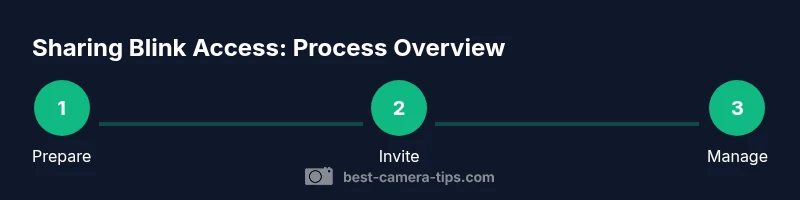
Step-by-step: inviting a new user (high-level overview)
- Open the Blink app and navigate to the sharing or users section.
- Choose to add or invite a new user and select the recipient’s email address.
- Assign a permission level (view-only or full access) based on the recipient’s role.
- Optionally set an expiration date for temporary access and confirm the invitation.
- Remind the invitee to create or sign in to a Blink account to complete the process.
- Confirm acceptance, then verify the recipient can access the intended cameras.
- Review or adjust notification settings so the invitee receives appropriate alerts.
- Schedule a follow-up to reassess permissions after the initial period.
- If needed, revoke access promptly when the relationship or need ends.
Tip: Start with the lowest level of access and escalate only if required. This minimizes the risk of unwanted changes.
Assigning permissions and notification settings
Permissions determine what the invitee can do and see within the Blink ecosystem. If you’re new to sharing, begin with view-only access and enable alerts for critical events. If the person needs to perform configuration tasks or respond to events, you may grant more access—but only for as long as necessary.
Notification settings are essential. Decide which events trigger alerts for each user (live view, motion alerts, etc.). Fine-tuning these ensures that the recipient receives timely information without overwhelming them with unnecessary notifications. Regularly review and update these settings as circumstances evolve.
What happens after you share: alerts, recordings, and limits
Once sharing is active, the invitee will typically be able to access streams and alerts according to their permissions. Be aware that any shared access should not override your own privacy preferences or legal requirements for data retention. If the invitee leaves or a household arrangement changes, you should revoke access promptly. If you notice unusual activity, reassess who has access and update permissions accordingly.
Documentation of who has access and when it was granted helps with accountability. Regular checks—especially after vacations, house-sitting, or changes in living arrangements—keep your system secure over time.
Security first: audit trails, revocation, and ongoing vigilance
Security is an ongoing process. Maintain a habit of auditing shared access periodically, at least every few months, and after any major household change. Keep software up to date, review device settings, and ensure that password hygiene remains strong across all linked accounts.
If someone no longer needs access, revoke it immediately. If the invitee’s role changes, adjust permissions rather than creating a new invite. These habits reduce risk and help maintain trust among household members and caregivers.
Real-world scenarios: best practices and caveats
In many households, a simple, time-bound invite for a house sitter works well. For roommates, a permanent, low-cost sharing arrangement with regular reviews is common. When a contractor or service pro visits, consider removing sharing entirely after the job ends unless a standing arrangement is necessary. Always verify contact details before sending invites and document the purpose of access for future reference.
As Best Camera Tips notes, maintaining a balance between accessibility and privacy is crucial. By planning ahead and using clear permissions, you can ensure a safe and convenient setup for everyone involved.
Next steps: maintaining a secure Blink sharing setup
After you’ve set up sharing, establish a simple maintenance routine. Schedule quarterly reviews of who has access, verify that invitees still require entry, and refresh your login credentials periodically. Consider enabling two-factor authentication for all users who access the system and maintaining an accessible contact protocol for reporting issues. With intentional planning, sharing Blink camera access can be secure, practical, and peace-enhancing for households.
Tools & Materials
- Blink account with admin access(You will need admin privileges to invite or revoke users.)
- Smartphone with Blink app installed(Ensure the app is updated to the latest version.)
- Recipient emails(Emails of people you want to invite; ask if they already have a Blink account.)
- Password manager and 2FA enabled(Recommended for securing the main account.)
- Stable internet connection(Needed for timely invites and syncing permissions.)
- Clear permission plan(Document intended access levels and duration.)
Steps
Estimated time: 15-25 minutes
- 1
Prepare your admin account
Log in to Blink with your admin credentials. Ensure two-factor authentication is enabled and that the app is up to date. Having a secure base reduces the risk of unauthorized changes when you start sharing access.
Tip: Turn on 2FA and review active sessions on your account. - 2
Decide permission levels
Determine whether the invitee only views live feeds and alerts or can adjust settings. Start with the minimum needed level to fulfill the task.
Tip: If unsure, start with view-only and upgrade later if necessary. - 3
Gather invitee details
Collect the recipient’s email and confirm they are comfortable using Blink. Explain the expected scope and duration of access.
Tip: Ask them to create a Blink account if they don’t already have one. - 4
Open sharing settings
Navigate to the app’s sharing or users area. Look for an option to add or invite a new user.
Tip: Ensure the app is updated to show the current sharing controls. - 5
Send the invitation
Enter the recipient’s email, assign the chosen permission, and set an expiration if supported. Send the invite and confirm receipt.
Tip: Double-check the email spelling to avoid misdelivery. - 6
Ask them to accept
Have the recipient sign in and accept the invitation. Ensure their Blink account is linked to the shared devices.
Tip: Provide a quick guide if they’re new to Blink. - 7
Configure notifications
Set which events trigger alerts for the invitee and how they appear (app notification, email, etc.).
Tip: Avoid overloading them with non-actionable alerts. - 8
Test access
Have the invitee log in and verify camera access works as intended on their device.
Tip: Confirm both live view and alert delivery behave correctly. - 9
Review and revoke
If the situation changes, remove access promptly. Document the reason and date of revocation.
Tip: Regular reviews prevent stale permissions.
Common Questions
Can I revoke Blink access after inviting someone?
Yes. You can remove a user from the sharing list at any time. The revoke action takes effect immediately, and the user will no longer see feeds or receive alerts.
You can remove someone from the sharing list at any time; they’ll lose access immediately.
What permission levels exist for Blink sharing?
Blink typically offers view-only access and, in some cases, higher access that allows changes to settings. Choose the minimum level needed for the task, and adjust as necessary.
There are view-only and higher-access options; start with the minimum needed.
Will sharing affect alert delivery to other users?
Sharing can affect who receives which alerts based on the recipient’s role and settings. Configure per-user notification preferences to ensure only relevant alerts are sent to each person.
Alerts can be personalized per user; set preferences so each person gets what's needed.
Can I share Blink access with someone who doesn’t have a Blink account?
Most sharing flows require recipients to have a Blink account to ensure proper authentication and access controls. If they don’t have one, they may need to create an account first.
If they don’t have a Blink account, they’ll need to create one to participate.
How long does a shared access last?
Access can be permanent until you revoke it or temporarily via expiration settings if the app supports them. Plan for regular reviews regardless of duration.
Access lasts until you revoke it or set an expiration if available; review periodically.
Watch Video
The Essentials
- Invite only trusted people
- Start with view-only access when possible
- Regularly audit shared access
- Revoke promptly when access is no longer needed
- Document permission decisions for accountability