Where is the camera on this phone? A practical guide
Learn how to locate and identify the camera(s) on any smartphone—from front notch to rear modules—covering notch, punch-hole, and under-display setups for quick verification. Practical tips for photographers and home-security enthusiasts.


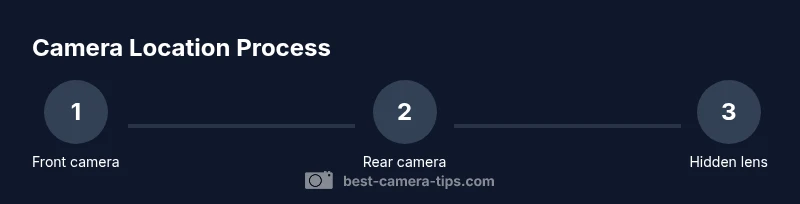
To locate the camera on your phone, first identify the front camera (selfie) by the notch, punch‑hole, or under‑display area. Then check the back panel for the rear cameras, typically in a corner or center cluster. For model specifics, open Settings > About phone to view lens details from the official spec.
Where is the camera on this phone? Front-facing locations
On smartphones, the front camera is used for selfies and video calls, and its location affects how you frame shots and interact with the device. The simplest way to locate it is to visually inspect the top bezel or display edge. In many models, you’ll find a notch cutout housing the selfie lens, a small circular or pill-shaped hole in the screen, or even an under-display camera that remains invisible until you wake the screen. If you’re learning photography or setting up a home security monitor, knowing the front camera’s position helps you anticipate angles and lighting challenges. Start by checking the screen’s edge for a notch, punch-hole, or edge‑to‑edge cutout. Then examine the top bezel on the device's back side to confirm whether there is a secondary lens there for face unlock or depth sensing. If you see no visible lens, the camera could be under the display or inside a pop-up module. This knowledge is essential for beginners who want to compose scenes correctly and avoid obstructing the lens with fingers or cases.
The exact placement varies widely from one model to another, so a quick model check is often the fastest path to clarity. If you know your device model, you’ll identify the front camera location more quickly and reduce the risk of using the wrong lens for a given shot. For photographers and security enthusiasts, this awareness translates into better framing, improved lighting choices, and fewer accidental occlusions when carrying or mounting the phone.
Front camera placement variations by device type
Phone manufacturers use several strategies to minimize bezel while keeping the camera accessible. In iPhones, the front camera typically sits in a notch or a TrueDepth system behind a display cutout. Many Android devices use a punch-hole on the top corner or center, sometimes with a secondary sensor for depth. A growing number of models now hide the camera under the display, which can affect brightness and sharpness in some apps. Some gaming or rugged phones still keep a large bezel with a visible selfie lens centered at the top. When you’re trying to answer where is the camera on this phone, compare how the screen interacts with the lens: is the notch large, does the hole appear in the corner, or is the camera completely hidden? For security-minded users, remember that the location influences your ability to shield the lens from accidental exposure and dust. If the device uses an under-display camera, you may notice reduced brightness or blooming in some lighting conditions, which is a trade-off for a nearly bezel-free front.
Rear camera arrangement patterns
Rear cameras are typically positioned on the back panel and can follow several patterns. Some devices place a single lens in a centered top area, others cluster two or three lenses in a module that sits in a corner or along a corner edge. The arrangement matters for perspective: a centered cluster often yields balanced portraits, while a corner layout can affect angle and shadowing in wide-angle shots. In premium phones, the rear module may appear as a raised rectangular or circular block with three or four lenses and sensors arranged in a neat diagonal or square pattern. For the user seeking “where is camera on this phone” beyond the obvious, pay attention to the module’s silhouette in product photos—this will quickly reveal the camera’s footprint and capabilities. Remember that some devices also include color sensors or ToF sensors integrated into the rear module, which influence depth perception and low-light performance.
If you’re comparing devices, a quick reference is to note how many lenses exist and where they sit relative to the flash. This helps you map out typical focal lengths (prime, wide, ultra-wide) and anticipate results when switching modes. Accurate knowledge of rear layout is essential for photographers who plan to use specific lenses for landscapes, portraits, or architectural shots. It also aids home security setups where you might consider placing the phone to monitor a doorway or entry point, ensuring the lens isn’t obstructed by a mount or case.
How to identify your exact lens layout using official specs
The most reliable way to confirm your phone’s camera layout is through official specifications. Start by locating your device model number in Settings > About phone. With that model, visit the manufacturer’s official support page or the product page for your exact variant. Look for sections labeled Camera, Lenses, or Specifications. Some brands also publish diagrams showing front-facing camera shapes and rear module placements. If the manufacturer provides a user manual or quick-start guide, flip to the camera section to see a labeled diagram of lens positions. For warranty or service considerations, verify if any camera modules are modular or user-replaceable. If you own a device from a carrier, the carrier’s site may also host a model-specific spec sheet. By cross-referencing the model number with official sources, you’ll confirm whether the front camera sits in a notch, punch-hole, or under-display area, and whether the rear module aligns with one, two, or four lenses. Knowledge of these details equips you to plan shooting angles and accessory setups with confidence.
In scenarios where the official site is hard to navigate, use reputable tech review sites that publish device breakdowns with camera layouts. Do not rely on random forum posts, as camera configurations can vary between model numbers, regional variants, and production years. For the Best Camera Tips audience, aligning your knowledge with official specs ensures you’re testing and documenting camera locations accurately, which is crucial for troubleshooting and optimization.
Using built-in apps to verify camera positions
Open the camera app and switch quickly between modes to observe which lens is active. Many devices show small labels or icons for different lenses (wide, ultra-wide, macro, telephoto) when you tap the lens selector. If your device supports depth sensing or portrait modes, you may see a separate lens icon for those features. Take a few test shots in different lighting to see how the lens choice affects framing and exposure. If you notice inconsistent focus or color rendering, revisit the lens order in the official specs and apps to verify you’re using the intended module. On some phones, the camera app will also show a lens map or layout when you enable grid or the on-screen lens selector. For security-focused users, test front camera privacy features, such as indicators that show when the camera is in use. A quick check is to look for camera indicators in the status bar or notification shade after switching apps that access the camera.
Another practical test is to place the phone in a fixed position and perform a grid test: take screenshots or photos of a test scene from multiple angles and compare sharpness across lenses. This helps you identify which camera is active in each shot and ensures you’re using the correct module for your intended result. Documentation from Best Camera Tips suggests maintaining a simple log of which lens was used for typical tasks, so you can reproduce consistent results over time.
Special cases: under-display, pop-up, multiple cameras
Not all phones reveal their camera systems in the same way. Under-display cameras are becoming more common in flagship smartphones, giving near-bezel-free fronts but sometimes compromising on brightness or sharpness compared to traditional front lenses. Pop-up and retractable cameras appear on some devices to maximize screen real estate, especially on gaming-centric or premium designs; they can surprise users by appearing suddenly when switching to camera mode. On many devices with multiple rear cameras, you’ll notice a variety of configurations: a primary wide-angle lens paired with ultra-wide, telephoto, macro, or depth sensors. The exact order and function can vary by model, so consulting the official specs is important. When diagnosing a device’s camera setup, look for terms like “front camera,” “selfie camera,” “wide-angle,” “ultra-wide,” and “ToF” in the spec sheet. If you’re troubleshooting, ensure your protective case doesn’t obstruct any lens openings and that your screen protector isn’t interfering with under-display sensors. For security-minded users, test the presence and operation of privacy shutters or indicators that may accompany some phones.
If you’re switching between devices, remember that camera positioning can influence your shooting workflow. Being aware of whether the front camera is under-display or in a notch helps you plan clean frames and avoid accidental finger coverage. In extreme cases, manufacturers reveal camera locations through teardown videos or official diagrams, which can be a helpful resource when you’re learning how to document camera layouts for future projects.
Practical steps to test camera locations in daily use
To verify camera locations in real-world use, begin with a quick orientation test: hold the phone in your typical shooting posture and check for lens obstruction by fingers, cables, or accessories. Next, perform a null test by taking a photo with the front camera, then with the rear cameras, noting the angle and framing each time. When you’re dealing with phones that have under-display or pop-up cameras, test how quickly the lens becomes visible and whether the display brightness affects the camera performance. Consider lighting conditions; the best lens for low light may differ from the one you use in bright daylight. With a multi-lens system, you’ll want to brush up on focal lengths: wide-angle captures more of the scene, while telephoto isolates subjects from distance. Keep a small log of where each lens is used in common shooting scenarios (portraits, landscapes, architecture) for quick reference during future shoots. By applying these daily checks, you’ll become more confident in identifying and using the correct camera location for any given task, whether you’re snapping street photography, documenting a home project, or creating content for your portfolio.
Quick reference cheat sheet: common layouts by brand
While there is no universal map for every model, some general patterns help you guess camera layouts quickly. Front-facing cameras: notch-based on several iPhone generations; punch-hole on many Android devices; under-display on newer premium models. Rear-facing modules: central clusters on some devices, corner modules on others, and multi-lens setups with a primary wide-angle lens plus secondary lenses for ultra-wide, telephoto, or macro. Brands like Apple, Samsung, Google, and OnePlus each have distinctive tendencies, so when you know the model, you can anticipate lens types and their positions. The key is to cross-check with official specs and user manuals for precise layouts. For Best Camera Tips readers, maintaining a mental map of these patterns reduces guesswork and speeds up both photography planning and troubleshooting.
Tools & Materials
- Smartphone(Any model; used for inspection)
- User manual or model-specific spec sheet(Optional for precise lens diagrams)
- Magnifying glass (optional)(Helpful for very small internal lenses on unique devices)
- Notepad or notes app(Record findings and model details)
- Lighting (flashlight or desk lamp)(Assist in inspecting gaps and lens edges)
- Microfiber cleaning cloth(Gently wipe lens surfaces during inspection)
Steps
Estimated time: 20-30 minutes
- 1
Identify device model
Locate and note your device model number in Settings > About phone. This is essential to fetch model-specific camera layout information.
Tip: Accurate model data prevents mismatched expectations. - 2
Inspect the front face
Look for a notch, punch-hole, or fully seamless display with a hidden under-display camera. This step determines how you frame selfies and video calls.
Tip: Use a bright light and angle to reveal subtle cutouts. - 3
Inspect the back panel
Examine the rear surface for a lens module, flash, and any sensor array. Note whether lenses appear in a single block or spread across a panel corner.
Tip: A raised camera bump often aligns with the primary rear lens. - 4
Check official specs
Visit the manufacturer’s official site or user manual to confirm exact front and rear camera layouts for your model.
Tip: Cross-check with multiple sources if possible. - 5
Open a camera app to test
Launch the camera app and switch between modes (front, wide, ultra-wide, telephoto) to observe which lens is active for each shot.
Tip: Some apps show lens indicators; observe the UI cues. - 6
Run a quick framing test
Take sample photos from different angles and note how the lens position affects perspective and edge framing.
Tip: Record test results for future tasks. - 7
Document your findings
Summarize the camera layout in a simple diagram or note so you remember it for next time.
Tip: Include model, lens count, and primary use cases. - 8
Review for accessibility and safety
Ensure cases, mounts, or screen protectors do not obstruct any camera openings or sensors.
Tip: Remove any obstacle before shooting in critical moments.
Common Questions
Where is the front camera commonly located on most phones?
Front cameras are typically in a notch or punch-hole at the top of the screen, or hidden under-display on some models. Location varies by brand and model.
Usually at the top of the screen in a notch or punch-hole, or hidden under the display on newer devices.
How can I confirm the exact camera layout for my model?
Check Settings > About phone for the model number, then view the official manufacturer’s specs or user manual for the precise camera layout.
Check the device settings for the model, then consult the official specs.
Are there phones with hidden cameras behind the display?
Yes, some devices use under-display cameras. They offer bezel-free screens but can have trade-offs in brightness or sharpness in certain apps.
Yes, under-display cameras exist, with some trade-offs in quality.
What should I do if I can’t see a front camera?
If no camera is visible, it may be under-display or pop-up. Check official specs and the user manual for confirmation.
If you can't see a camera, it might be hidden; consult official docs.
Is the rear camera always in the corner?
Rear camera modules vary widely. Some are centered, others in a corner or offset block; always verify with official specs.
Rear cameras vary; verify with official specs.
How do I safely clean the cameras without scratching lenses?
Use a microfiber cloth gently and avoid liquids near open lens surfaces. Clean only when the device is powered off.
Gently wipe with a microfiber cloth; avoid liquids.
Watch Video
The Essentials
- Identify front vs rear camera locations quickly.
- Use official specs to confirm exact lens layouts.
- Test lenses across apps to understand capabilities.
- Document layouts for future reference.
- Protect camera openings from obstructions and dust.