Do You Need to Format a New SD Card for Camera? A Practical Guide
Learn when to format a new SD card for your camera, how to choose the right filesystem, and step-by-step methods from camera or computer. Practical tips to protect data and ensure reliable memory.


Do you need to format a new SD card for camera? Yes. Formatting ensures a clean filesystem and maximum compatibility. You’ll need a card reader, a computer or your camera, and the right file system (FAT32 for smaller cards, exFAT for larger ones). Back up any preloaded data first today.
Camera SD card basics for new cards
When you unbox a brand-new SD card, you should plan to format before using it in any camera. New cards can contain factory test data, hidden partitions, or vendor software that may interfere with normal operation. Formatting clears the slate and ensures the card’s filesystem matches what your device expects. For aspiring photographers and home-security enthusiasts, this upfront step saves time during shoots and reduces the risk of corrupt files later. Handle memory cards with clean hands and avoid bending the adapters. Best Camera Tips emphasizes starting with a clean slate to optimize reliability and workflow; in practice, this means formatting first, then testing a few quick captures to confirm compatibility. A quick reminder: always label cards clearly to avoid mixing backups and in-field footage.
File system choices: FAT32 vs exFAT and camera compatibility
The filesystem you choose determines which cameras can read and write data efficiently. FAT32 works well for many cards up to 32GB, while exFAT is commonly used for larger capacities (64GB and up). Some older cameras, especially entry-level models, may still require FAT32 regardless of card size. Check your camera’s manual or the manufacturer’s support site for the recommended format, as wrong formatting can cause write errors or unusable footage. If you shoot with multiple devices (camera, drone, security system), aim for a single, universally supported format to avoid multiple card preparations. Remember that different devices may also prefer different cluster sizes, which can affect performance.
Formatting methods: camera vs computer
You have two reliable pathways: format directly in the camera or format from a computer. In-camera formatting is often the simplest and most compatible option, as the camera writes the filesystem and allocates space in a way it understands. Formatting on a computer gives you more control, especially if you want to pre-select a specific filesystem (FAT32 or exFAT) and run quick integrity checks. If you’re unsure, start with the camera method first; if formatting fails, switch to a computer method using the appropriate filesystem and a fast, standard allocation size. Always perform a quick test after formatting by taking a photo or recording a short clip.
Formatting steps when using a camera
Modern cameras typically include an on-screen option called Format Card or Initialize Card. Navigate to the Setup or Storage menu, select the card, and choose Format. Confirm the action when prompted. After formatting, reinsert the card and perform a quick shutter press to create sample files. Some cameras offer a Verification or Card Check option—use it if available to ensure the format completed correctly. If your camera reports an error, try the computer method below or consult the user manual.
Formatting steps when using a computer
If you format from a computer, insert the card into a card reader connected to your computer. Open your operating system’s disk management tool (Disk Utility on macOS, Disk Management on Windows). Select the card, choose the correct filesystem (FAT32 for smaller cards, exFAT for larger ones), and perform a quick format. Ensure the Allocation Unit Size matches typical defaults (e.g., 32K–128K). Eject the card safely after formatting and insert it back into your camera to verify recognition. If the computer’s formatter lacks exFAT support, install an updated filesystem tool or use the camera method.
Verify card in camera and test workflow
After formatting, power on the camera and attempt to capture a still image and a short video clip. Review the files on the camera’s playback screen to confirm they’re accessible. If you see missing files or corrupt data, repeat the format using the preferred method and re-check. It’s a good habit to perform this check after every format, especially when using new memory cards or different card brands.
Data safety and best practices for memory cards
Always back up any existing content before formatting, especially if the card was used in another device. Rotation of several cards helps minimize wear; store spares in protective cases and label them with usage notes. Keep a simple card inventory—card brand, capacity, and the last format date. When buying new cards, prefer reputable brands and verify authenticity to avoid counterfeit products that fail unexpectedly. The peace of mind from a consistent formatting routine pays off during shoots and security monitoring.
AUTHORITY SOURCES
- https://www.sdcard.org/
- https://www.pcmag.com/how-to/how-to-format-an-sd-card
- https://www.howtogeek.com/
Tools & Materials
- SD card(Choose card size and speed class appropriate for your camera; verify authenticity.)
- Card reader(SD/SDHC/SDXC compatible; USB-A or USB-C depending on your computer.)
- Computer or laptop(Windows, macOS, or Linux; ensure OS supports exFAT if needed.)
- Backup storage(External drive or cloud storage for pre-format backups.)
- Camera manual(Check the recommended filesystem and formatting method for your model.)
- SD Formatter software (optional)(Provided by SD Association for consistent formatting; use if your OS lacks exFAT support.)
Steps
Estimated time: 15-30 minutes
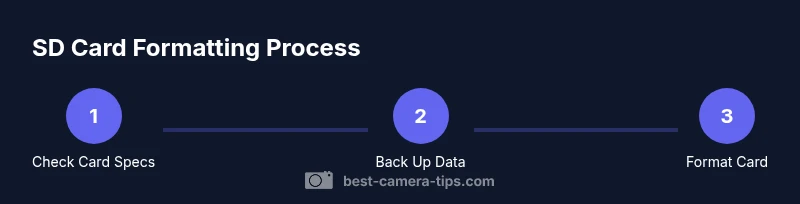
- 1
Check card specs
Inspect card capacity and type. Confirm camera compatibility and speed class to determine whether FAT32 or exFAT is appropriate.
Tip: If in doubt, start with exFAT for larger cards and FAT32 for 32GB or smaller—then adjust if the camera rejects the format. - 2
Back up existing data
If the card has any files, copy them to a separate storage location. Formatting deletes all data, so losing footage is avoidable with a backup.
Tip: Label backup folders clearly by card model and date. - 3
Choose format method
Decide whether to format in-camera or on a computer. In-camera formatting ensures device compatibility; computer formatting gives more filesystem control.
Tip: If you plan to use the same card across multiple devices, forum guidance suggests consistent filesystem use. - 4
Format in-camera (if chosen)
Navigate to Setup/Storage, select the card, and choose Format. Confirm the action and allow the camera to complete the process.
Tip: Avoid interrupting power during formatting; use fresh batteries if formatting in-camera. - 5
Format on computer (if chosen)
Open Disk Utility or Disk Management. Select the card, set filesystem (FAT32 for small cards, exFAT for large), perform a Quick Format, and eject safely.
Tip: When using Windows, ensure the Allocation Unit Size is at a standard default unless your camera specifies otherwise. - 6
Reinsert and verify
Reinsert the card into the camera and perform a quick capture test. Check that files appear in playback mode and that the camera recognizes the card.
Tip: If any error appears, reformat using the other supported method and retest. - 7
Label and store
Label the card with capacity, format, and date of formatting. Store in a protective case to prevent damage and corruption.
Tip: Maintain a simple rotation schedule to minimize wear on older cards.
Common Questions
Should I format the SD card in the camera or on a computer?
Either method works, but formatting in the camera ensures maximum compatibility with that model. Computer formatting offers more control over the filesystem if your camera supports exFAT or FAT32.
Format in the camera for best compatibility; use a computer only if you need specific filesystem options.
What filesystem should I use for a 64GB card?
Most cameras support exFAT for 64GB cards, but some older units may require FAT32. Always check the camera’s manual for the recommended format.
ExFAT is common for 64GB cards, but verify your camera's supported formats.
Do I need to format a new card before first use?
Yes. Formatting a new card ensures a clean start and avoids issues caused by preloaded test data or hidden partitions.
Yes—format first to ensure a clean start.
Can formatting erase data?
Yes. Formatting erases all data on the card. Back up everything you want to keep beforehand.
Formatting wipes everything, so back up first.
What if the camera can’t format the card?
Format from a computer using the supported filesystem, then reinsert the card into the camera. If issues persist, consult the manual or try another card.
If the camera won’t format, format on a computer and try again.
How can I recover data after formatting?
Data recovery can be possible with specialized tools, but not guaranteed. Stop using the card and attempt recovery soon after formatting.
Data recovery might work, but don’t rely on it—minimize writes.
Watch Video
The Essentials
- Back up data before formatting
- Choose the correct filesystem based on card size and camera support
- Format using the device recommended by the manufacturer
- Verify formatting with a quick test in the camera